
What is AI Coding?
AI Coding is an AI Assist feature designed to facilitate your coding process while giving you complete control over the analytical work. With AI Coding, you can use AI Assist to analyze one or more documents and receive text segment coding suggestions based on your specific coding criteria. This automated coding approach ensures AI adheres to your analytical perspective.
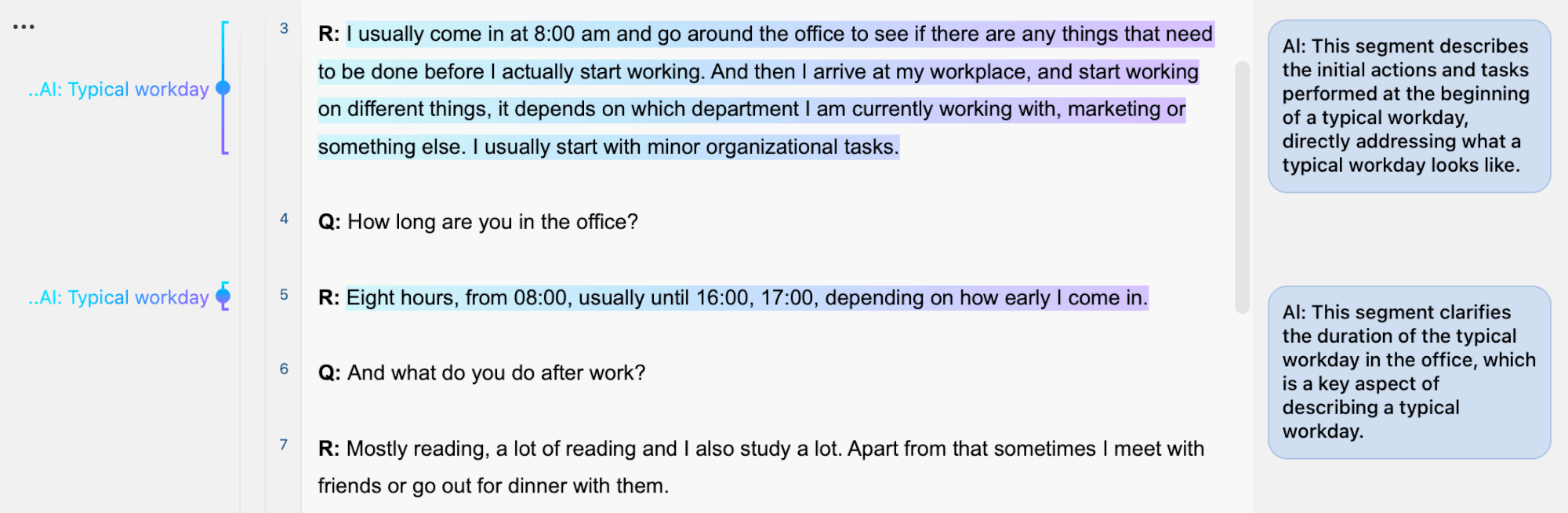
AI Coding in MAXQDA offers more than just a way to automate a document's initial coding. It can also serve as a powerful tool for enhancing and refining your manual coding process.
Whether coding a document from scratch or reviewing a fully coded project, AI Assist can act as a second set of eyes, helping you cross-check your work, identify any segments you might have missed, and even highlight differences in interpretation.
A brief overview of the AI Coding workflow
First, you choose the documents and the code you want to apply. Next, you provide a clear code definition, including inclusion criteria and, if appropriate, exclusion criteria. Then AI Assist analyzes the selected documents, applies the code to relevant text segments, and explains the coding rationale. Finally, you review and finalize the AI-suggested segments.
AI Coding works with one code at a time, meaning that every AI Assist coding request can code one or more documents with a single code. This also means you can only run one AI Coding process at any given moment.
How to code with AI Assist
Initial setup and preparation
To get started with AI Coding, you will need to have already created at least one code.
AI Coding works with text and PDF documents. Table documents, including imported YouTube comments, are not supported.
If you are working with a PDF document with headers and footers, we suggest removing them from the analysis before applying AI Coding. This will help ensure more accurate coding suggestions. You can find guidance on how to exclude them at the bottom of the page with notes on working with PDF documents.
Start AI Coding
Once you have a code, you can open the AI Coding dialog from the AI Assist menu or from a context menu.
Start from the AI Assist menu
- Open a text or PDF document and make sure it is displayed in the Document Browser.
- Select AI Assist > AI Coding.
- A dialog opens. Click the ellipsis to open a dialog for selecting documents.
- Select the documents you want to analyze. The dialog displays the number of selected documents and the percentage of your character quota used, so you can adjust the selection to stay within the limits.
- Confirm your document selection.
- Drag a code from the codes window into the dialog. The code memo opens in an editable field, where you can modify it if needed.
- Confirm to start the analysis.
You can also start from the Document Browser toolbar: click the  AI Assist icon and select AI Coding. Then follow the same steps to select documents, add a code, and start the analysis.
Start from a context menu
You can also open the dialog from several context menus. Depending on where you start, certain elements are preselected:
- From a code: right-click a code in the codes window and select AI Assist > AI Coding. The selected code is added automatically.
- From a document: right-click a text or PDF document in the documents window and select AI Assist > AI Coding. The document is preselected.
- From a document group: right-click a document group in the documents window and select AI Assist > AI Coding. All documents in the group are preselected. If you exceed the allowed limits, a dialog for adjusting your selection opens automatically.
The remaining steps are the same as for the AI Assist menu.
Provide a clear code definition in the code memo
The dialog also contains a code memo field, which appears once you add a code. Code memos are crucial to outline a code's intent, define it, and explain when it should be applied.
This is particularly important in AI Coding because the code memo guides AI Assist in understanding your coding intent. Without a detailed memo, AI Assist may misinterpret your intent, leading to less optimal results. A well-defined code memo is key to improving the accuracy of AI Assist in identifying relevant segments. For this reason, never use AI Coding without a code memo. Without one, AI Assist relies on the code name alone, which can be interpreted in different ways.
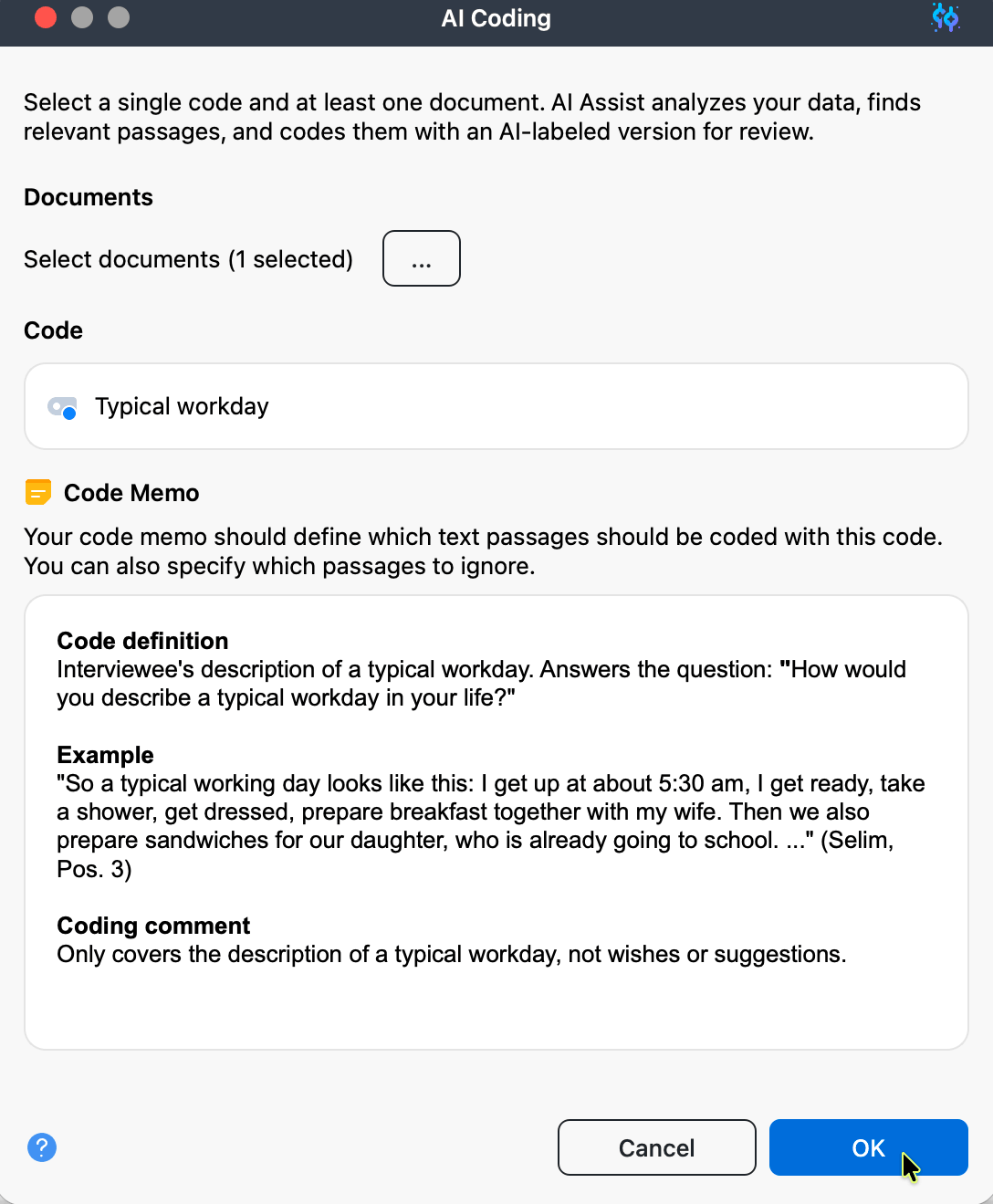
If you have already created a memo, it is displayed in the dialog, and you can modify it if needed. Alternatively, you can create a new one on the spot. Any changes you make to the code memo in this dialog are reflected in the selected code's memo.
How to get the most out of your code memo
A typical code memo has the following structure:
- Code definition: a clear and detailed description of what the code represents.
- Inclusion criteria: the scope of text that should be coded with this particular code.
- Exclusion criteria (optional): information about what should be excluded from coding. Exclusion criteria can improve AI Coding results by reducing ambiguity.
- Examples (optional): hypothetical or actual examples of text segments that illustrate when to include or exclude the code. Examples may help AI Assist better understand your intentions and context, but they may also narrow the scope of the coding process and reduce the number of identified segments.
Process document(s) with selected code
After you start the analysis, AI Assist analyzes your documents, identifies relevant segments based on the code definition, and generates a new subcode that nests under the original code.
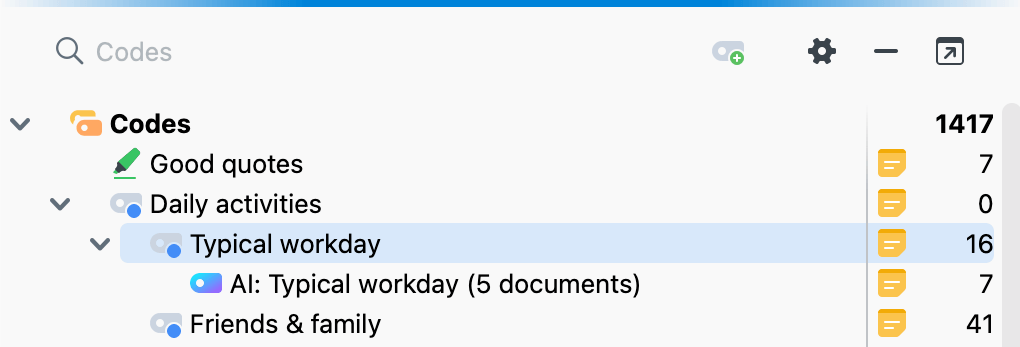
AI-generated subcodes are distinguishable by their unique colors and naming conventions, making it easy to differentiate them from manually applied ones.
When AI Coding processes multiple documents, a single AI-generated subcode is created for all selected documents. The code memo of the AI-generated subcode automatically includes the number of coded segments created for each document.
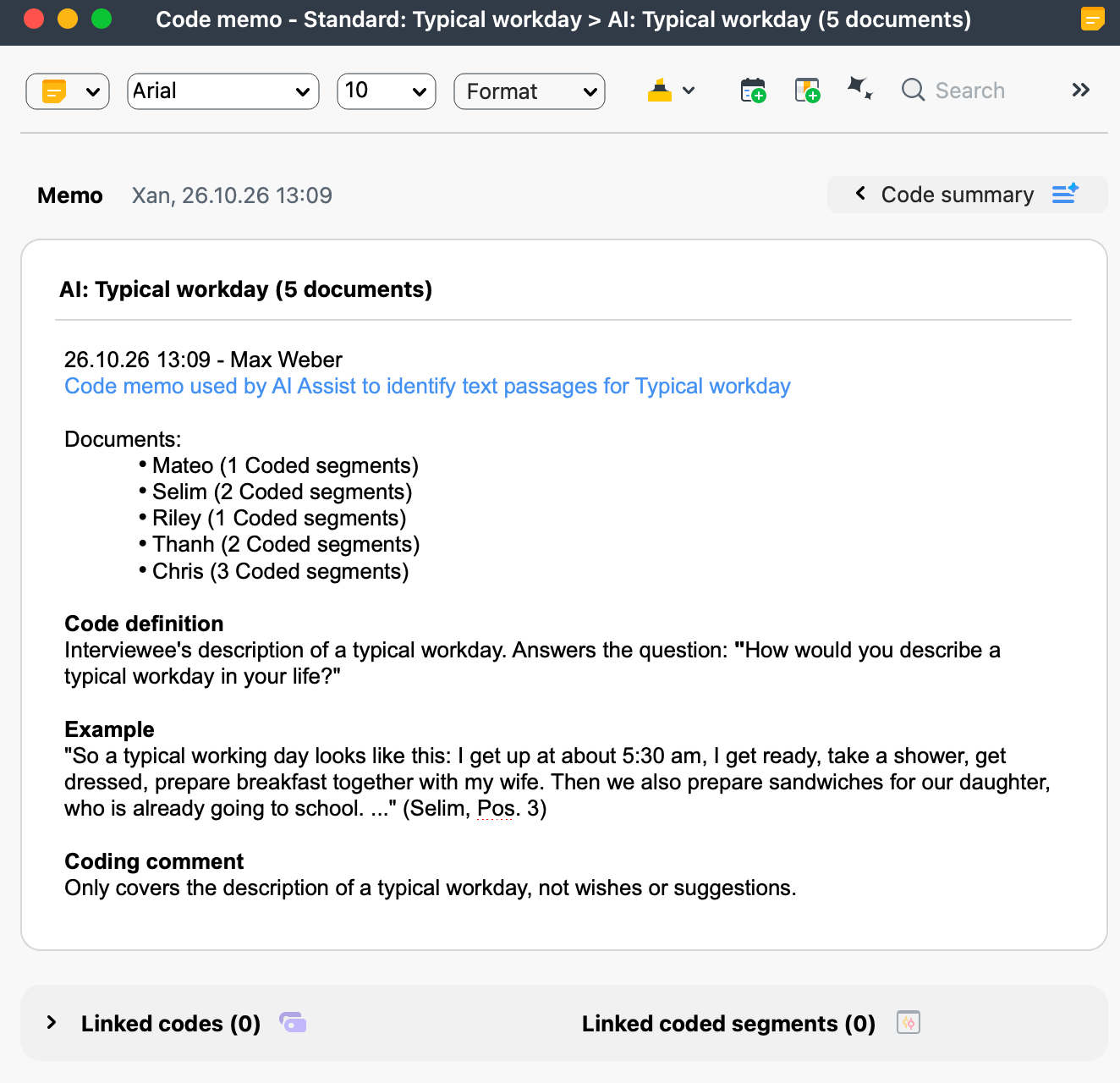
Once the analysis is complete, MAXQDA automatically navigates to the first coded segment in your document, and you can start reviewing the coding suggestions.
If AI Coding does not identify any segments, MAXQDA notifies you. In this case, you have the following options:
- Restart the process with an updated code memo.
- If you are confident that matching segments exist in the document, retry the process using the same code memo. AI Assist may produce slightly different results on subsequent runs and potentially identify additional segments.
However, keep in mind that AI Coding is not flawless. It is essential to carefully and critically review the results and manually refine them as needed.
Review AI-generated coding suggestions
Once AI Assist has completed coding your documents, it is time to carefully review the AI-generated segments to ensure they align with your analytical framework.
Here are typical actions for reviewing and refining the suggestions of AI Assist:
- Consider the AI-added comment: each segment includes the rationale AI Assist provides for why the segment was autocoded. If you do not want to keep a segment, right-click its coding stripe in the Document Browser and select Delete from the context menu.
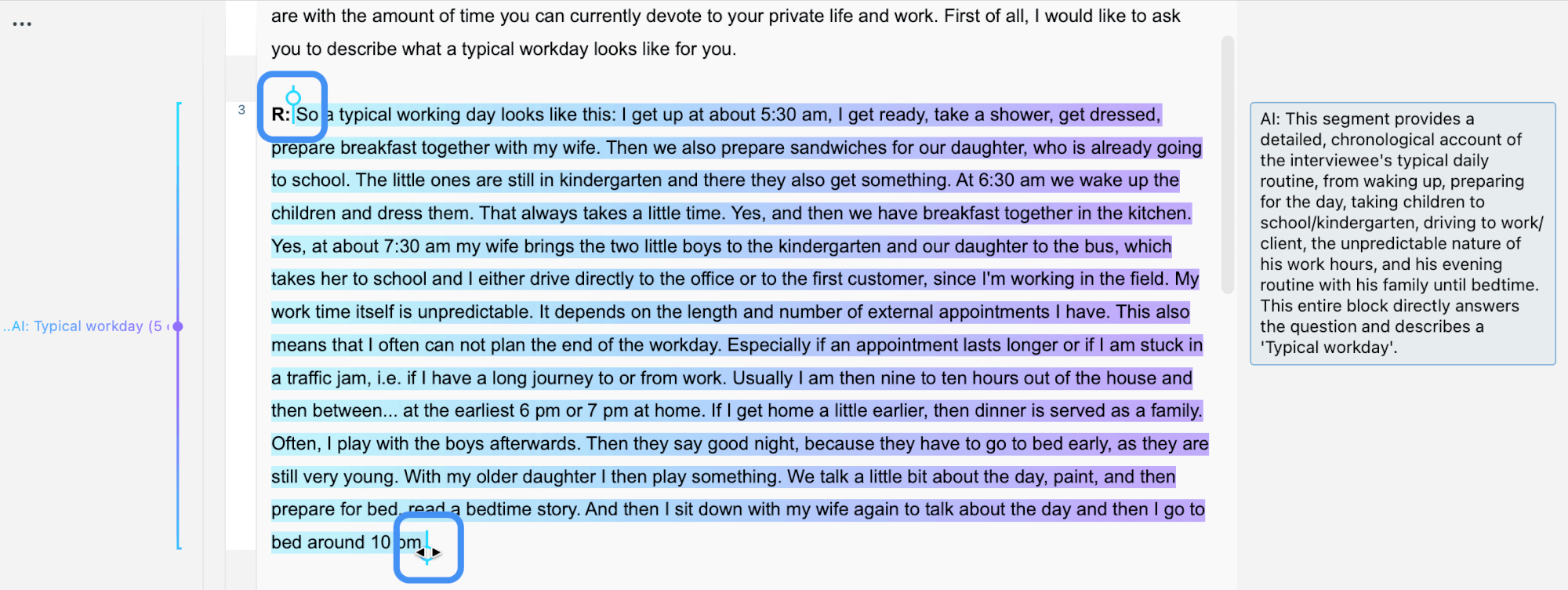
- Adjust segment boundaries: the granularity or scope of the suggested segments may differ slightly from your coding approach. To refine the boundaries, select a coded segment by clicking its coding stripe, then drag the code grabbers.
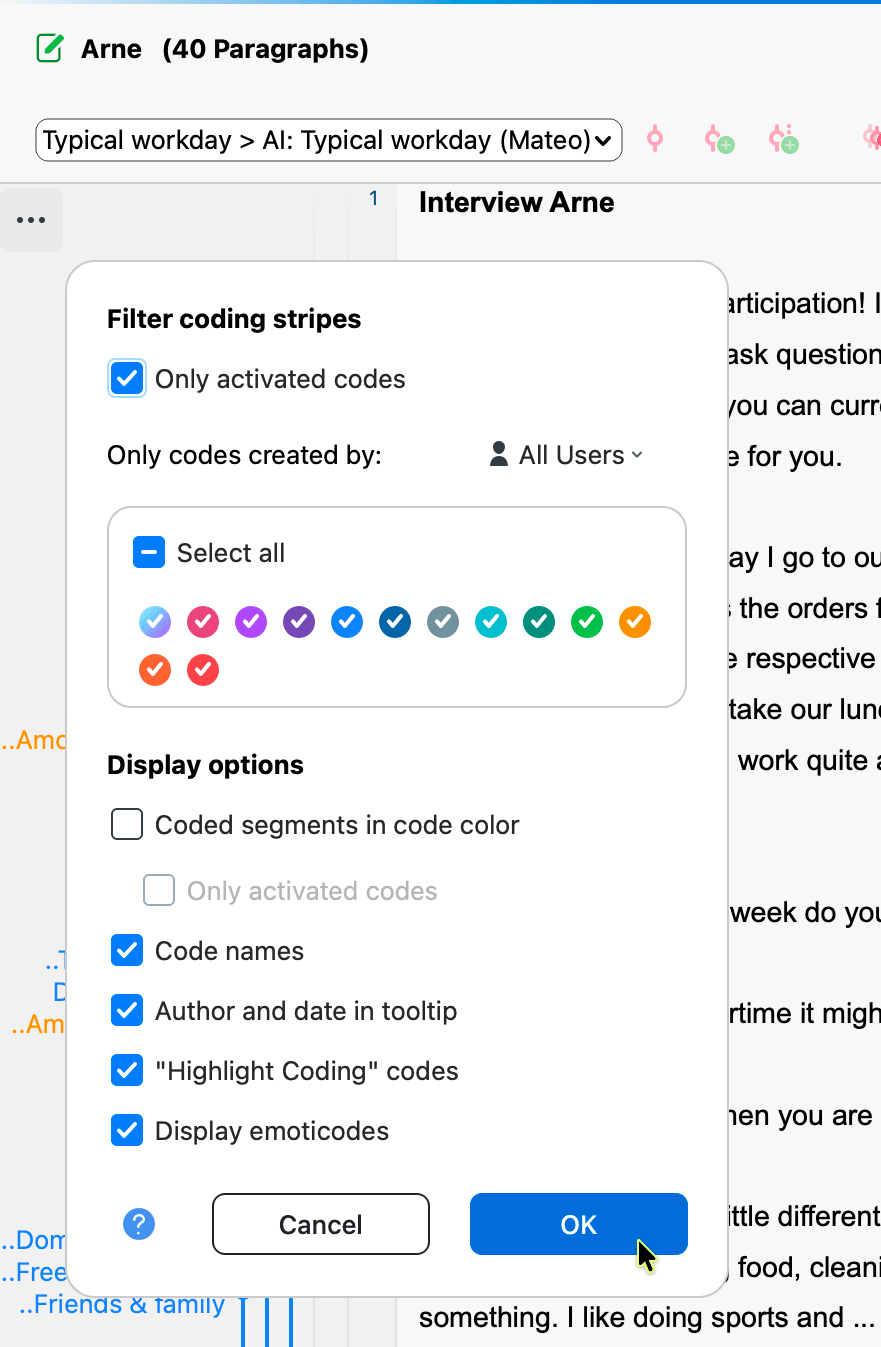
- Filter displayed codes and coding stripes: when you work with multiple codes, the coding stripe column in the Document Browser can become cluttered. To focus on specific codes, activate them and select Only activated codes in the coding stripe visualization options.
Integrating AI-generated codes into your code system
After reviewing and refining the AI-suggested segments, the next step involves integrating the AI-generated subcodes and their respective coded segments into your coding scheme. To do this, you can use one or more of the following methods:
Move AI-coded segments to the parent code
You can move AI-coded segments directly into the parent code (i.e., the manually created code). This can be done by moving all coded segments at once or one segment at a time.
All segments at once via segment moving
To move your reviewed coded segments from the AI-generated subcode to the parent code, follow these steps:
- Right-click the AI-generated code.
- Select Move Coded Segments from the context menu.
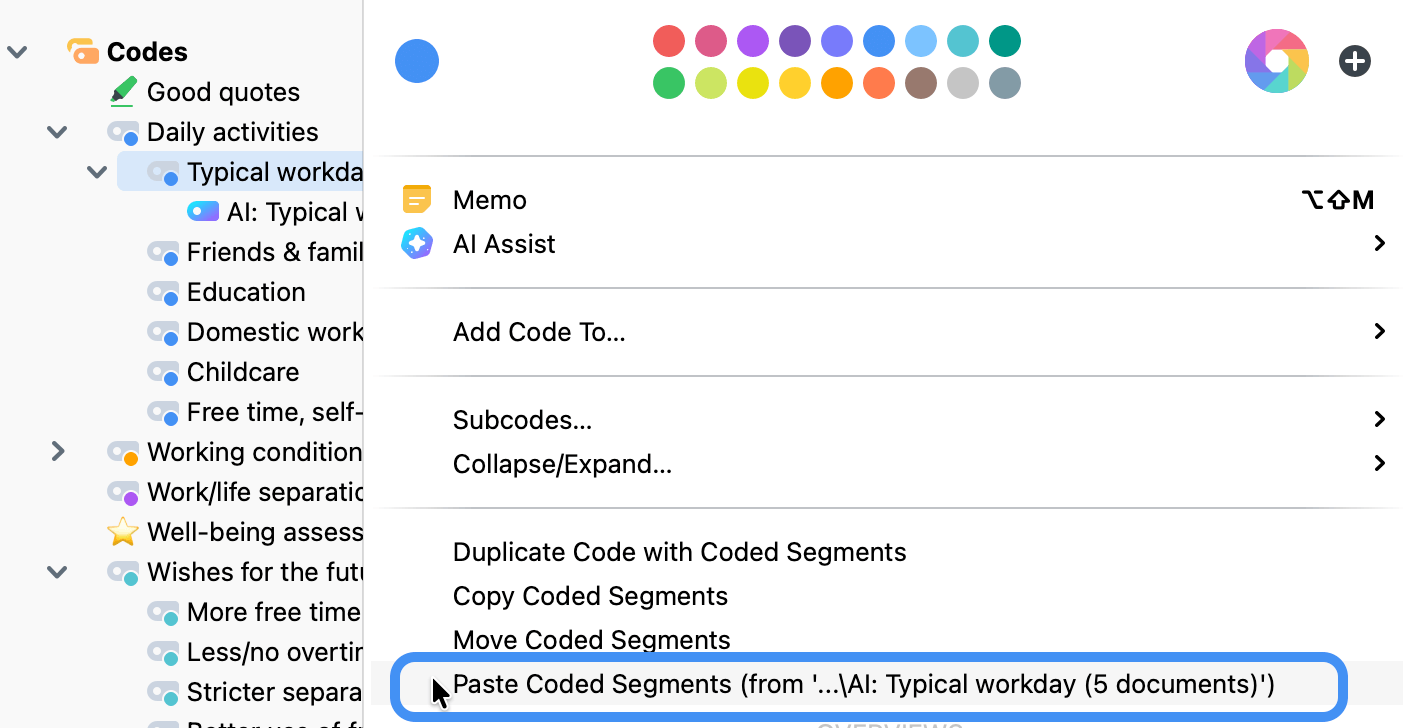
- Right-click the target code.
- Select Paste Coded Segments (from 'Origin code's name').
- If the AI-generated code is now empty and you no longer need it, you may delete it.
Segment-by-segment
To reassign segments to a different code while reviewing each one:
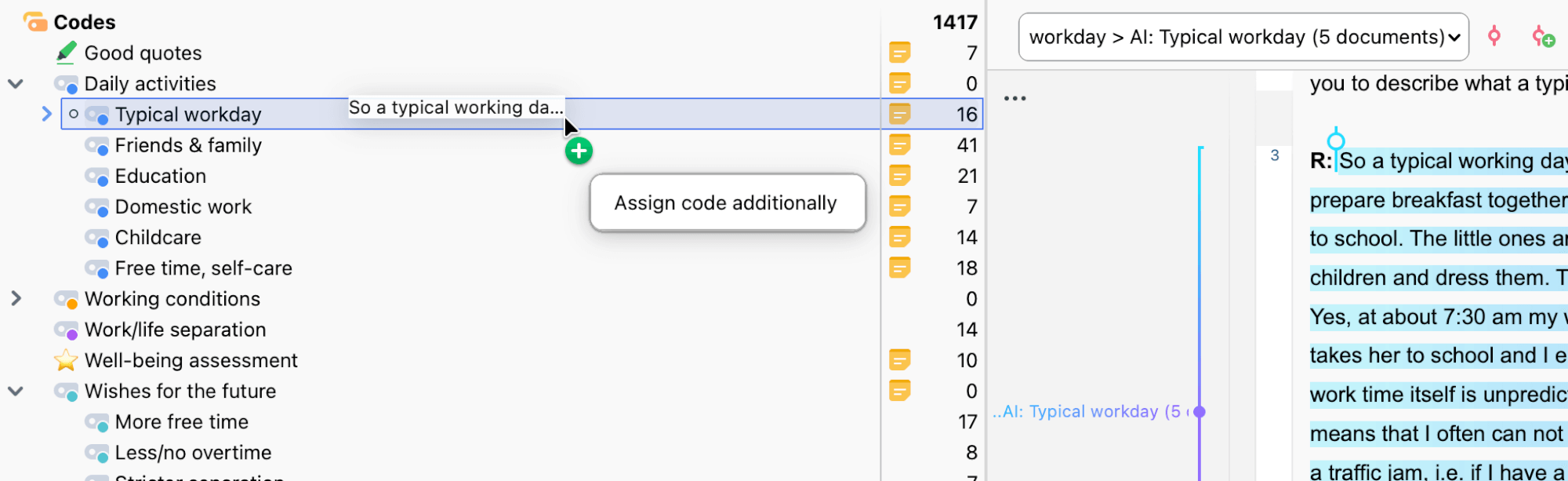
- To additionally assign the parent code to a segment, drag its coding stripe from the Document Browser onto the desired parent code in the codes window. This works like copying and pasting a coded segment onto another code.
- As soon as you have assigned all relevant coded segments to your parent code, you can safely delete the AI-generated subcode.
How to move and sort your codes
Modify AI-generated subcodes
- Rename the code: if you prefer not to move the coded segments into the parent code, you can rename the AI-generated subcode. This is useful when you are satisfied with the AI coding but want to preserve the coding hierarchy or finalize the code without the "AI" label.
- Change the code's color: you can also change the color of the code. AI Assist applies a unique color to AI-generated subcodes, but you can adjust it to match your existing color scheme. Changing the color is permanent and cannot be undone.
Notes on reproducibility
The MAXQDA team regularly refines AI Coding to improve coding quality while keeping results as stable as possible. When thinking about reproducibility, it helps to distinguish two cases: repeating a coding run immediately (short-term) and repeating it after new MAXQDA versions have been published (long-term).
Short-term reproducibility
- If you run AI Coding again immediately on the same data, using an identical code definition in the code memo, you will usually get the same results.
- When small differences do appear, they stem from the technology itself: large language models work probabilistically and occasionally produce slightly different results that carry the same meaning.
Long-term reproducibility
- AI Coding is updated only occasionally, and not every MAXQDA update affects it.
- Updates refine the AI analysis process and may introduce more capable models. The updates are usually applied to earlier MAXQDA versions as well.
- Some coding results may change when you run the analysis again, but the overall trend is an improvement in AI Coding.
- That is why the MAXQDA AI Lab thoroughly tests every update to keep reliability and validity consistently high.
The research perspective
- Even human coders are not expected to reproduce their work perfectly; a reliability value of Krippendorff's Alpha > 0.8 is already considered very good.
- In internal testing, MAXQDA exceeds this threshold over both the short and long term, and reaches 1.0 on immediate repetition.
- Reproducibility (the same coding) and validity (an appropriate coding) are two different things: small differences do not undermine substantive validity.
- So differences are not errors in themselves. A passage might be added here or omitted there, or a justification phrased slightly differently, just as it would be between two human coding runs.
Reproducibility in qualitative research
- In qualitative research, exact reproducibility is viewed with caution from the outset, since coding is interpretive and context-dependent. What matters here is dependability, transparency, and a clear audit trail documenting how the analysis was carried out.
- The more abstract a code is, and the broader its interpretation in the code memo, the more likely differences become with repeated use, exactly as they would be with human coding.
Recommendations
- Write clear code definitions, as described above, with meaningful inclusion and exclusion criteria and notes on how to distinguish neighboring codes; this strengthens both consistency and validity.
- Keep definitions broad enough that relevant passages are not missed, while keeping in mind that a broader interpretation can introduce slightly more variation.
- Before coding larger volumes of data, run a pilot coding on a small sample to check whether the definitions work as intended, and refine them where necessary.
- For transparent documentation, record the MAXQDA versions you used and the date the analysis was carried out.
For more on AI Coding and reproducibility, see the free guide on AI-assisted qualitative data analysis.
Further considerations
When working with AI Assist, keep in mind:
- If you analyze texts with critical content (violence, hate speech, bullying, etc.), AI Assist may refuse to code the document.
- The time it takes to receive a response may vary depending on the number of requests in the queue.
- Documents with fewer than 500 characters trigger a warning because they are too short for analysis. Upper character limits apply based on your AI Assist subscription tier.
To learn how MAXQDA safeguards your data and privacy in AI Assist, see our page on data protection for AI Assist.
