
After using MAXQDA's built-in automatic transcription service, the AI-generated transcript usually needs review and correction. For example, you may need to replace speaker abbreviations with names, correct misidentified words, handle simultaneous speech, or add nonverbal cues.
You can edit the transcript in two main ways:
- Edit the text directly: Make text corrections without playing back the recording. This is useful for quick cleanup tasks, such as replacing speaker labels.
- Edit while listening: Play back the original recording while editing the transcript to check accuracy.
Edit the transcript text
To edit a transcript without playing back the recording, switch to  Edit Mode using the mode switcher in the Document Browser.
In Edit Mode, you can type, delete, and format text directly in the Document Browser. To learn more about editing text documents, see Editing Text Documents and Tables.
MAXQDA automatically saves your changes every five minutes and again when you exit Edit Mode. You can adjust the autosave interval in  MAXQDA's settings.
Find and replace speaker labels
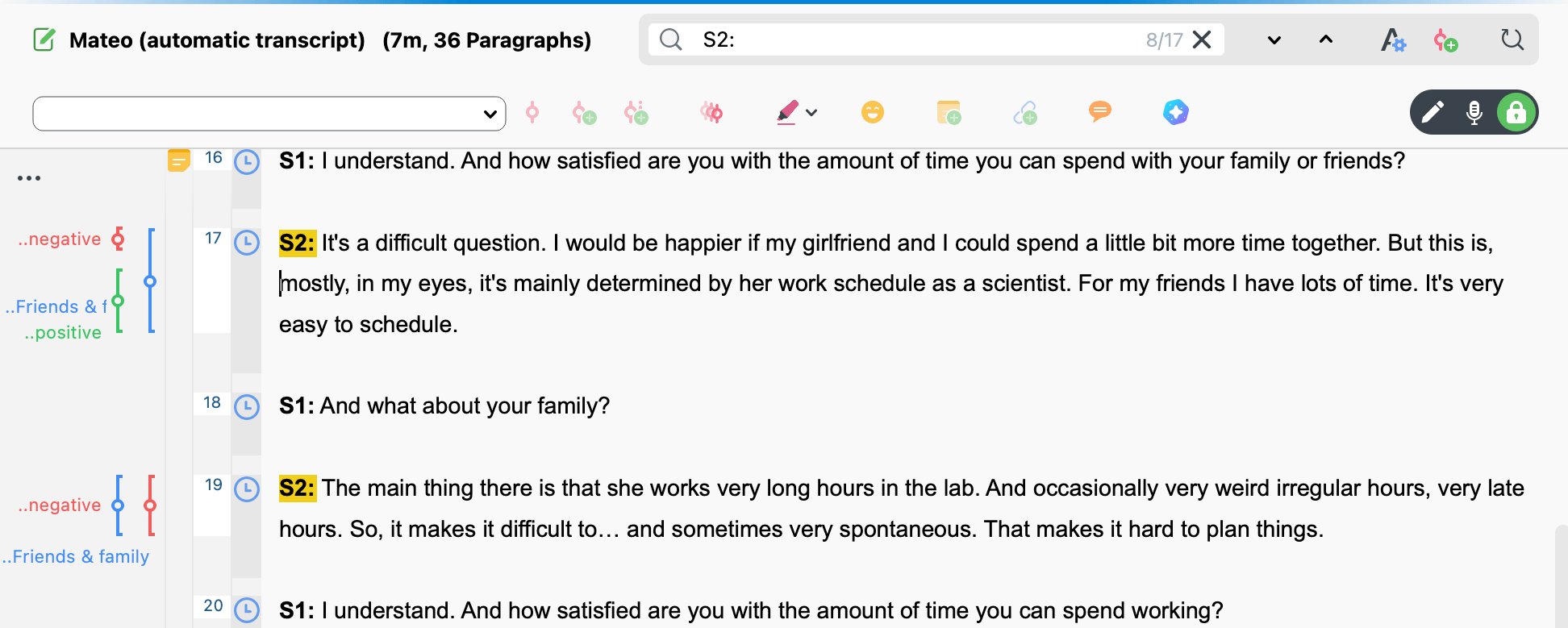
Automatic transcription may generate speaker identifiers such as "S1:" or "S2:". You can replace these identifiers throughout the transcript with speaker names, pseudonyms, or role labels.
- Enter the identifier you want to replace, including the colon (e.g., "S1:"), in the search bar above the transcript.
- Press Enter. MAXQDA highlights all matches.
- Click the
 Find & Replace button.
 - Enter the replacement label with a colon (e.g., "Mateo:") in the new field.
- Click Replace All.
 Find & Replace button.
 Replace All.
Edit while listening
To check the transcript against the original recording while editing, switch to  Transcription Mode using the mode switcher in the Document Browser.
In Transcription Mode, the playbar at the bottom of the Document Browser is active, so you can control playback while editing the transcript. For a complete overview of Transcription Mode and its settings, see Manual Transcription.
Basic playback controls
- Play and pause: Press F4 or F5, or double-click Ctrl (Windows) / Shift ⇧ (macOS). You can also use the and buttons in the playbar.
 and
and  buttons in the playbar.
- Rewind and fast forward: Use the arrow keys for small increments, or the and buttons for five-second jumps. Use the timeline slider for larger jumps.
- Volume and playback speed: Click the settings icon in the playbar.
- Rewind interval: When you resume playback, MAXQDA automatically rewinds by a short interval so you can re-read what you just edited. Adjust the default two-second interval (0–10 seconds) in the Transcription Settings.
 and
and  buttons for five-second jumps. Use the timeline slider for larger jumps.
 settings icon in the playbar.
To exit Transcription Mode, switch back to Edit Mode or  View Mode using the mode switcher. MAXQDA saves all changes automatically.
Use additional transcription features
The following features are available in the Transcription Settings and can help streamline your editing workflow.
- Timestamps: Timestamps link positions in the transcript to the corresponding point in the recording. You can add, edit, or delete them during or after transcription. See Link Transcript to Recording with Timestamps for details.
- Abbreviations: Define short abbreviations that expand automatically when you type them, followed by two spaces, for example, "Q:" for Questioner or "R:" for Respondent. You can define up to 15 abbreviations per project.
- Automatic speaker change: When editing a two-speaker recording, enable Automatic Speaker Change in the Transcription Settings. Each new paragraph begins with the configured name, pseudonym, or abbreviation for each speaker. You can also bold the speaker labels.
Tips for efficient editing
- Start by skimming the transcript to understand its overall structure and content.
- Check whether each speaker is correctly identified and labeled.
- Add or correct punctuation as needed.
- When editing while listening:
- Use headphones for better audio clarity.
- Pause and rewind often to capture details accurately.
