
The Overview of Memos provides a tabular view of all memos in your project, or a filtered selection from a specific document, document group, or document set.
- You can open the overview of all project memos by going to Memos >
 Overview of Memos in MAXQDA's main menu, see image below.
 - Alternatively, you can compile all memos of a document, group, or set in the Document window by right-clicking the relevant row and choosing Memos from the "OVERVIEWS" section of the menu.

The overview window
Each memo appears as a row in the table. Clicking a row displays the memo content in the preview pane at the top of the window, so you can scroll through memos without opening individual memo windows.
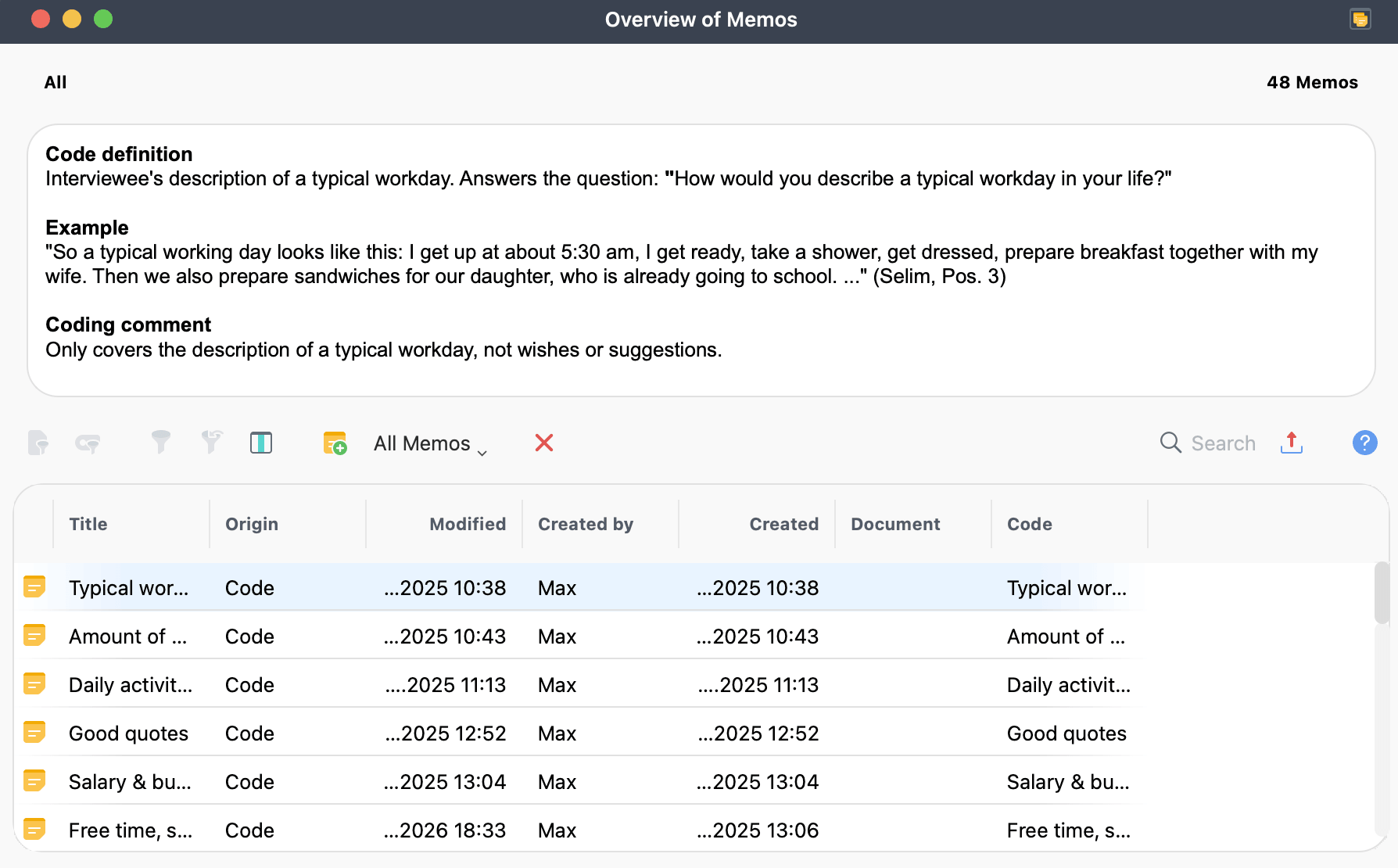
The table columns provide key details about each memo, including:
- The name of the item the memo is attached to (for example, a document, group, set, or code).
- For memos attached to document segments, the paragraph number of the segment.
- The memo’s author.
- The date it was last edited.
- A preview of the memo text (the first 63 characters).
- The memo’s origin, indicating the type of memo (for example, “Code” for a code memo or “Document” for a document memo).
Memos cannot be edited directly in the preview panel. To edit a memo, double-click its row to open the memo window.
To delete a memo, select its row and either right-click and choose Delete Memo, or click the  Delete icon in the toolbar. To delete multiple memos at once, use Cmd (macOS) / Ctrl (Windows) to select non-contiguous rows, or Shift to select a range, then right-click and choose Delete Memo or click the Delete icon.
Like all MAXQDA overview tables, you can adjust column width and order with the mouse, or right-click a column header to change the visible columns. Click a column header to sort it in ascending order; click again to sort in descending order.
Filtering the memo list
Filtering columns
Like all MAXQDA overviews, the Overview of Memos can be filtered by any column. Right-click a column header and select Set filter to apply a filter. This is particularly useful for isolating memos by type, author, or date.
For more information, see Filtering table overviews.
Using predefined filters
You can limit the scope:
 Only activated documents - Lists only memos from documents that are activated in the Documents window.
 Only activated documents - Lists only memos from codes that are activated in the Codes window.
The toolbar also includes a predefined filter dropdown for quickly narrowing the list by memo type, user, or other criteria. Options include code memos, document memos, free memos, memos by a specific user, as shown in the image below:
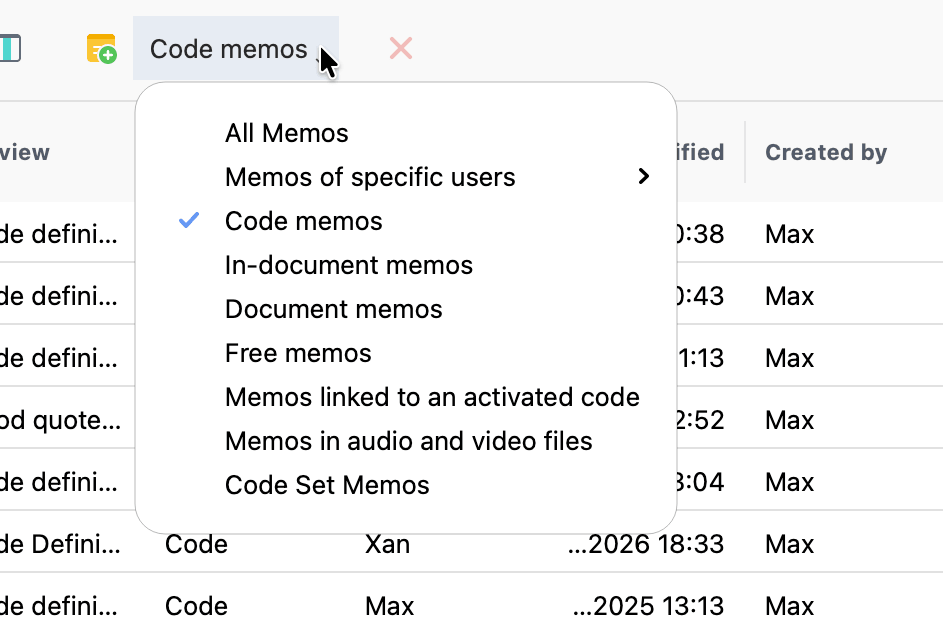
These filters work independently from the column filters described above.
Searching in the Overview of Memos
You can search the memo list in two ways, depending on what you need:
- Search within a specific column: Right-click a column header and select Search. Matches are highlighted immediately, and you can navigate between them using the up and down arrows. To include additional columns in the search, click the Choose search columns when you right-click.
- Search across all columns: Click the Search icon in the toolbar to activate the search bar. This automatically searches across all columns at once.
 Search icon in the toolbar to activate the search bar. This automatically searches across all columns at once.
When you search the preview column, only the first 63 characters of each memo are included. To search the full text of all memos, use Memos > Search in Memos.
Jumping to the memo origin
The Overview of Memos is interactively linked to the locations where memos were created. Clicking a row navigates MAXQDA to that memo's origin:
- In-document memos — the source document opens in the Document Browser, positioned at the memo's location in the text.
- In-media memos — the media file is positioned at the corresponding point, but only if the Media Player is already open.
- Code memos — the relevant code is selected in the Codes window.
- Document memos — the relevant document is highlighted in the Documents window.
Creating a free memo
You can create a new free memo directly from the Overview of Memos toolbar using the New Free Memo  icon.
icon.
 Overview of Memos, from the Memo Manager, or by right-clicking the top entry in the Documents window.
Exporting memos
You can export all memos in the Overview of Memos using the export icon in the toolbar, and choosing between these options:
 Open as Excel table — creates and opens an Excel file.
 Open as HTML table — creates an HTML file and opens it in your default browser.
 Export — exports as a Word file (DOCX) with memo texts as running text or as a table, or as an Excel file (XLSX), a web page (HTML), or other formats.
The entire table is exported by default, unless you have selected specific rows.
To export code memos as a codebook with category definitions, use Reports > Codebook. See Creating a codebook with category definitions for details.
