
If you prefer not to use MAXQDA Transcription for automatic transcription, you can transcribe audio and video files manually. To get started, first import the media file into your project, see Audio and Video for details. When prompted about transcription during import, select Import only. In the documents window, you can identify documents with linked media by their play icon: blue for video, orange for audio.
Activating Transcription Mode
There are two ways to start transcribing:
- Right-click the document in the documents window, open the Media File section, and select Transcribe Audio (or Video) File > Transcribe Manually.
- Alternatively, open the document and toggle the three-way mode switcher to Transcription Mode.
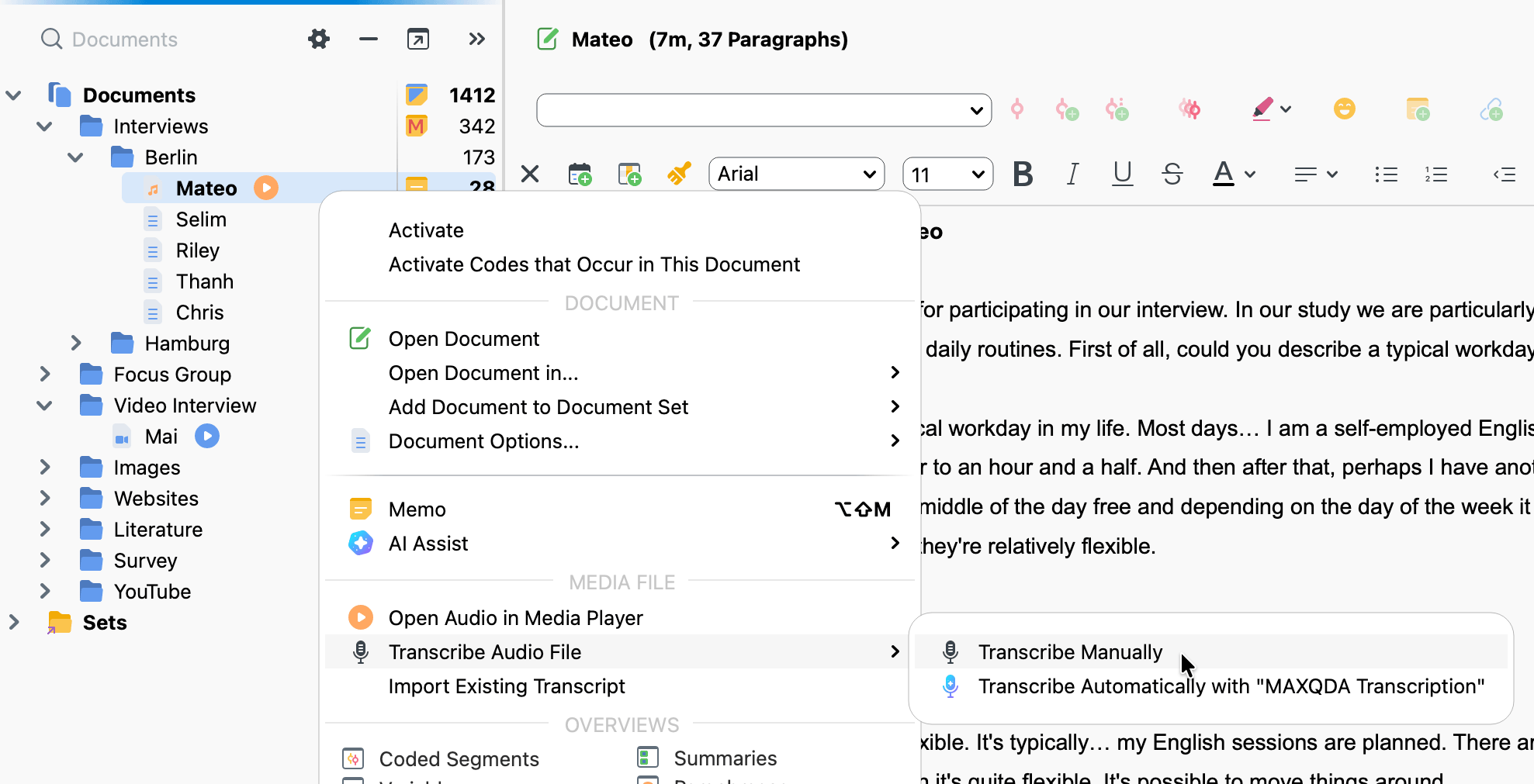
Transcription Mode opens the Transcription Settings dialog automatically and switches the document to an editable text area where you can type your transcript. The playbar at the bottom of the Document Browser lets you control playback as you type.
Starting the transcription
Once Transcription Mode is active, play the recording and start typing. To play and pause:
- Press F4 or F5
- Press Ctrl (Windows) or Shift ⇧ (macOS) twice in succession
To navigate within the recording, use F12 and Shift+F12 to skip forward or backward 5 seconds, or drag the playhead in the playbar.
The transcript and the recording are linked using timestamps, and the timestamp column is always shown in Transcription Mode. For details on working with timestamps, see Linking Transcripts with Timestamps.
The transcription text is saved automatically to the project file every 5 minutes. You can change this interval in MAXQDA's general settings.
Stopping and resuming transcription
To exit Transcription Mode, click the mode switcher in the Document Browser and select Edit Mode or View Mode.
To resume, reopen Transcription Mode the same way.
Adjusting playback settings
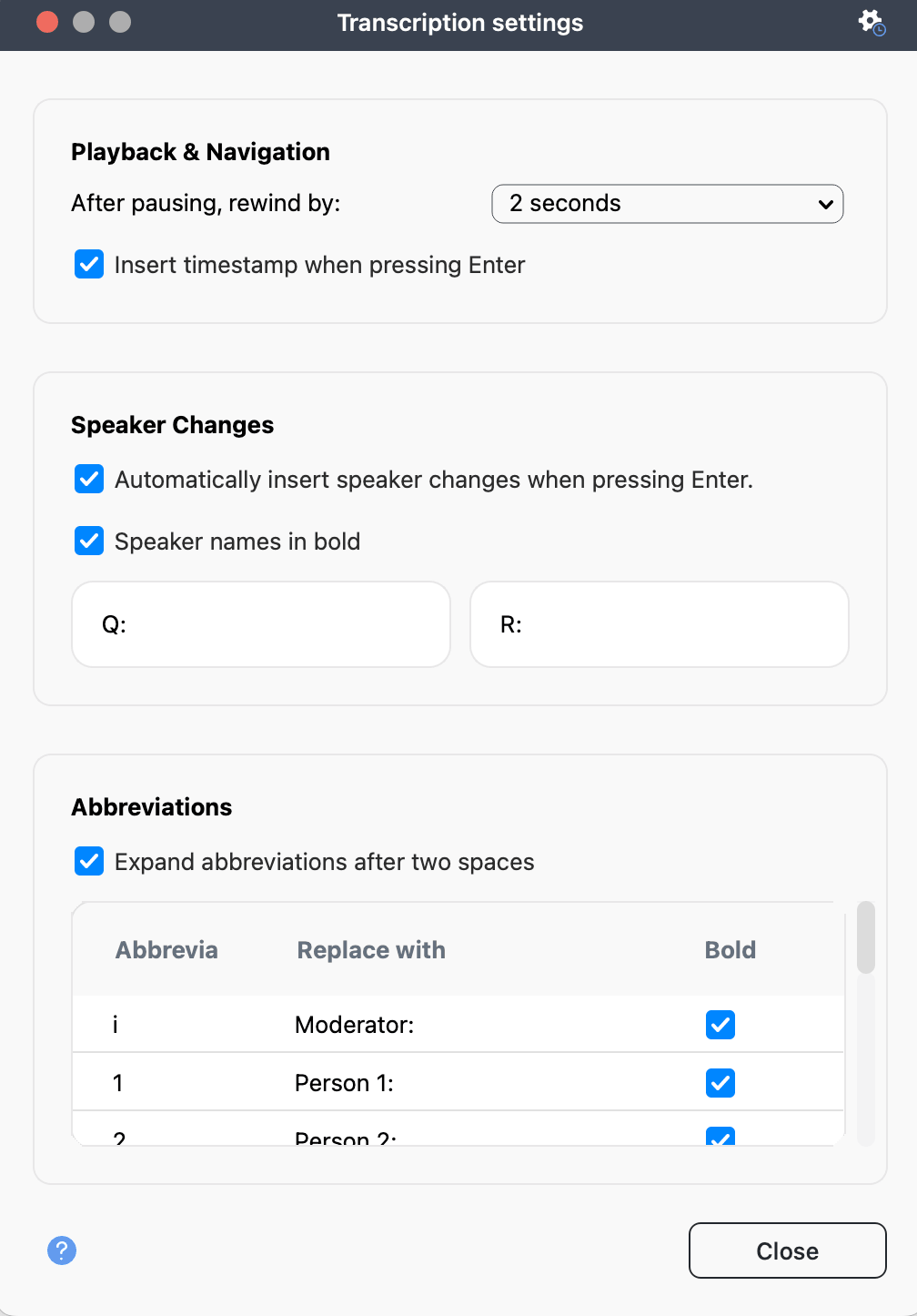
To adjust the rewind interval, open the transcription settings via the  settings icon in the playbar and select Transcription settings. Under Playback & Navigation, you can set how many seconds MAXQDA rewinds after a pause (default: 2 seconds). You can also control whether a timestamp is inserted automatically each time you press Enter by toggling the Insert timestamp when pressing Enter checkbox.
To adjust volume, use the volume control in the playbar. To adjust playback speed, click the settings icon and select Playback Speed.
Speaker changes
When transcribing a recording with two speakers, you can have MAXQDA automatically insert a speaker label at the start of each new paragraph. In Transcription Settings, under Speaker Changes:
- Check Automatically insert speaker changes when pressing Enter.
- Enter a name, pseudonym, or abbreviation for each speaker in the fields provided. Adding a space or colon at the end saves typing.
- Check Speaker names in bold if you want the labels to stand out visually.
MAXQDA then alternates between the two names with each paragraph, so you only need to type the spoken content.
Abbreviations
In transcription settings, under Abbreviations, you can define shorthand that expands automatically when you type it followed by two spaces. This is useful for frequently used phrases, speaker names in group discussions, or transcription conventions like "(unintelligible)" or "(2)" for a 2-second pause.
MAXQDA includes default abbreviations for new projects. Abbreviations can be up to three characters long, and you can check the bold option to insert the expanded text in bold. To disable the feature entirely, uncheck Expand abbreviations after two spaces.
A maximum of 15 abbreviations can be stored per project. Abbreviations are stored in the project file, so they remain available across different computers.
Transcribing with a foot pedal
For faster transcription, MAXQDA supports the following foot pedals from Audiotranskription:
- The yellow Science switch works like F4 or F5: press once to play, press again to stop.
- The black Science II switch plays while held down and stops when released.
- The Office footswitch has three buttons: press the left button to rewind 5 seconds, the right button to fast forward 5 seconds, and hold the middle button to play; release to pause.
Coding while transcribing
You can code text as you transcribe. Select a text segment and drag it to a code in the codes window. All standard features of the Media Player are also available; you can highlight and code sections of the recording, attach memos, and set internal links directly in the audio or video file.
