
The Smart Coding Tool is designed for working with coded segments and is particularly useful for:
- Getting an overview of the contents coded with a code,
- Reviewing and, if necessary, changing relevant codes,
- Customizing your code system, particularly by differentiating parent codes or merging codes.
Opening the Smart Coding Tool
You can open the Smart Coding Tool with all coded segments in your project or with only the segments currently displayed in another window.
- To work with all coded segments in the project, go to Codes >
 Smart Coding Tool.
 - To work with only the segments currently displayed in the Retrieved Segments window or Overview of Coded Segments table, click the Smart Coding Tool icon in the respective window.
 Smart Coding Tool.
When you open the Smart Coding Tool from the Retrieved Segments window or the tabular Overview of Coded Segments, the workspace is limited to the currently displayed segments. The code system shows only the codes assigned to these segments, while non-activated parent codes remain visible to preserve the code hierarchy.
The numbers at the end of the code rows indicate how often each code appears in the selected documents. Only the documents from which the displayed segments originate are activated.
The Smart Coding Tool Workspace
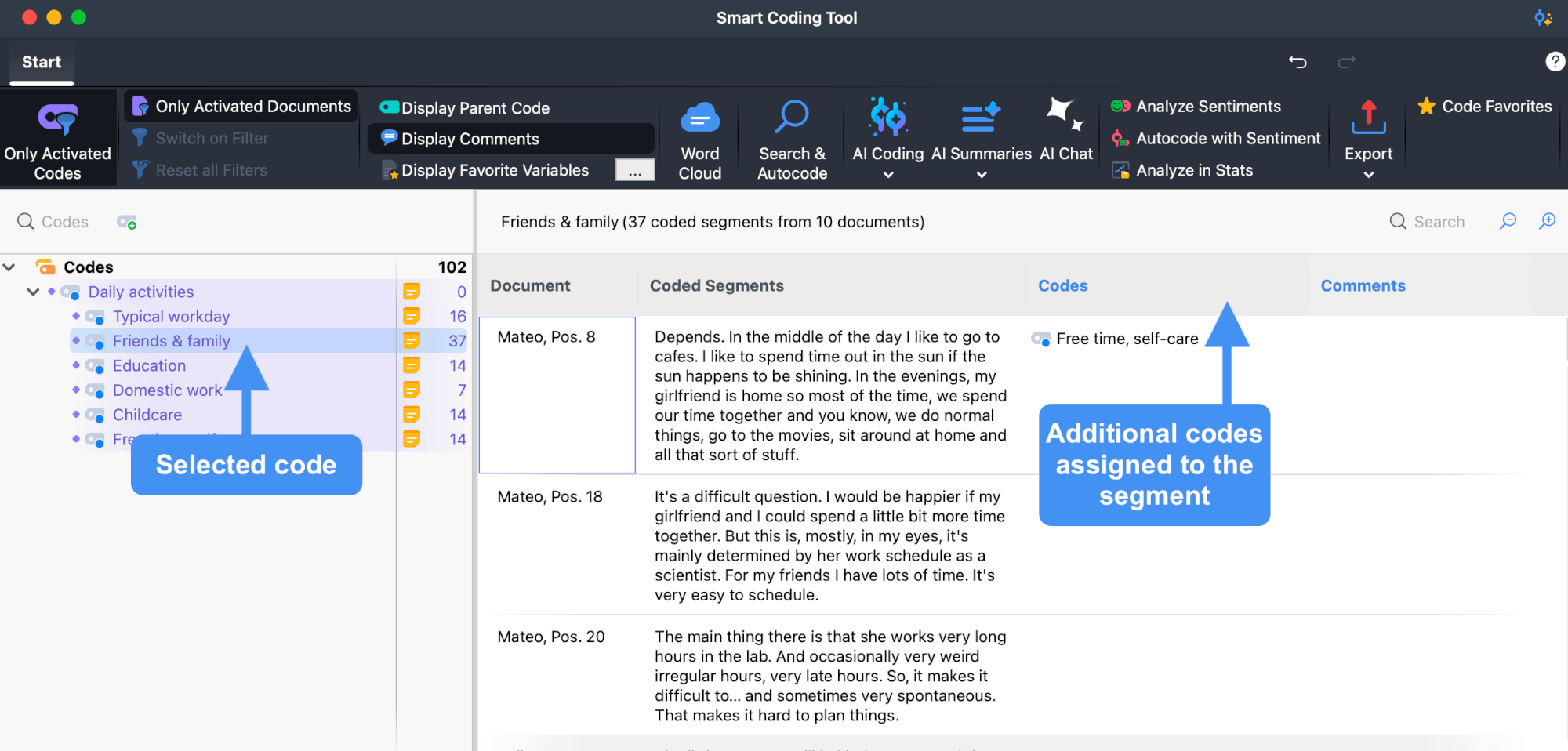
The Smart Coding Tool combines code management and coded-segment review in a single workspace, divided into two main areas: the code system on the left and a table of coded segments on the right.
Code System
The code system lets you select, organize, and manage your codes. Select a code to list all segments assigned to it in the table. The selected code is highlighted in the code tree, and its name appears above the table, along with the number of coded segments and source documents currently listed.
Coded Segments Table
The table lists all coded segments assigned to the selected code, organized across four columns:
Document – The source document from which the coded segment originates.
Coded Segments – The coded content from text, image, and PDF documents.
Codes – Other codes assigned within the area of the listed segment. Only codes visible in the code system on the left are listed here. The selected code and its direct parent code are never shown in this column to avoid redundant information.
Comments – A freely editable text field (max. 511 characters) for adding notes to coded segments.
Columns can be resized and repositioned with the mouse, or hidden by right-clicking a column heading. Click a column heading to sort in ascending order; click again to sort in descending order.
- You can interact with other MAXQDA functions while the Smart Coding Tool is open.
- When opening the Smart Coding Tool from the Retrieved Segments window, the weight filter is ignored — segments that were hidden due to the weight filter will still appear here.
Viewing and Filtering
Use the workspace menu options to control what the Smart Coding Tool displays.
View Options
Only Activated Codes – Restricts the code system to activated codes only. This option is selected automatically when you open the Smart Coding Tool from the Overview of Coded Segments or Retrieved Segments window. When turned off, all codes and subcodes appear.
Only Activated Documents – Restricts the display to coded segments from currently activated documents. Frequencies in the code tree adjust accordingly.
Display Parent Code – Shows the parent code in addition to the code name in the Codes column.
Display Comments – Shows the Comments column.
Display Favorite Variables – Adds columns for each of your favorite variables, such as demographic background information about a respondent. You can define your favorite variables using the button with the three dots.
Filtering
To filter the segments listed in the table, right-click any column heading and select Set Filter. This opens a dialog where you can define filter criteria such as "Contains," "Doesn't contain," or "Starts with." Once a filter is defined, click Switch on Filter in the workspace menu to apply it. To remove all active filters, click Reset all Filters.
Coding Segments
Assigning Codes
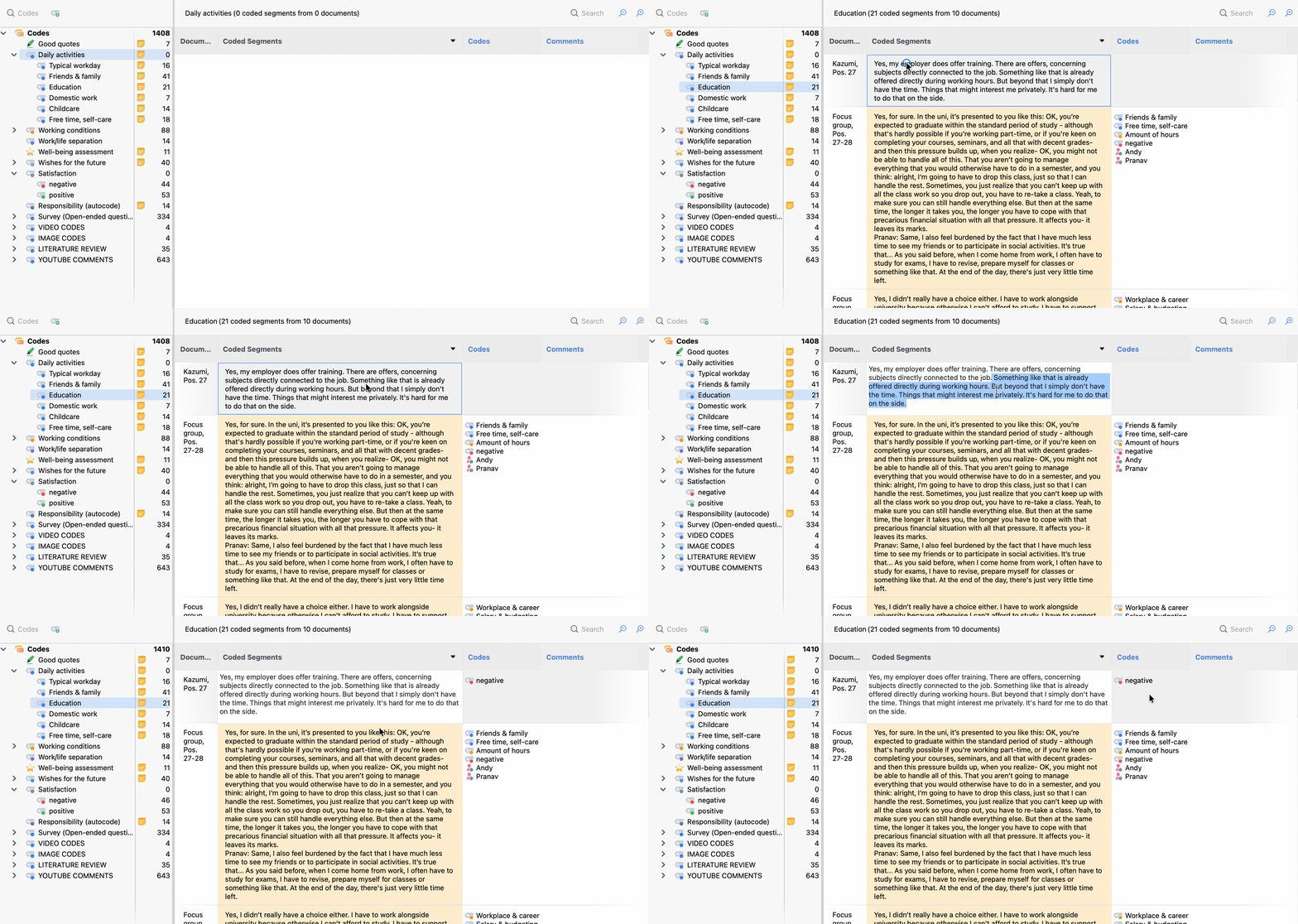
To assign a code to a coded segment, drag the row onto a code in the code system on the left. The newly assigned code immediately appears in the Codes column.
To code only part of a coded segment, double-click the segment text to enter edit mode, select the portion you want to code, and drag it to a code. Even if you assign the same code to multiple sections of a segment, the code name appears only once in the Codes column.
To move a segment to a different code (removing the original code assignment in the process) hold Ctrl (Windows) or ⌘ (macOS) while dragging the row onto the target code. The segment then disappears from the current list.
Using Code Favorites
To code segments using a curated shortlist of codes, click the  Code Favorites icon to open your favorites list. Select part of a segment and click a code in the list to apply it. To add a code to your favorites, drag it from the code tree onto the Code Favorites window.
Creating a New Code
To add a new code directly in the Smart Coding Tool, click the green plus symbol that appears when hovering over an existing code, or use the  New Code icon at the top left of the code system.
Newly created codes are automatically activated and appear in the code system if Only Activated Codes is on.
Removing Codes
To remove a code from a segment, hover over the code in the Codes column and click the  Xdelete icon that appears. All instances of that code within the segment are removed.
Moving and Copying Coded Segments
By default, dragging a segment onto a code assigns that code in addition to any existing codes. To move a segment (replacing the currently listed code) hold Ctrl (Windows) or ⌘ (macOS) while dragging.
To move or copy all segments of one code to another, right-click the source code and select Move Coded Segments or Copy Coded Segments. Then right-click the target code and select Paste Coded Segments (from 'Code xy'). For more information, see Move or copy all coded segments of a code.
Adding Comments
The Comments column lets you add a coding comment to any segmen, useful for analytical notes, process reminders, or messages to team members. To show the column, enable Display Comments in the workspace menu. Double-click a cell to enter or edit a comment.
Customizing Your Code System
The code system in the Smart Coding Tool is fully editable throughout your analysis. You can drag codes to reorder them or nest them as subcodes. Right-clicking a code gives you access to the same management options available in the main code system:
- Delete code
- Sort subcodes (alphabetically or by frequency)
- Change code color
- Create or edit code memo
Searching and Autocoding
Local Search
To search within the segments currently listed, click the magnifying glass at the top right of the table, or press Ctrl+F (Windows) or ⌘+F (macOS). Enter a search term and optionally click the filter icon in the search bar to show only segments that contain a match.
Complex Search and Autocoding
For more powerful searches, click Search and Autocode in the workspace menu. This opens the Text Search window, where you can search for multiple terms using AND logic (optionally limited to paragraphs or sentences) and restrict the search to the segments currently listed using Only in listed segments. The full range of search options is described in Text Search.
After clicking Search, matching segments appear in the right pane:
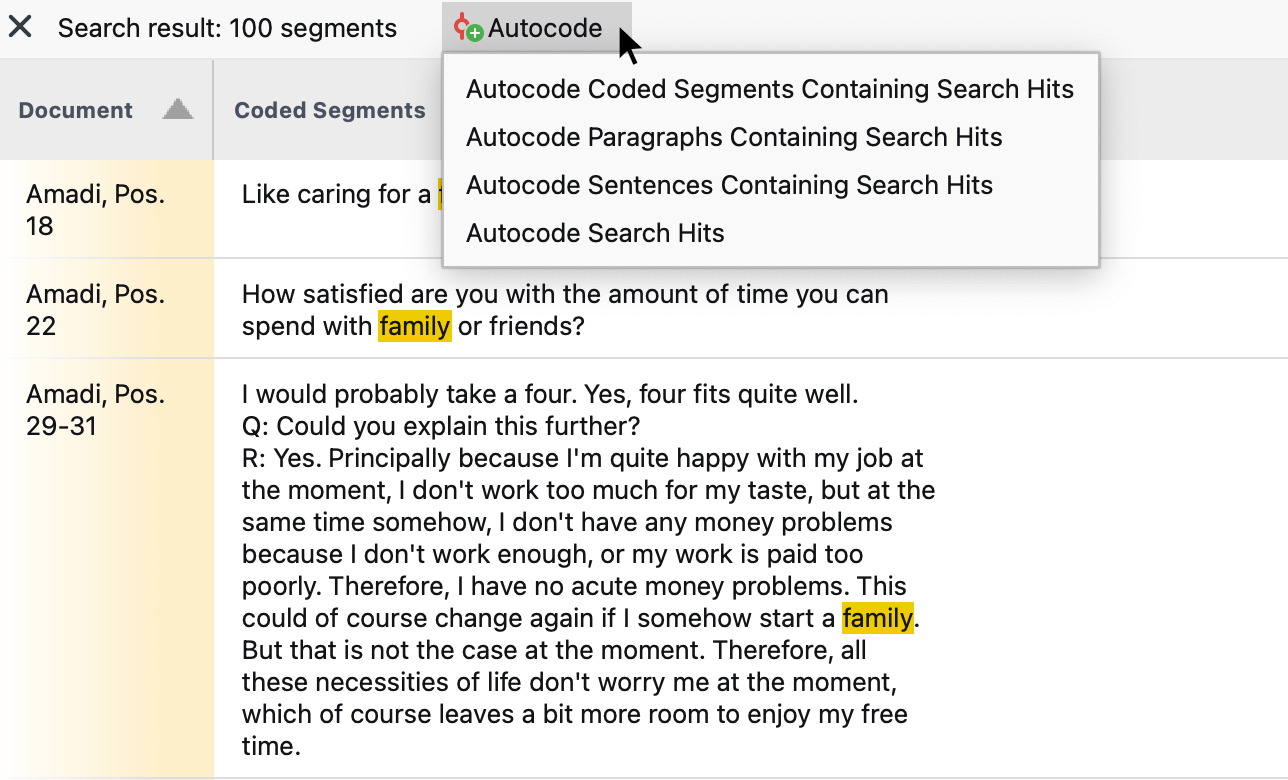
To automatically code the results, click the Autocode icon and choose the context to be coded:
- All coded segments containing the search hit
- All paragraphs containing the search hit
- All sentences containing the search hit
- The highlighted search hits only
A dialog for creating a new code appears. After clicking OK, the code is assigned to the selected context. You can rename the code at any time in the code system.
Undo and Redo
Use the Undo and Redo icons in the top-right corner of the window to reverse or reapply the last action taken in the Smart Coding Tool.
Sentiment Analysis
MAXQDA can automatically classify the coded segments currently listed in the Smart Coding Tool as positive, negative, or neutral. For more information, see Analyze Sentiments.
AI Features
AI Summaries: Summarize Coded Segments (into Comments)
Using AI Assist, you can automatically summarize coded segments:
- To summarize a single segment, right-click it and choose AI Assist: Summarize Segment (into Comment).
- To summarize all listed segments at once, click AI Summaries in the workspace menu and choose Summarize Listed Text Segments (into Comments).
Summaries are saved as comments in the Comments column. For details, see AI Assist: Coded Segment.
AI Summaries: Summarize Coded Segments (into a Code Summary)
To summarize all listed segments and save the result in the code memo, click AI Summaries in the workspace menu and choose Summarize Listed Text Segments (into Code Summary). For details, see AI Assist: Code Summary.
AI Chat
AI Chat lets you interactively explore the coded data. Click the  AI Chat icon in the main menu. Alternatively, right-click a code and choose AI Assist > Chat with This Code's Segments.
For more information, see AI Chat.
AI Coding
AI Assist can analyze the segments listed in the Smart Coding Tool and suggest suitable codes. Click AI Coding in the Start menu to open the dropdown, then select either Suggest Subcodes Based on Listed Text Segments or AI Coding of Listed Text Segments.
For details, see AI Coding: Segments & Survey Responses.
Exporting Your Display
Click Export in the workspace menu to export the current display. The dropdown offers three options: Export, Open as Excel Table, and Open as Word Document. All currently listed coded segments are exported.
