
You can add new variables to both the List of Document Variables and List of Code Variables:
- Go to the Variables main menu and select either List of Document Variables or Code Variables.
- Click the
 New variable icon in the toolbar.
 New variable icon in the toolbar.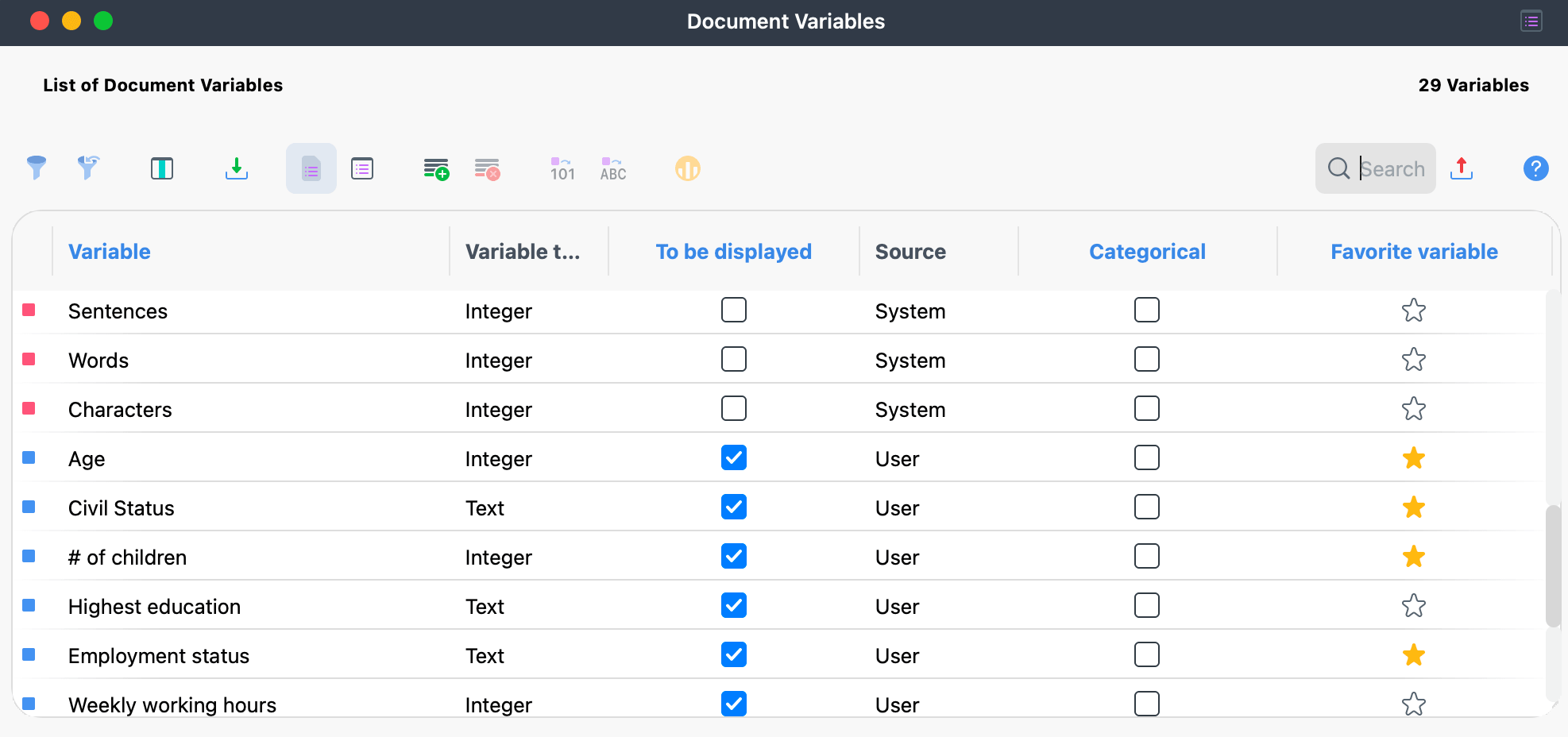
The New Variable window opens:
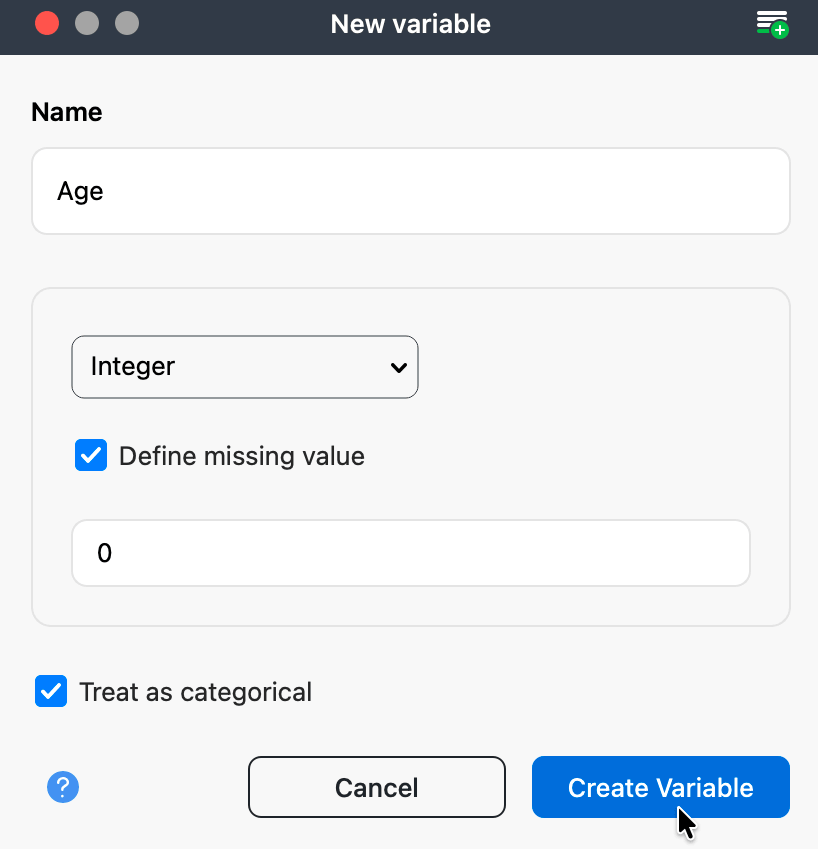
Enter a name for the variable and select its type from the dropdown menu. Five variable types are available:
- Text
- Integer
- Decimal
- Date/time
- Boolean (true/false)
In many cases, text variables are easier to read than numeric codes. For example, in a variable such as "familial status", the value "married" is more immediately understandable than a code such as "2".
For integer and decimal variables, you can also specify whether the variable is metric or categorical. For example, age entered in years is a metric variable and can be used to calculate statistics such as a mean value. If age is grouped into categories (e.g. 1 = under 18, 2 = 18-30, 3 = 31-50, 4 = 51+), it becomes a categorical variable for which calculating a mean would not be meaningful.
To define a missing value, select the Define missing value checkbox. This displays a field where you can enter the value that should be assigned automatically when no data is available for a case. Defining missing values is particularly important if you plan to perform statistical analyses later.
There is no limit to the number of variables you can create. Variables can be added or removed at any time. If you need to create a large number of variables and the data already exists in a table or SPSS dataset, you can save time by importing the file.
Rename and Delete Variables
To rename a variable, double-click the variable and enter a new name. Renaming a variable does not affect any stored values.
To delete a variable, click its row to select it and then click the  Delete variable button in the toolbar. Deleting a variable removes the entire column and all associated values from the Data Editor.
Change Variable Type
MAXQDA allows you to change the type of certain existing variables:
- Document variables that count how often a code occurs (source: "code") can be converted into binary variables by clicking the Convert to boolean variable icon in the toolbar. After conversion, the variable indicates only whether the code has been assigned in a document, not how often it has been assigned.
- User-defined Integer, Decimal, Date/Time, and Boolean variables can be converted to text variables by clicking the Convert Variable to String icon in the toolbar.
 Convert to boolean variable icon in the toolbar. After conversion, the variable indicates only whether the code has been assigned in a document, not how often it has been assigned.
 Convert Variable to String icon in the toolbar.