
Document variables hold background information about your documents, for example about the people you interviewed. This page shows how to display these values as a tooltip in the documents window, next to coded segments, and in exports of coded segments.
Displaying document variables as background information for documents
You may want to see background information about a document at a glance, such as the age or education level of an interviewee. You can choose document variables whose values appear in a tooltip when you hold the mouse pointer over a document in the documents window:
- Click the gear icon in the toolbar of the documents window to open its local settings.
- Make sure Display document tooltips is selected. Then select Display variables in the tooltip and click Select variables. A dialog opens with a list of all document variables.
- Select the variables you want to display, or choose Select all, and click Select. The number of selected variables is shown next to the button.
- Confirm to save the settings.
When you now hold the mouse pointer over a document in the documents window, the tooltip shows the values of the selected variables.
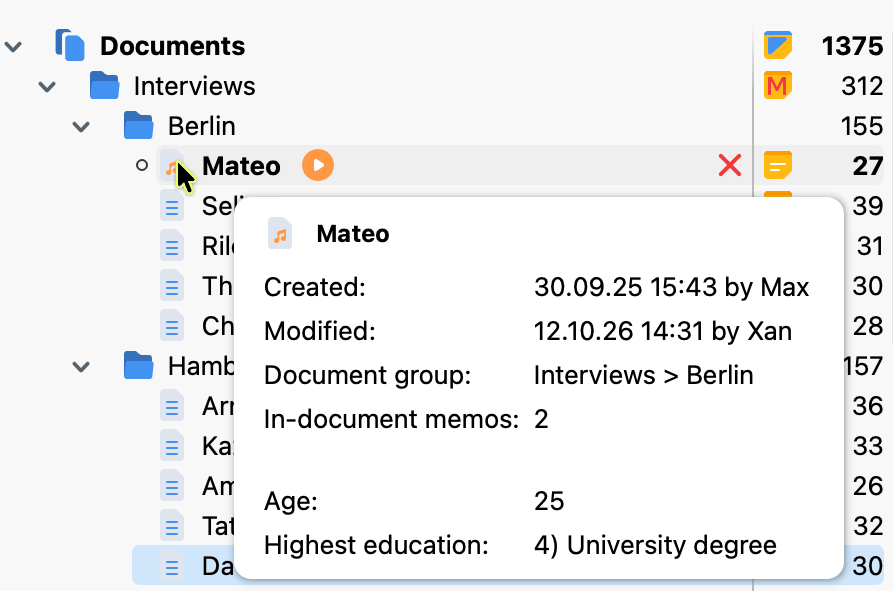
This selection is separate from the favorite variables described below. The tooltip can therefore show different variables than the Retrieved Segments window and the Overview of Coded Segments.
Displaying document variables as background information for coded segments
Background information can also be useful when working with coded segments, especially when you view them separately from their source documents. You can therefore display document variable values in the Retrieved Segments window and in the tabular Overview of Coded Segments.
To avoid displaying every variable associated with a document, first mark the variables you want to use as favorites:
- Open Variables > List of Document Variables.
- Click the star in the Favorite variable column for each document variable you want to display. The star turns yellow.
Displaying variables in the Retrieved Segments window
After marking document variables as favorites, you can display them in the Retrieved Segments window. To do this, click the  Display favorite variables icon in its toolbar. When the segments are sorted by document, the variable information appears directly below each document name.
Displaying variables in the Overview of Coded Segments
In the Overview of Coded Segments, you can display favorite variables as separate columns. This lets you see the variable values of the associated document for each segment. To display them, click the Display Favorite Variables icon in the toolbar of the Overview of Coded Segments.
Including variable information when exporting
When you export coded segments from the Retrieved Segments window or the Overview of Coded Segments, you can also include the variable values of the associated document for each segment. For more information, see Print and Export Retrieved Segments.
