
A MAXQDA Account allows your MAXQDA desktop application to connect to our cloud-based services: AI Assist, TeamCloud, MAXQDA Transcription, and MAXQDA Tailwind.
You don't need a MAXQDA Account unless you are using one of these cloud-based services. It is not required for activating your license or saving MAXQDA project files.
You also don't need one for Local AI, which lets you use AI Assist Premium with a model on your own computer or your organization's server.
A MAXQDA Account exists only to provide access to online tools. If you are working entirely offline with MAXQDA or MAXQDA Analytics Pro, you can ignore the MAXQDA Account entirely.
Set up your MAXQDA Account in MAXQDA
If you want to use AI Assist, TeamCloud, or MAXQDA Transcription from within MAXQDA, start in the MAXQDA desktop application. From there, you can either sign in to an existing MAXQDA Account or start creating a new one.
Open a project in MAXQDA and click Sign in in the upper-right corner of the MAXQDA window.
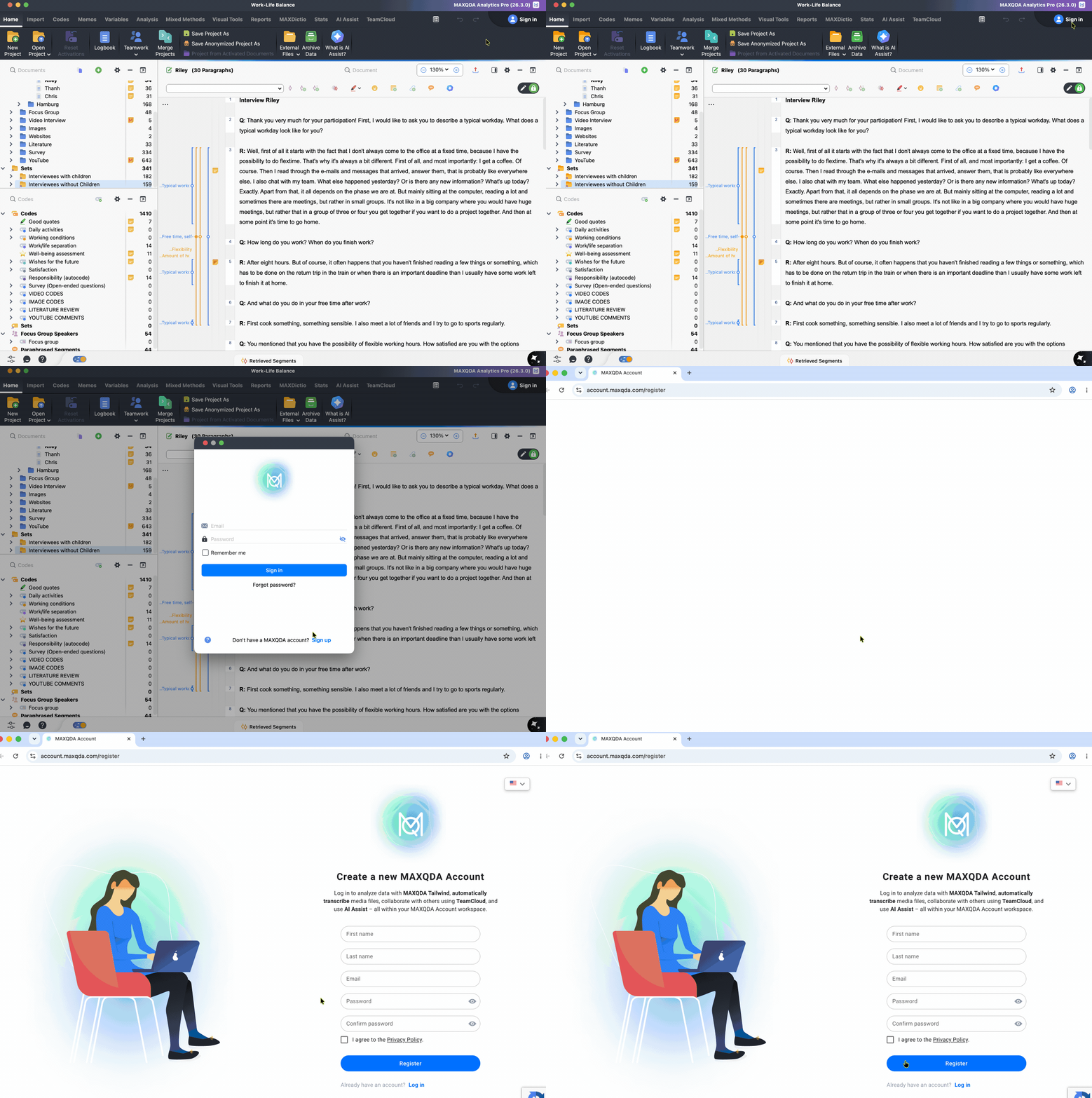
- If you already have a MAXQDA Account: Enter your email address and password, then click Sign In.
- If you need to create a MAXQDA Account: Click Sign up. MAXQDA opens the account registration page in your browser (see animation above). Complete the registration, verify your email address, then return to MAXQDA and sign in.
After signing in successfully, your username appears in the upper-right corner of MAXQDA:

Creating your MAXQDA Account directly on the website
Alternatively, you can also create a MAXQDA Account directly on the MAXQDA Account website, for example because you're interested in using MAXQDA Transcription online rather than from within MAXQDA
- Go to https://account.maxqda.com/register.
- Fill in the required fields and click Register.
- Check your email inbox for a verification link from MAXQDA.
- Click the verification link to confirm your registration.
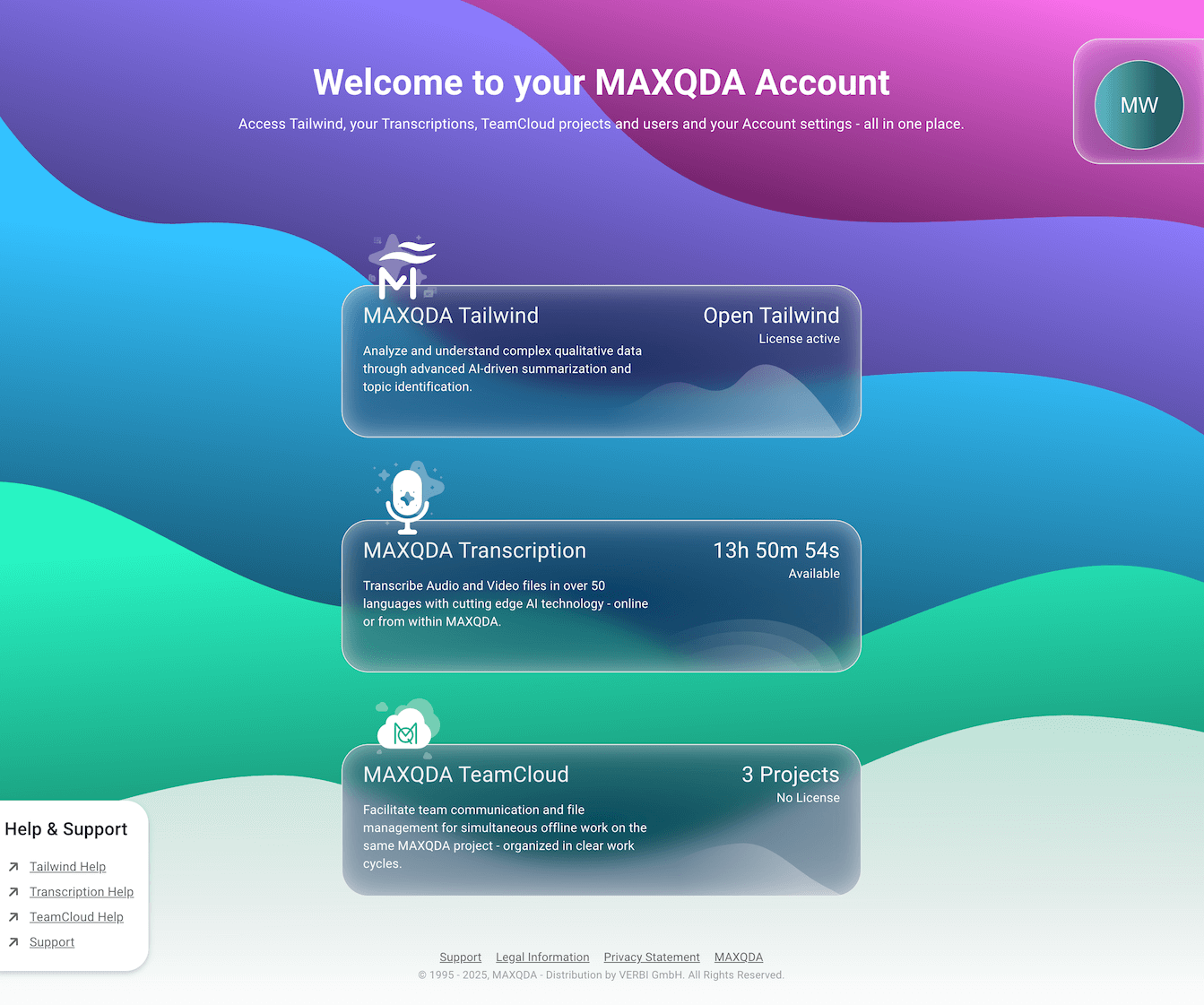
After registering and verifying your email, you will land on the MAXQDA Account dashboard, a central hub where you can access your available cloud-based tools. Use this dashboard to launch services like MAXQDA Tailwind, MAXQDA Transcription, and TeamCloud from one place:
Signing out from your MAXQDA Account in MAXQDA
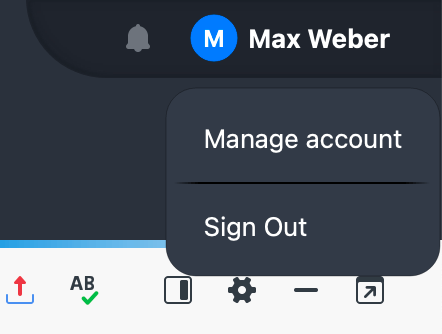
Click your displayed name or account avatar in the upper-right corner of MAXQDA and click Sign Out.
Managing your MAXQDA Account
You can manage your MAXQDA Account from MAXQDA or directly on the MAXQDA Account website.
Managing your account from MAXQDA
- Sign in to your MAXQDA Account in MAXQDA.
- Click your displayed name or account avatar in the upper-right corner of MAXQDA.
- Choose Manage account.
Managing your account on the website
You can also manage your MAXQDA Account directly on the website. This is useful when you want to manage your TeamCloud projects, use MAXQDA Transcription or MAXQDA Tailwind, or access your MAXQDA Account settings while not actively working on a MAXQDA project.
- Go to https://account.maxqda.com/login.
- Sign in with your MAXQDA Account.
- Click your profile icon and select Settings.
You can also open the account management page directly here: https://account.maxqda.com/settings.
What you can manage in your MAXQDA Account
- Change your profile picture:
- Hover over the profile picture and click it.
- Select Upload image and choose a file with a maximum size of 2 MB.
- Update your name:
- Click the name fields to edit them.
- Click Save to apply your changes or Cancel to discard them.
- Change your interface language:
- Use the language menu to switch between English and German.
- Change your email address:
- Click Change Email.
- Enter your new email address.
- Click Save to confirm or Cancel to discard your changes.
- Check your email and confirm the change using the link provided.
- Update your password:
- Click Change Password.
- Check your email for a six-digit confirmation code.
- Enter your new password twice and click Save to confirm.
- Delete your account:
- Click Delete Account and confirm that you want to proceed.
- Deleting your account will permanently remove all your data across MAXQDA services, including Tailwind.
Please note that all settings apply across all online services connected to your MAXQDA Account, including:
- MAXQDA AI Assist
- MAXQDA Tailwind
- MAXQDA TeamCloud
- MAXQDA Transcription
Additional options for TeamCloud
If you have the TeamCloud add-on, you can also:
- Manage and activate your TeamCloud license.
- Manage TeamCloud projects.
- Manage TeamCloud project members.
To learn more, navigate to the TeamCloud chapters in this manual by following this link.
Additional options for MAXQDA Transcription
If you have the MAXQDA Transcription add-on, you can also use MAXQDA to transcribe your recordings online rather than within MAXQDA. For more information, see MAXQDA Transcription: Web-based.
Additional options for MAXQDA Tailwind
If you have MAXQDA Tailwind, you can also:
- Access your MAXQDA Tailwind dashboard to explore and summarize complex qualitative data.
- Generate topic summaries and summary tables based on data in your projects.
- Use AI Chat to interact with multiple documents at once.
Frequently asked questions
- Why can't I sign in after activating my MAXQDA license?
- You do not automatically receive a MAXQDA Account when you get MAXQDA or activate your license. Creating a MAXQDA Account is a separate step. You only need a MAXQDA Account when you have access to one of our cloud-based services: AI Assist, TeamCloud, MAXQDA Transcription, or MAXQDA Tailwind. To create an account, follow the steps outlined on this page.
- Why can't I sign in to my MAXQDA Account even though I have already created one?
- Make sure your license includes the cloud-based modules you want to use, such as AI Assist, Tailwind, or MAXQDA Transcription. To check whether your license includes a cloud module, click the
 blue question mark icon on MAXQDA's launch screen to open the License Status window. In the Your License panel, look for Cloud Modules to see whether any are listed. If cloud modules are listed but you still experience issues, please contact our support team for further assistance.
- Make sure your license includes the cloud-based modules you want to use, such as AI Assist, Tailwind, or MAXQDA Transcription. To check whether your license includes a cloud module, click the
- Do I need a MAXQDA Account to save and access my project files and data?
- No. A MAXQDA Account only allows MAXQDA desktop to connect with our cloud-based services, such as AI Assist, TeamCloud, MAXQDA Transcription, and MAXQDA Tailwind. Your MAXQDA project files are stored locally on your computer and saved automatically. To learn more about backing up your project, see Backups.
 blue question mark icon on MAXQDA's launch screen to open the License Status window. In the Your License panel, look for Cloud Modules to see whether any are listed. If cloud modules are listed but you still experience issues, please contact our