
When you run a text search within documents, the results are displayed in a window like the one shown below:
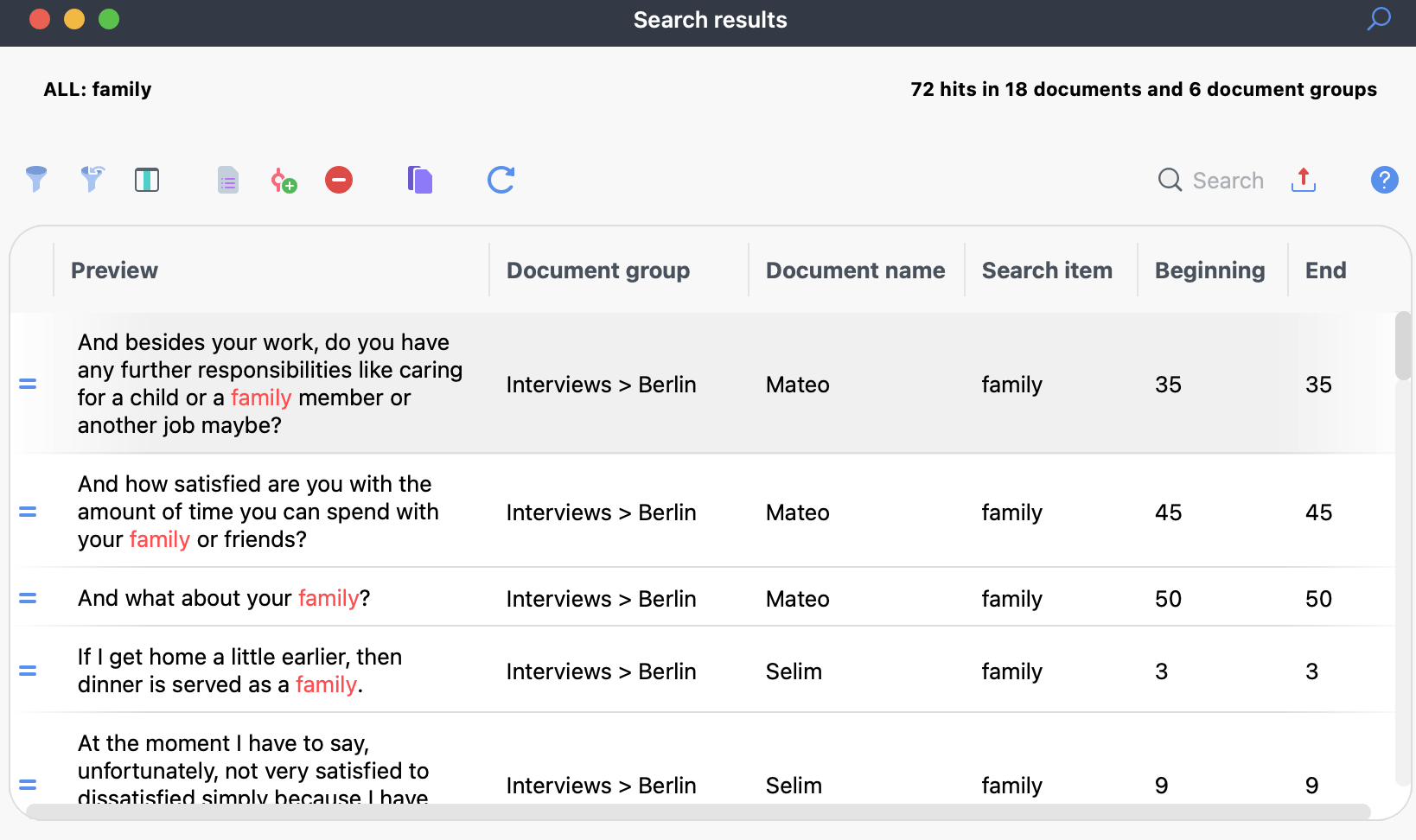
In the upper-right corner of the search results window, you can see the number of search results, along with the number of documents and document groups in which they occur.
In addition to the standard filter functions, the toolbar at the top of the results window provides access to the following functions:
 Save document search result counts as a document variable – Adds a new document variable containing the number of search results for each document, which you can use for further analysis.
 Autocode search results – Opens a dialog where you can select a new or existing code and use it to code the search results. Search results excluded with the
  block icon in the first column are not coded.
 Refresh – Reopens the search settings window so you can adjust your search parameters.
You can work with the search results table in the same way as with other MAXQDA tables. To sort the data, click a column header. For example, clicking the document name column sorts the search results alphabetically by document name. Click the same column again to reverse the order. In this example, the results are then sorted in reverse alphabetical order. A triangle indicates the current sorting order.
Text Search results using the AND search function
You can use the AND option to combine several search entries in a Text Search. In this case, the search results table shows the number of search results for co-occurring search entries within the specified search context, such as documents, paragraphs, or sentences. The number of rows corresponds to the number of search results.
If you searched using the Within x sentences or paragraphs option, clicking a row highlights the corresponding sentence or paragraph in the Document Browser.
If you searched using the Within a document option, clicking a row highlights the first search item in the document.
To view a list of each individual search result, click the Detailed list of search results icon.
When exporting or autocoding search results, MAXQDA uses the detailed list of search results.
Opening your last search result
As long as your project remains open, you can return to the results of your most recent search without running the search again. On the Analysis menu, click the Text Search & Autocode label to open the drop-down menu, then select Last Search Result. Do not click the Text Search & Autocode icon, as this opens the simple Text Search instead.
