
This page explains how to replace your current MAXQDA activation with a new license on the same computer, for example when you renew a time-limited license by activating a new serial number.
If you are looking to move your license to a different device, please refer to How to Transfer a MAXQDA License. For general information about activating or deactivating your license, see Activate and Deactivate MAXQDA.
Using MAXQDA via a server connection?
If you use MAXQDA via a server connection (such as a network or university/campus license), you can still use the steps below to switch to a serial number. Your organization's IT department manages the server license itself, so there is nothing to deactivate locally first.
To move in the other direction, from a serial number to your organization's network license, follow the same steps and choose Connect to Institutional License… instead of Enter Serial Number…. You will need the server information from your administrator. See Activate and Deactivate MAXQDA for details, or contact your IT administrator with any questions about your server-based license.
Switch to your new license
Before you begin, make sure you have your new serial number ready. You will receive it in the invoice or delivery email from Cleverbridge GmbH (look for an email from no-reply@cleverbridge.com).
You switch licenses from the License Status dialog, which is also where MAXQDA shows the serial number currently active on this computer.
Switching to a new license does not transfer any remaining time from your previous license. However, you do not need to wait for your current license to expire before switching to a new one.
- Open MAXQDA
- Click the
 information icon on the welcome screen or the help menu if you have opened a project
 - Select License Status
- Click Change License. The Switch MAXQDA License dialog opens.
- Click Enter Serial Number…
- Enter your new serial number, name, and email address. To avoid errors, copy and paste your serial number rather than typing it manually.
- Click Activate
- Confirm the message Activate new serial number? by clicking Activate. Your previous serial number is no longer active on this computer.
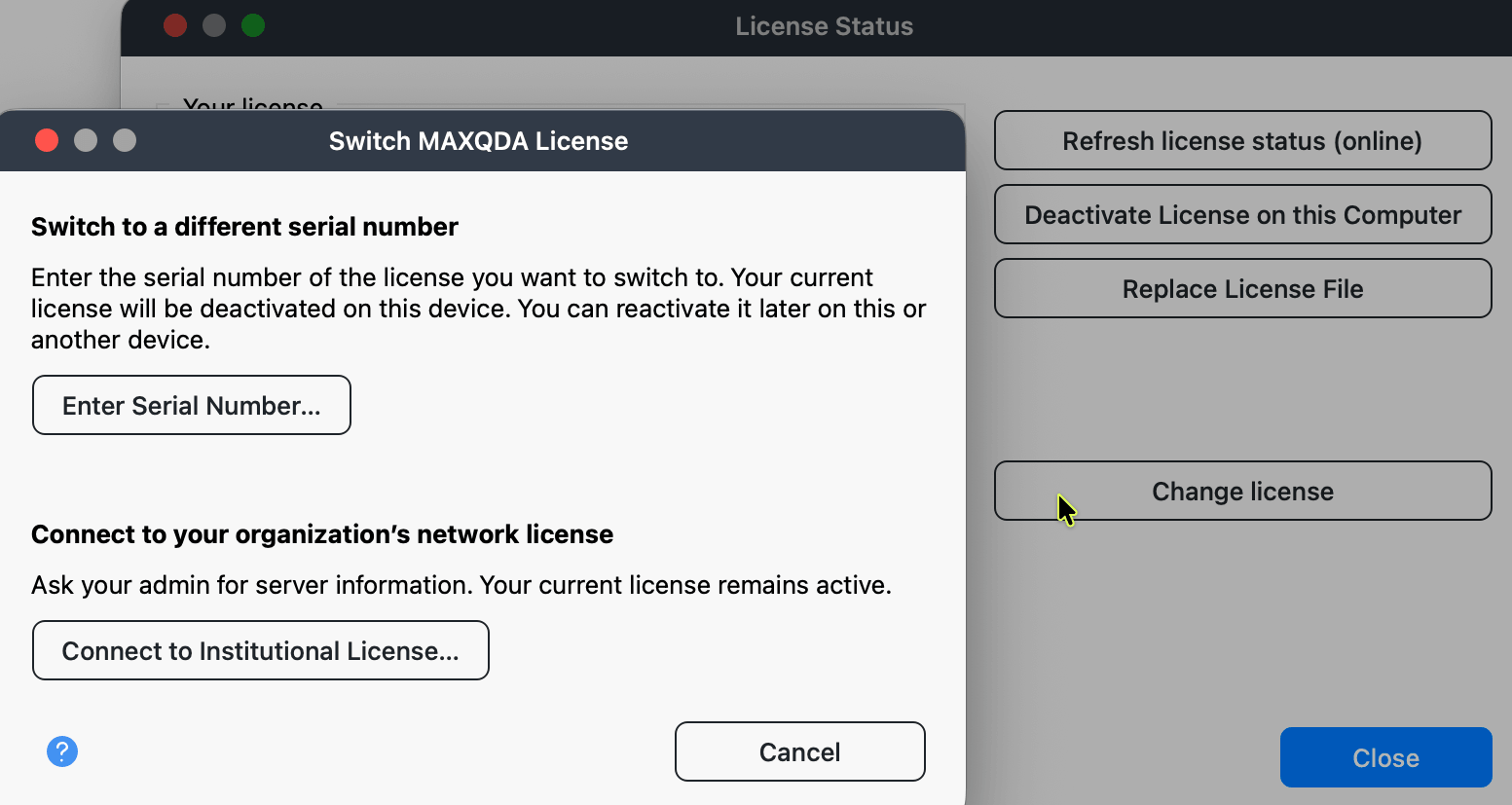
If you currently use MAXQDA through a server connection and another license is already activated on this computer, Change License switches to that license immediately instead of opening the dialog.
The name and email address you enter during activation are used solely for license activation purposes. Entering these details does not create any account. This is not related to your MAXQDA Account, which is a separate, optional registration only needed for cloud-based services such as AI Assist, TeamCloud, and MAXQDA Transcription.
After successful activation, you can confirm your new serial number and license expiration date at any time by clicking the  information icon on the welcome screen or navigating to the
  help menu and selecting License Status.
If activation fails, make sure your computer is connected to the internet. In institutional or company environments, firewall or network settings may also block activation. In that case, please contact your IT department.
What happens to your data
Your MAXQDA project files, documents, codes, memos, and all other research data are stored locally on your computer. They are not tied to a specific license and will remain on your device regardless of whether you deactivate, switch, or renew your license. You can continue working on your existing projects after activating your new license. Your data will only be removed if you manually delete your project files.
