
MAXQDA TeamCloud is a collaboration add-on for MAXQDA that lets research teams work on the same qualitative data analysis project in a structured workflow. Unlike cloud-based real-time editors, TeamCloud does not allow simultaneous editing. Instead, team members exchange project versions in organized work cycles. See what you need to get started.
TeamCloud works best when the code system is set before the analysis starts, as in deductive coding, and is less suited to open or inductive coding and grounded theory, where the code system changes throughout the analysis (see how to plan your team's work).
How TeamCloud works
- Everyone works on their own computer: TeamCloud transfers the project between the team lead and team members, and everyone conducts their analysis in MAXQDA.
- Everyone has the whole project: each team member downloads the complete TeamCloud project (.mqtc) along with its external files, including audio, video, images, and PDFs. No one needs to share these files separately.
- Work comes together in the main project: team members upload their work, and the team lead imports it into the main project, which is the team lead's TeamCloud project. The import rules define which changes are carried over.
- Open in MAXQDA: you open and work on TeamCloud projects in MAXQDA, from the Team Projects tab in the welcome screen or via TeamCloud > Open Team Project.
The project cycle at a glance
A project runs in one or more cycles. Steps 3 to 6 repeat in every cycle.
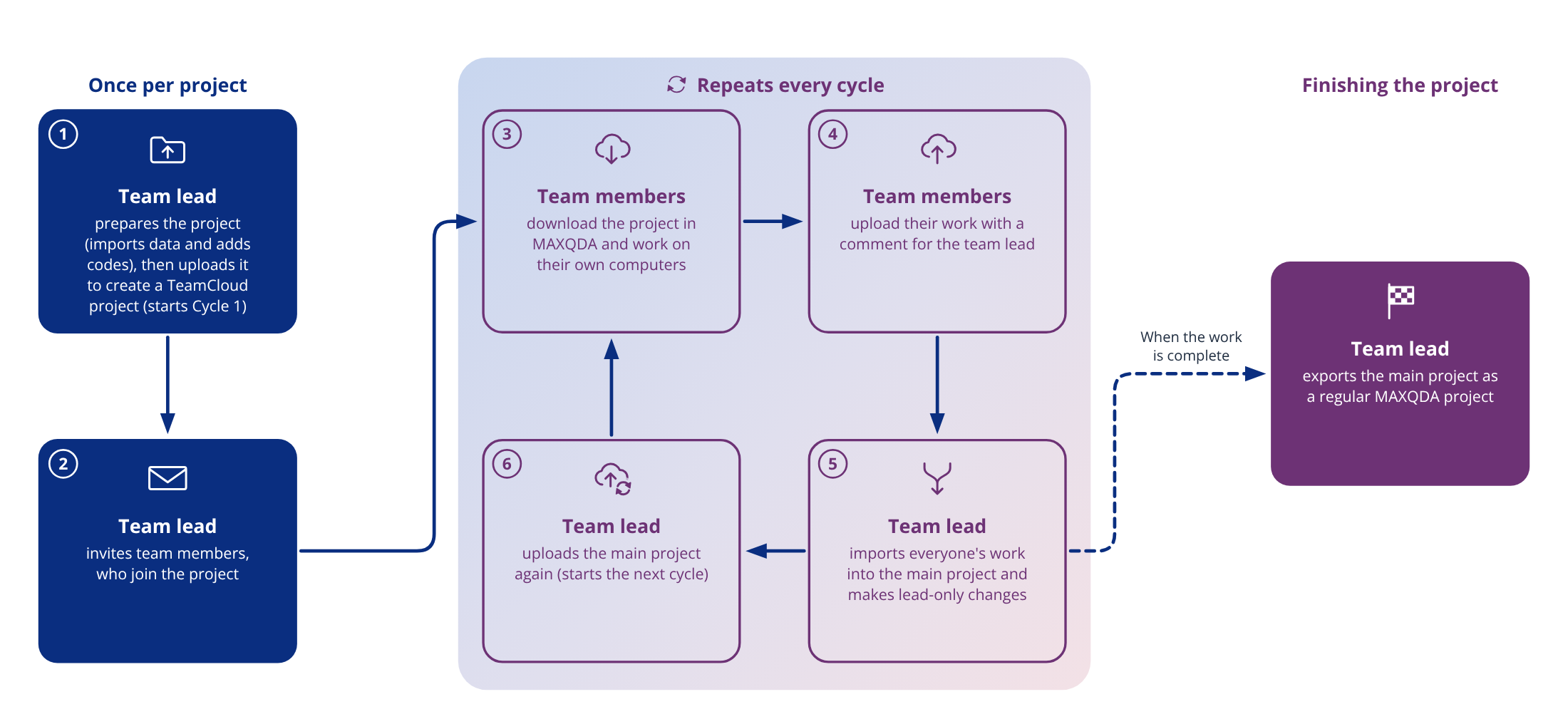
- The team lead prepares the project (imports data and adds codes), then uploads it to create a TeamCloud project. This starts Cycle 1.
- The team lead invites the team members, who join the project.
- Team members download the project in MAXQDA and work on it on their own computers.
- Team members upload their work with a comment for the team lead.
- The team lead imports everyone's work into the main project and makes the changes only the team lead can make.
- The team lead uploads the main project again. This starts the next cycle.
When the work is complete, the team lead exports the main project as a regular MAXQDA project. Exporting does not delete the TeamCloud project; the team lead can delete it on the TeamCloud website.
Roles and permissions
Each project has one team lead and one or more team members. Roles are assigned per project, so you can be team lead on one project and team member on another.
Everyone in the team lead's projects, including the team lead, occupies one seat of the team lead's TeamCloud license. Team members can belong to several projects, including projects of different team leads. Only the team lead can create projects. To lead their own projects, a person needs their own TeamCloud license.
Team leads and team members both code documents and media files and analyze the data in MAXQDA. The table shows where their roles differ.
| Team lead | Team member |
|---|---|
|
|
For the details, see what team members can and cannot do and how the import works.
Key terms
- TeamCloud project: a MAXQDA project shared through TeamCloud (.mqtc). You open it from the Team Projects tab in the welcome screen or via TeamCloud > Open Team Project.
- Main project: the team lead's TeamCloud project, into which everyone's work is imported.
- Regular MAXQDA project: an ordinary MAXQDA project file (.mqda) that is not connected to TeamCloud. Export as Local Project creates one from a TeamCloud project.
- Cycle: one round of work. The team lead uploads the main project. Team members download it, work on it, and upload their work. The team lead then imports that work. Each upload by the team lead starts a new cycle.
- Team lead: the person who entered the TeamCloud code, creates projects, and manages them.
- Team member: a person invited to a project, who works on it and uploads their work for the team lead.
- TeamCloud subscription: what you purchase. It holds one or more TeamCloud licenses and sets how long you can use TeamCloud.
- TeamCloud license: the right to use the TeamCloud add-on with your MAXQDA license, with its own seats and storage space. The team lead needs one; team members do not.
- TeamCloud code: the key you receive for each TeamCloud license when you subscribe. The team lead enters it to become the team lead of that license and start TeamCloud projects.
- Seat: each person in the team lead's projects, including the team lead, occupies one seat of the team lead's TeamCloud license.
- MAXQDA Account: the free account everyone needs to use TeamCloud. Older documentation calls it "TeamCloud account".
- TeamCloud workspace: the folder on your computer where MAXQDA stores TeamCloud projects. Do not change anything in it.
- Invitation link: a link the team lead shares to invite people to a project. People without a MAXQDA Account can create one before joining.
- TeamCloud website: the TeamCloud area of your MAXQDA Account at account.maxqda.com, where you manage projects, members, and your TeamCloud licenses.
- Project page: the page for one TeamCloud project on the TeamCloud website, with its overview, files, members, and project logbook.
- Project logbook: a shared online logbook for a project's notes, decisions, and questions.
In this chapter
- What you need before starting: license and account requirements, plus activation and logging in.
- The team lead's workflow: preparing the team, uploading the project, inviting members, importing their work, editing the main project, and starting new cycles.
- The team member's workflow: joining and downloading a project, working on it, uploading your work, and picking up new cycles.
- Where TeamCloud stores projects: the TeamCloud workspace, storage space and external files, what TeamCloud keeps online, and switching computers.
- Managing projects on the website: project pages, members, version history, the project logbook, licenses and license transfers, email settings, and seats.
- How to back up and restore TeamCloud projects: backups, restoring them, exporting a regular MAXQDA project, and earlier cycles in the version history.
- Bringing outside work back into TeamCloud: what to do if you worked on a regular MAXQDA project instead of the TeamCloud project.
- Moving projects from MAXQDA 24: how to continue a MAXQDA 24 TeamCloud project in a newer version.
More resources
Quick start: TeamCloud Getting Started Guide
A short, illustrated walkthrough of the complete TeamCloud workflow. The guide uses the term "TeamCloud account," which is now called "MAXQDA Account."
Guide: Collaborative Data Analysis using MAXQDA TeamCloud
This guide explains how to plan and conduct collaborative qualitative research with MAXQDA TeamCloud. It covers the organizational, technical, and methodological aspects of teamwork, including a seven-phase workflow model for dividing the analysis.
See it in action
This 51-second video shows the TeamCloud workflow at a glance: how the team lead shares a project, how team members download and work on it offline, and how everyone's contributions are brought together at the end of a cycle.
