
If a team member worked in a regular MAXQDA project (.mqda) instead of the TeamCloud project (.mqtc), the usual TeamCloud upload and import steps will not work. This page explains a workaround for bringing that work back into TeamCloud. It also covers the case where the team lead kept working in the original project file. For the normal workflow, see the team member's workflow and the team lead's workflow.
How to tell which project you are working in
- Window title: a TeamCloud project shows "TeamCloud project: <project name> (Cycle N)". A regular MAXQDA project shows only the project name.
- TeamCloud menu: in a regular MAXQDA project, the TeamCloud upload and import functions are not available.

Why the normal import does not work
The normal upload and import steps for team members and leads work only with TeamCloud projects. To transfer work from a regular MAXQDA project, use MAXQDA's Teamwork Export and Teamwork Import functions. Neither function is available while a TeamCloud project is open. To merge the work, the team lead first exports the main project as a regular MAXQDA project. After importing the member's work, the lead uploads the result as a new TeamCloud project. For more about Teamwork Export and Import, see how to copy codings, memos, and more into another project.
Bringing the work back into TeamCloud
Step 1: Export your work (team member)
- Open the regular MAXQDA project you worked in.
- In the Home menu, click Teamwork > Teamwork Export.
- Select all the elements you want to share with the team lead, and save the export file (.mqex).
- Send the export file to the team lead.
The export file contains the work attached to the documents you select, such as coded segments, memos, and variables, plus the codes you select. It does not contain the entire project: free memos and other project-level items, such as summary tables and maps, do not come back this way (see what the export file contains).
Step 2: Export the main project as a regular MAXQDA project (team lead)
- Open your TeamCloud project in MAXQDA.
- In the TeamCloud menu, click Export as Local Project and choose where to save the file.
- Close the TeamCloud project and open the exported .mqda file.
The exported file contains the current state of your main project. Your TeamCloud project remains unchanged. Import the team member's work into the exported file, then upload the result.
Step 3: Import the team member's work (team lead)
- With the exported .mqda project open, go to Home > Teamwork > Teamwork Import.
- Select the .mqex file the team member sent you.
- Select the elements you want to import and start the import.
After importing, check that the merged project contains everything you expected.
Step 4: Upload the merged project as a new TeamCloud project (team lead)
- With the merged project still open, go to TeamCloud > Upload Project for Team (Start Cycle 1).
- Enter a project name and notes for your team, and upload the project. This creates a new TeamCloud project in Cycle 1. Use a name that makes clear that this is now the version everyone continues working with.
- Invite your team members to the new project (see how to invite team members).
Team members can then download the new project as usual (see how team members download a project). The previous TeamCloud project still exists. Tell your team to continue only in the new one. You can delete the previous project on the TeamCloud website once you no longer need it.
If the team lead kept working in the original project file
If you, as team lead, kept working in your original project file (.mqda) after the first upload, the work is spread across several files: your original file and the TeamCloud projects of everyone who worked in them. To bring it together:
- Everyone who did work in the TeamCloud project exports their version as a local project with TeamCloud > Export as Local Project.
- Each of them opens their exported project and creates a Teamwork Export file, as in Step 1. Team members send their files to you.
- Open your original project file and import all Teamwork Export files, as in Step 3.
- Upload the merged project as a new TeamCloud project and invite your team members again, as in Step 4.
Preventing this problem
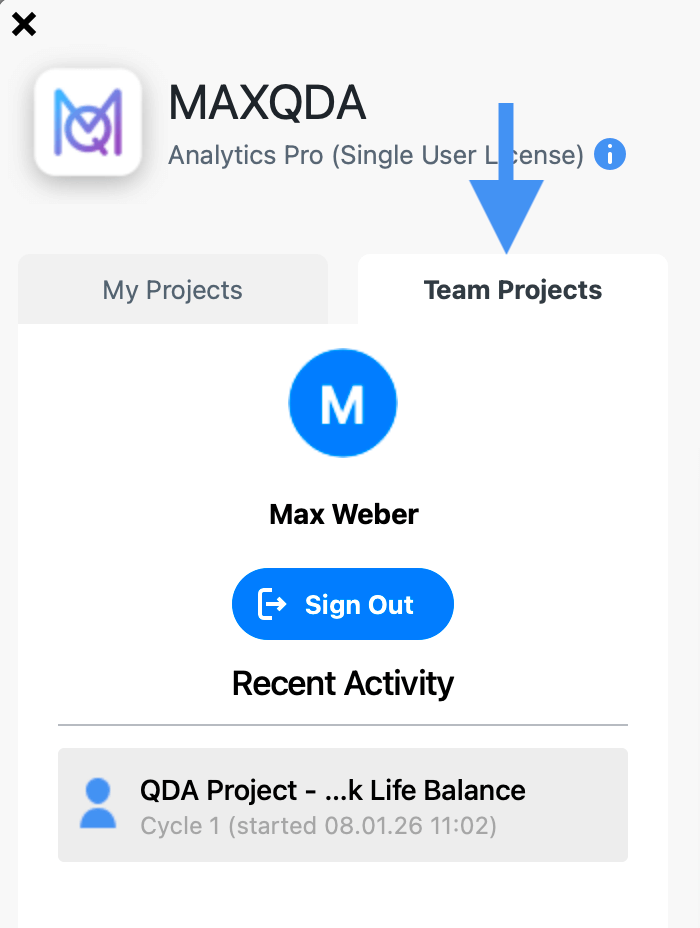
- Always open TeamCloud projects from the Team Projects tab in the welcome screen or via TeamCloud > Open Team Project, never by double-clicking a file on your computer.
- Do not use Save As on a TeamCloud project: it creates a regular MAXQDA project.
- Do not open project files from the TeamCloud workspace.
- For backups, use TeamCloud > Backups > Create Backup (see how to back up TeamCloud projects).
If a team member has not uploaded their work during a cycle, they may be working outside TeamCloud. Upload notification emails and the Recent Activity section on the TeamCloud website show who has uploaded.
