
What is AI Group Codes?
AI Group Codes helps you organize a set of codes. You select the codes, and AI Assist suggests new parent codes and sorts your existing codes under them. It always offers two alternative groupings, so you can compare them and choose the one that best fits your analysis.
You can apply your chosen grouping to your code system, or save it as code sets and leave your code system unchanged.
AI Group Codes is particularly useful after open coding, when you have many codes and want to develop more abstract categories.
Start AI Group Codes
You can start AI Group Codes in two ways:
- In the main menu, click AI Assist > Group Codes.
- Right-click Codes at the top of your list of codes and choose AI Assist > Group Codes.
A dialog opens where you can select the codes and set up the analysis.
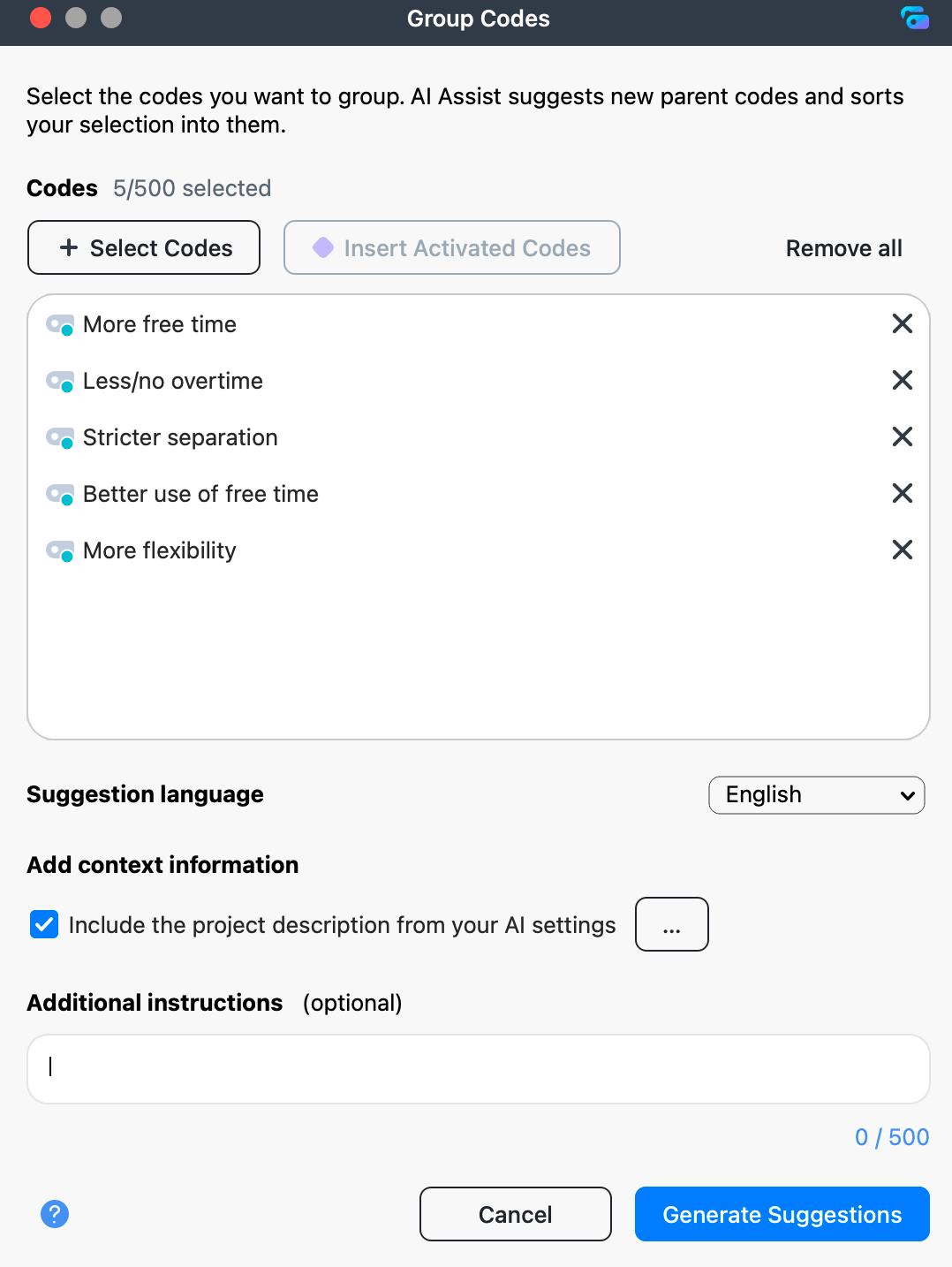
Select the codes
Add the codes you want to group in any of these ways:
- Select Codes: Opens a list of your codes so you can select the ones to include.
- Insert Activated Codes: Adds all currently activated codes. The number on the button tells you how many there are.
- Drag and drop: Drag codes from the codes window into the dialog.
To remove a code from the list, click the remove icon next to it. To clear the whole list, click Remove all.
The counter above the list shows how many codes you have selected and the maximum number allowed. AI Assist Free allows fewer codes than AI Assist Premium. If you go over the limit, the counter turns red, and you can't click Generate Suggestions until you remove some codes.
Code memos
A memo icon next to a code shows that it has a memo. AI Assist takes your code memos into account when grouping your codes, so clear code definitions can lead to more relevant suggestions.
To open and edit a memo, double-click its icon. AI Assist uses any changes you make before you start the analysis.
Choose your options
Before you start the analysis, you can adjust the following options:
- Suggestion language: Choose the language AI Assist uses for its suggestions.
- Include the project description from your AI settings: Select this option to give AI Assist context about your research project. To check or edit the description, click ... next to the option. For details, see the AI Settings section of the AI Assist overview.
- Additional instructions: Use this field to tell AI Assist how to group your codes.
Additional instructions let you guide how AI Assist groups your codes.
For example, you can specify a structure such as:
Create no more than five parent codes and keep location-related codes in a separate category…
AI Assist tries to follow these instructions.
Review the suggestions
Click Generate Suggestions to start the analysis. To stop the analysis, click Cancel. You return to the dialog, and your selected codes are kept.
When the analysis is complete, a window opens with two suggested groupings side by side, labeled Option 1 and Option 2. Each option has a title and a short explanation of how it groups your codes. If an explanation is cut off, make the window wider to read the full text.
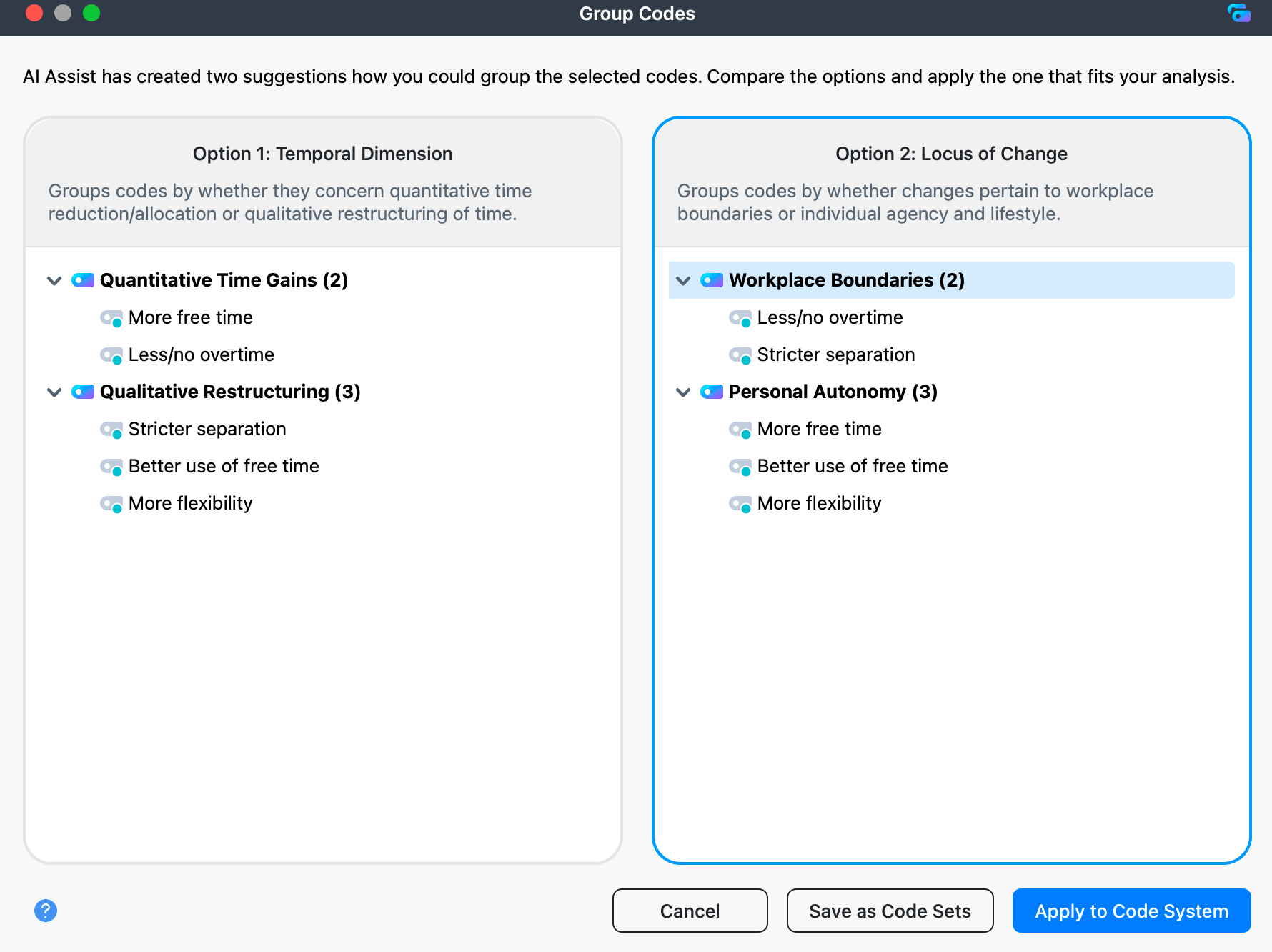
- Select an option: Option 1 is selected by default. Click the other option to switch. Only the selected option is applied or saved.
- Explore the grouping: The parent codes are collapsed at first. The number after each one shows how many of your selected codes it contains. Expand a parent code to see the codes under it.
- Rename parent codes: Click a parent code's name to rename it. You can't move or remove codes here.
Apply a suggestion
Apply to Code System
Click Apply to Code System to reorganize your code system based on the selected option:
- MAXQDA adds the new parent codes to the top of your list of codes, in the order shown, and marks them with the AI code icon.
- It moves your selected codes, along with their subcodes, under the new parent codes.
- All other codes stay where they are.
- If a top-level code already has the same name, MAXQDA adds "(1)", "(2)", and so on to the new name.
The window closes once the changes are applied.
Save as Code Sets
Click Save as Code Sets to keep the grouping without changing your code system. MAXQDA creates one code set for each parent code in the selected option. Each code set contains the codes grouped under that parent code. If a code set with the same name already exists, MAXQDA adds "(1)", "(2)", and so on.
The window stays open, so you can switch to the other option and save it as well, or apply either option to your code system.
Undo the changes
You can undo both actions with  Undo:
Undo:
- For Apply to Code System, Undo removes the new parent codes and moves your codes back to where they were.
- For Save as Code Sets, Undo removes the new code sets.
Further notes
- AI Assist can produce useful groupings, but you should review the suggestions before applying them to your code system.
- Running AI Group Codes again on the same codes may produce different suggestions.
- If your codes or code memos contain sensitive content such as violence, hate speech, or bullying, AI Assist might not create suggestions.
- To learn how your data is protected when you use AI Assist, see our Data Privacy and Security page.
