
What is Local AI?
Local AI lets you use AI Assist with a language model running on your own computer or on a server in your organization, rather than with the models in MAXQDA's cloud. MAXQDA sends your AI Assist requests to that model, so the data you work with stays on your computer or within your organization's network.
This makes Local AI a good fit when your data is sensitive or your institution doesn't allow cloud-based tools.
You use all AI Assist features in the same way with Local AI: you start them from the same menus, and the results are saved in the same places.
What to expect from a local model
With a local model, results are usually less accurate and responses slower than with MAXQDA's cloud. Both depend on the model you use and the hardware it runs on. You can switch back to MAXQDA's cloud at any time. For more about local models, including what affects their quality and how much memory and computing power they need, see what to know about local models.
The languages you can use with Local AI depend on the model you choose, not on MAXQDA. Models vary in how well they understand and write different languages, so check which languages a model supports before using it. If the results in your language are poor, try a different model.
What you need
- AI Assist Premium: Local AI is included with this add-on. With AI Assist Free, you can open the Local AI Models settings and upgrade directly from there. If your license doesn't include AI Assist, these settings don't appear in the Settings.
- A model server: An app or server that runs a language model and makes it available to other programs. You can run a model server on your own computer using an app such as Jan, LM Studio, or Ollama, or your organization may provide one. MAXQDA works with any server that is compatible with the OpenAI API.
If your organization provides Local AI
Your organization may set up Local AI for you. In that case, the Local AI Models page in Settings shows the configured server, model, and other settings, along with a note that your organization manages them. Local AI is already active, so you can skip the setup steps below. Depending on how your organization set it up, you may not be able to change these settings.
If your organization gives you a server address to enter yourself, skip the next section and continue with connecting MAXQDA to your model.
If Local AI Models doesn't appear in the Settings, your organization may have turned Local AI off. Contact your IT administrator if you have questions about the server or if MAXQDA can't connect to it.
Run a model on your own computer
If you don't have a model server yet, you can run one on your own computer with a free app. This manual uses Jan as an example. Other apps work in a similar way.
- Install Jan and download a language model: Follow Jan's quickstart guide. Jan suggests models that suit your computer's hardware. For other factors to consider, see our guide to choosing a local model.
- Start Jan's local API server: Follow Jan's instructions for its local server. Make sure the server is running and your model is available.
- Copy the server address: This address tells MAXQDA where to send AI Assist requests. You'll enter it in the next section. Jan shows the address once the server is running. If it ends in "/v1", leave that part out, for example "http://localhost:12345" instead of "http://localhost:12345/v1".
Keep Jan running while you use Local AI. MAXQDA sends every AI Assist request to Jan, so AI Assist can't respond if Jan is closed.
Connect MAXQDA to your model
- Go to
 Settings > Local AI Models.
 - Under Server Address, enter the address you copied from Jan or another app, or received from your IT administrator. If it ends in "/v1", leave that part out.
- If your server requires an API key, enter it under API key. Otherwise, leave the field empty.
- Click Test and Find Models. MAXQDA checks the connection and retrieves the models your server offers. Once the status shows Server available, you can choose a model. If the status shows Couldn't connect, check the address and make sure the server is running.
- Under Model, choose a language model. Some servers also list other model types, such as embedding models, which AI Assist can't use.
- Under Response Timeout, choose how long MAXQDA waits for an answer before stopping the request. The default is 3 minutes.
- Click Switch to Self-Hosted AI Assist.
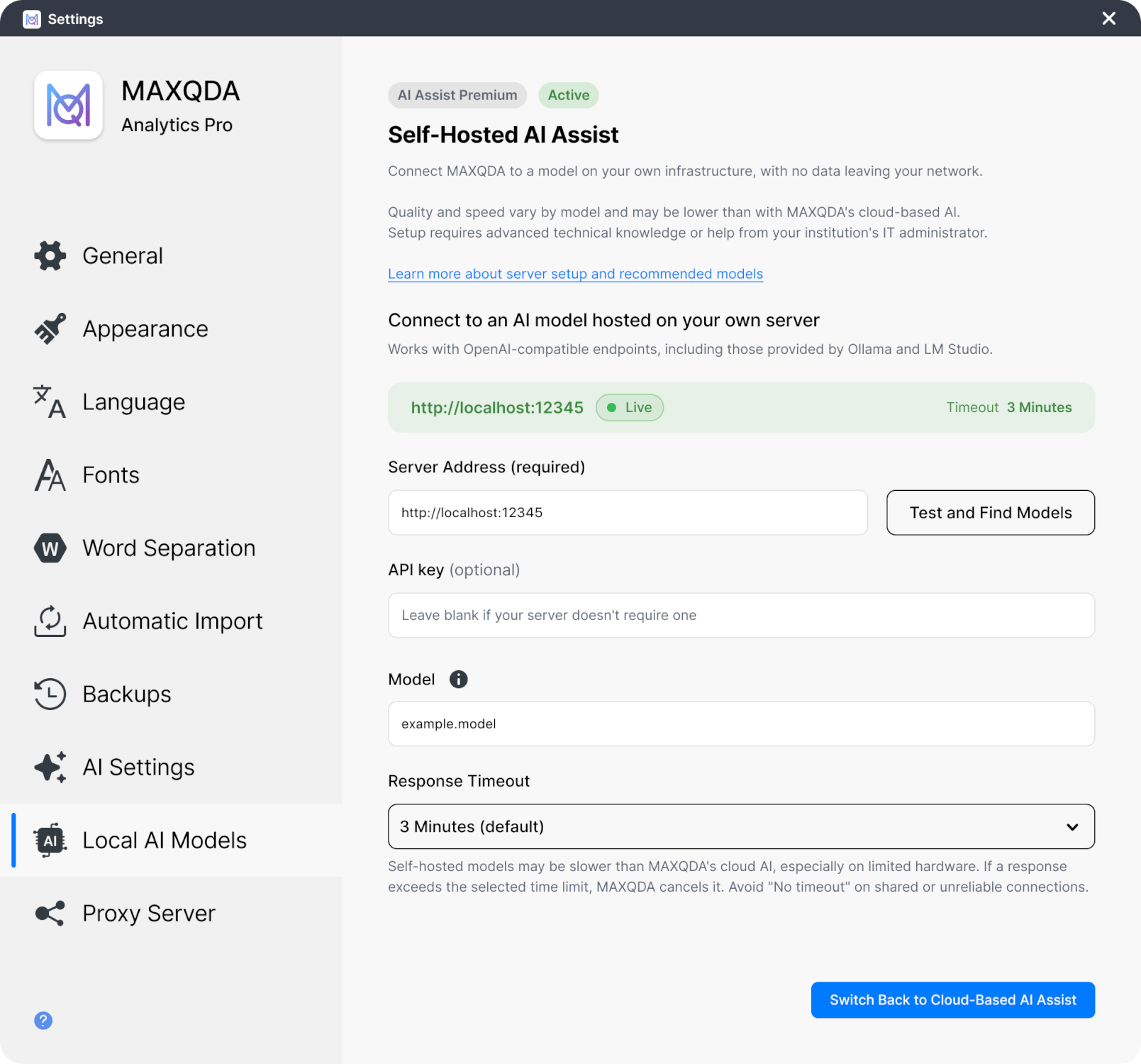
The Settings window now shows that Local AI is active, along with your server address and the response timeout. From now on, all AI Assist requests go to your model.
Change your Local AI settings
You can change your settings while Local AI is active. Changes apply to new AI Assist requests, and you don't need to restart MAXQDA.
- Timeout or model: Select a new value and click Save Settings.
- Server: Enter the new address, click Test and Find Models, choose a model, and click Save Settings.
Switch back to MAXQDA's cloud
To switch back to MAXQDA's cloud-based AI Assist, go to  Settingss > Local AI Models and click Switch Back to Cloud-Based AI Assist. New AI Assist requests then go to MAXQDA's cloud.
What's different when you use Local AI
- Daily usage: Requests to your local model don't count toward your daily AI Assist limit. The daily usage display in your account menu is hidden while Local AI is active.
- Data consent: The first time you use AI Assist with Local AI, MAXQDA asks you to confirm that your data will be sent to the configured AI connection. MAXQDA asks again if someone starts MAXQDA with a different user name.
- Waiting time: If your model doesn't respond within the response timeout, MAXQDA tells you and offers to try again. If this happens often, increase the timeout or choose a smaller or faster model.
- Results: Language models may not produce a usable result for every request. If a request fails, try it again, adjust your selection or instructions, or try a different model.
