
The Document Browser is MAXQDA’s main work window. This is where you code texts and images, write memos, link text and images, add external links, and perform many other core tasks. Most functions available in the Document Browser can be accessed via the context menu, which you open by right-clicking in the window.
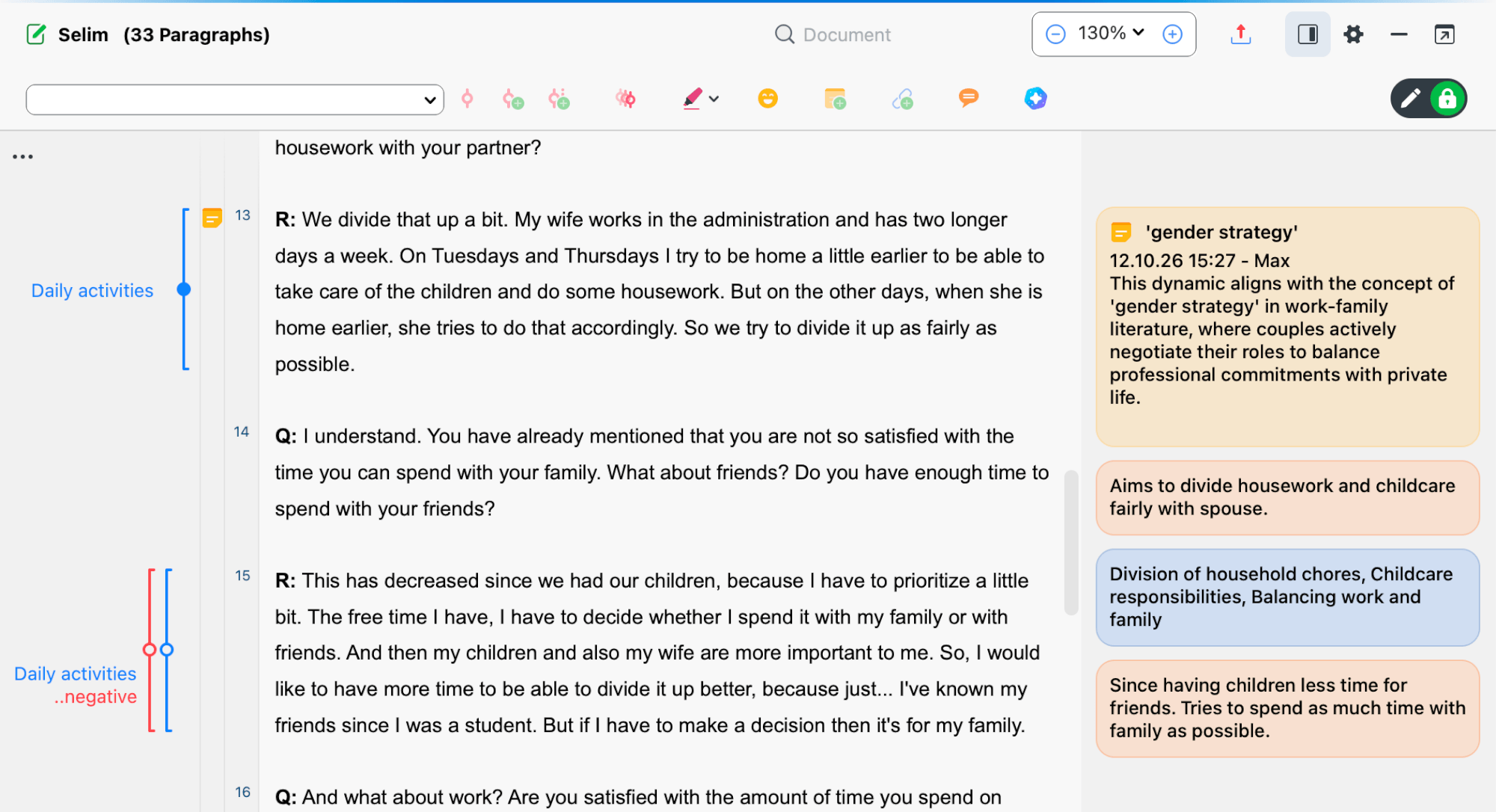
The Document Browser Toolbar
Several commonly used functions are also available in the toolbar at the top of the "Document Browser," including the following:
 Export displayed document — Export the currently displayed document in various formats or print it directly, with options to include memo symbols and coding stripes.
 Show sidebar — Display the sidebar to the right of the document. The sidebar can show memos, comments, and paraphrases.
Document Browser settings
Click the gear icon in the toolbar to open the local settings:
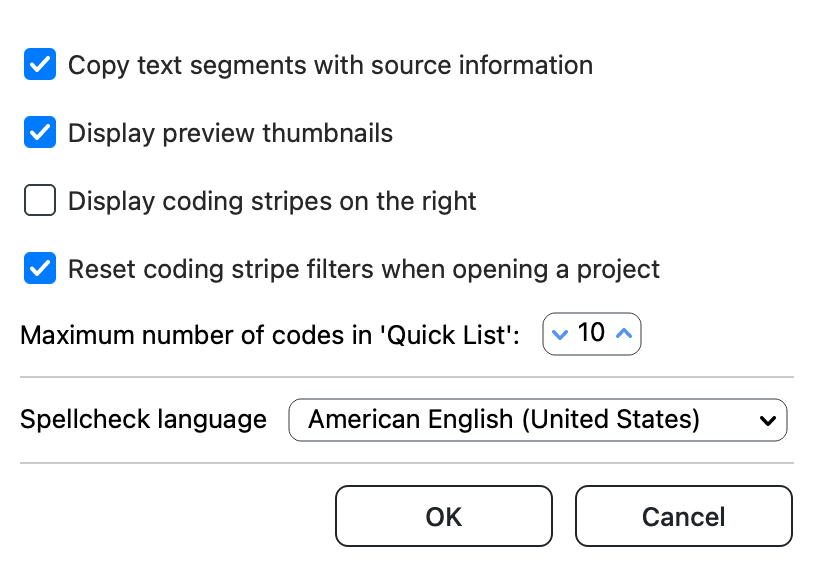
Copy text segments with source information to clipboard — Append source information (document group, document name, and document position) to all text segments copied to the clipboard.
Display coding stripes on the right — By default, coding stripes are shown on the left side of the document. Enable this option to display them on the right instead.
Reset coding stripe filters when opening a project — Show all coding stripes when reopening a project. Disable this option to retain your last filter settings.
Maximum number of codes in "Quicklist" — Set how many recently used codes are shown in the drop-down coding toolbar above the document.
Spellcheck language — Choose the language for spellchecking. This setting applies to the entire project. You can enable or disable spellchecking and manage spellcheck languages in the settings. For more information, see MAXQDA settings.
