
The Memo Manager is a project-wide workspace for managing all memos in your project.
- You can view, edit, refine, and integrate notes for a selected case (using document and in-document memos) or for category definitions (using code memos).
- It is the central place to work with free memos that aren’t directly attached to a specific segment of data, document, or code.
- Sorting and filtering options make it easier to find memos, for example those created by a specific person or at a particular time.
- You can group memos into collections, known as sets.
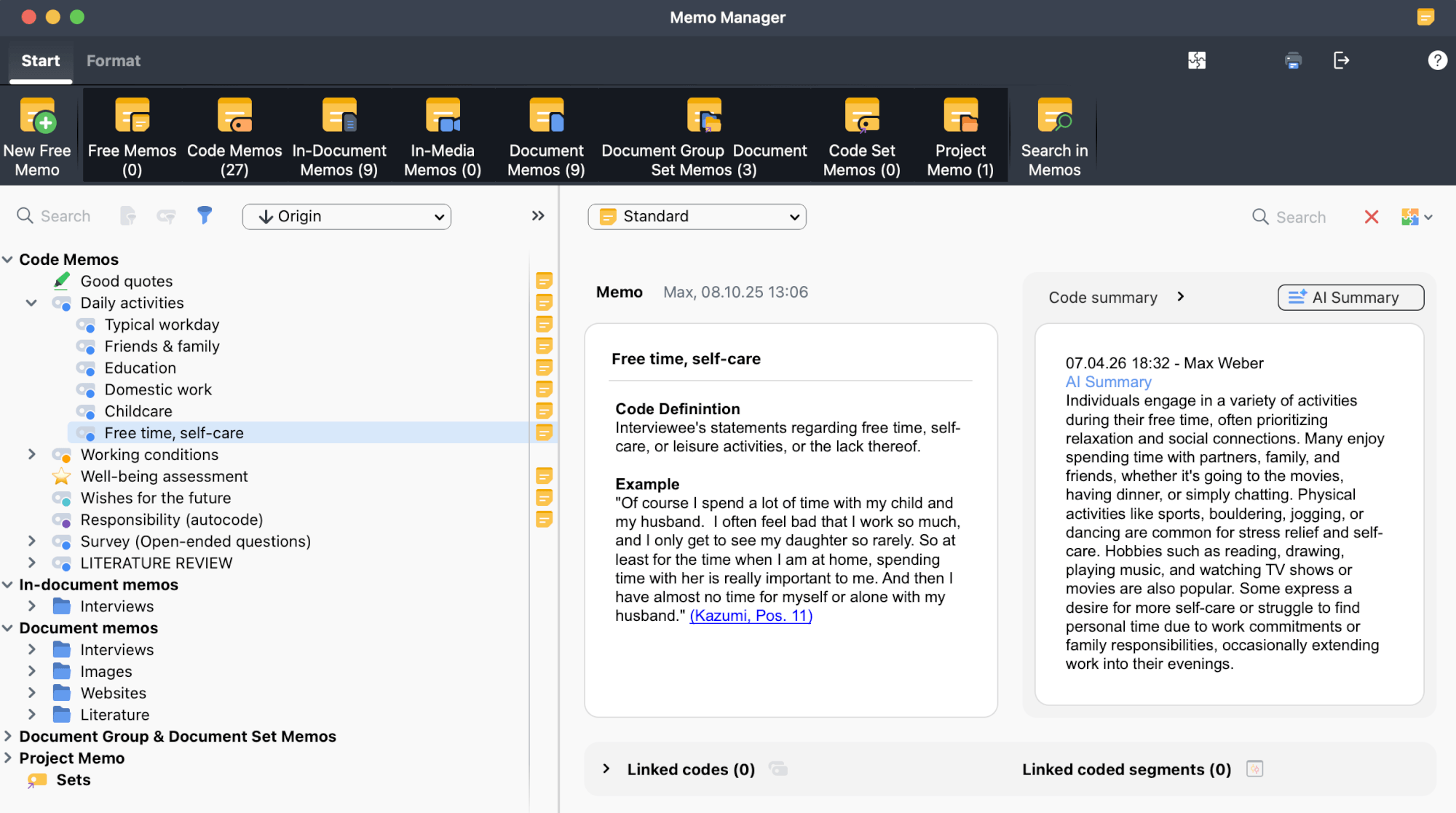
Opening and navigating the Memo Manager
To open the Memo Manager, go to Memos > All Memos in the main menu. Selecting All Memos opens the workspace showing all memo types. Selecting a specific memo type instead opens the manager with that type preselected.
Once open, use the buttons in the Start menu to show or hide memo types. The number in parentheses indicates how many memos of each type are in the project. You can focus on a single type or display several types together. The Start menu also provides commands to create a new free memo and search within memos.

Workspace layout
The workspace is divided into two main panes. The left pane shows the memo tree, and the right pane shows the selected memo content or a preview list of multiple selected memos.
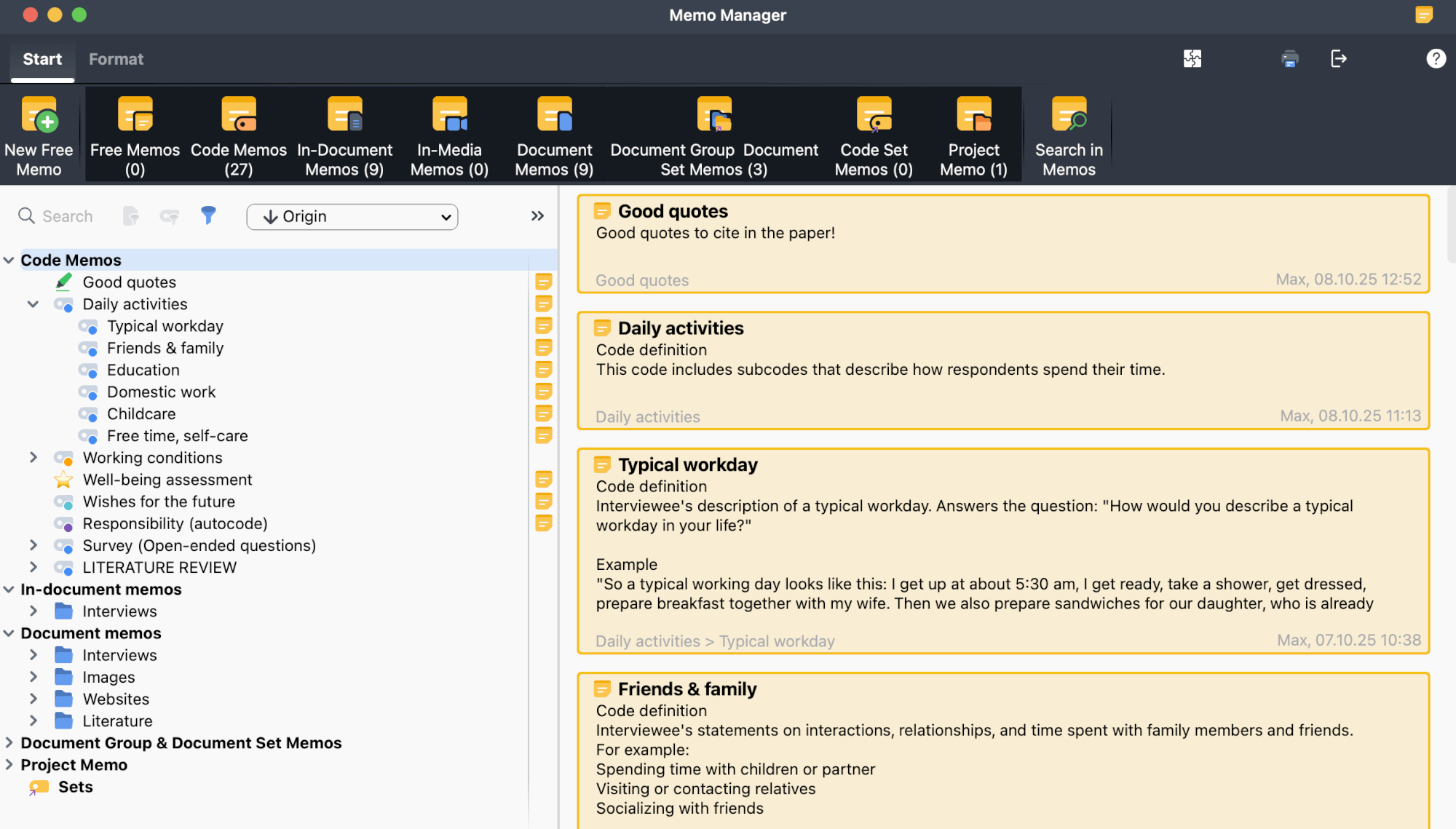
Browsing and opening memos
Use the tree on the left to browse the available memos. Selecting a collapsed item or memo type displays preview cards on the right. Clicking a specific memo opens it in the right pane:
Select Open in tabs in the memo tree pane toolbar to keep each opened memo in its own tab instead of replacing the current one.
You can edit a memo directly in the right pane. The writing, formatting, summary, and linking tools work the same way as in other memo windows and are available in the Format menu of the memo manager’s main menu. For details on these functions, see Creating and Writing Memos.
To create a new free memo directly from the Memo Manager, click  New Free Memo in the Start menu.
Sorting and filtering the memo tree
You can organize and narrow down the memo tree in three different ways:
Sort the memo tree
Use the sort dropdown in the toolbar to organize the tree by:
- Origin
- Memo Icon
- Last modified by
- Last modified
- Title
Limit to activated items
Use the following options to quickly limit which memos are shown:
 Only activated documents – Limit the view to memos from currently activated documents.
 Only activated codes – Limit the view to memos from currently activated codes.
Filter memos
Click the  Filter memos icon to open the filter panel to apply more detailed filters. You can filter by:
- Last modified by – Filter memos by the user who last edited them.
- Last modified – Filter memos by their last edited date. MAXQDA automatically sets the earliest and most recent dates as the default range.
- Memos linked to an activated code – Limit the view to memos linked to activated codes. The Memo Manager updates automatically when code activations change in the Codes window.
- Memo icons – Filter memos by a specific memo icon.
- Reset filter – Reset all filters to their default settings and close the filter panel.
Close the panel to apply the filter. When active, the filter icon is highlighted, a filter bar shows the current settings, and the number of memos in the current view is displayed below the toolbar.
The filter only affects the memo tree on the left and hides memos that do not match the criteria. Memos already open on the right remain visible but can only be reopened if they are still shown in the filtered tree.
To remove the filter, click the  above the memo tree.
Searching for memos
You can search within the memo tree using the  search field in the memo tree toolbar. This filters the entries currently shown in the left pane.
To search across memos in the project, go to Start >  Search in Memos in the Memo Manager menu. MAXQDA opens a search window where you can enter one or more terms and run the search.
The Memo Manager then lists the matching memos. Open a result from the tree or right pane to view the memo with the search hits highlighted.
Most search functions work in the same way as described in Global Text Search.
The search field above the tree filters the entries currently shown in the left pane. Search in Memos searches memo contents across the project.
Organizing memos in sets
Sets let you group memos from different parts of the project into a collection. For example, you can combine free memos, code memos, and in-document memos in a single set.
To create a memo set:
- Right-click
 Sets in the left pane and select New Set.
 - Rename the set if needed by right-clicking it and selecting Rename Set.
- Drag memos into the set.
 Sets in the left pane and select New Set.
To remove a memo from a set, right-click it and select Remove Memo from Set.
Select multiple memos with Ctrl (Windows) / Cmd (macOS) or Shift, then drag them into an existing set. If you drag several selected memos to the Sets row, MAXQDA creates a new set for them.
Printing and exporting memos
Use the  print and
  export icons at the top right of the Memo Manager to print or export memos for different selections.
- Memos in the left pane: Prints or exports all memos listed in the tree, including memos in sets.
- Memos shown on the right: Prints or exports the memos displayed in the right pane.
- All memos in the project: Prints or exports the complete memo collection.
The export dialog lets you choose the output format for the selected scope.
