
You can manage TeamCloud projects, project members, project files, and project logbook entries on the MAXQDA TeamCloud page in your MAXQDA Account at account.maxqda.com. In MAXQDA, you can also open the project members and project logbook pages via TeamCloud > Project Members or TeamCloud > Project Logbook.
Opening the TeamCloud page
After logging into your MAXQDA Account, click the MAXQDA TeamCloud tile on the dashboard.
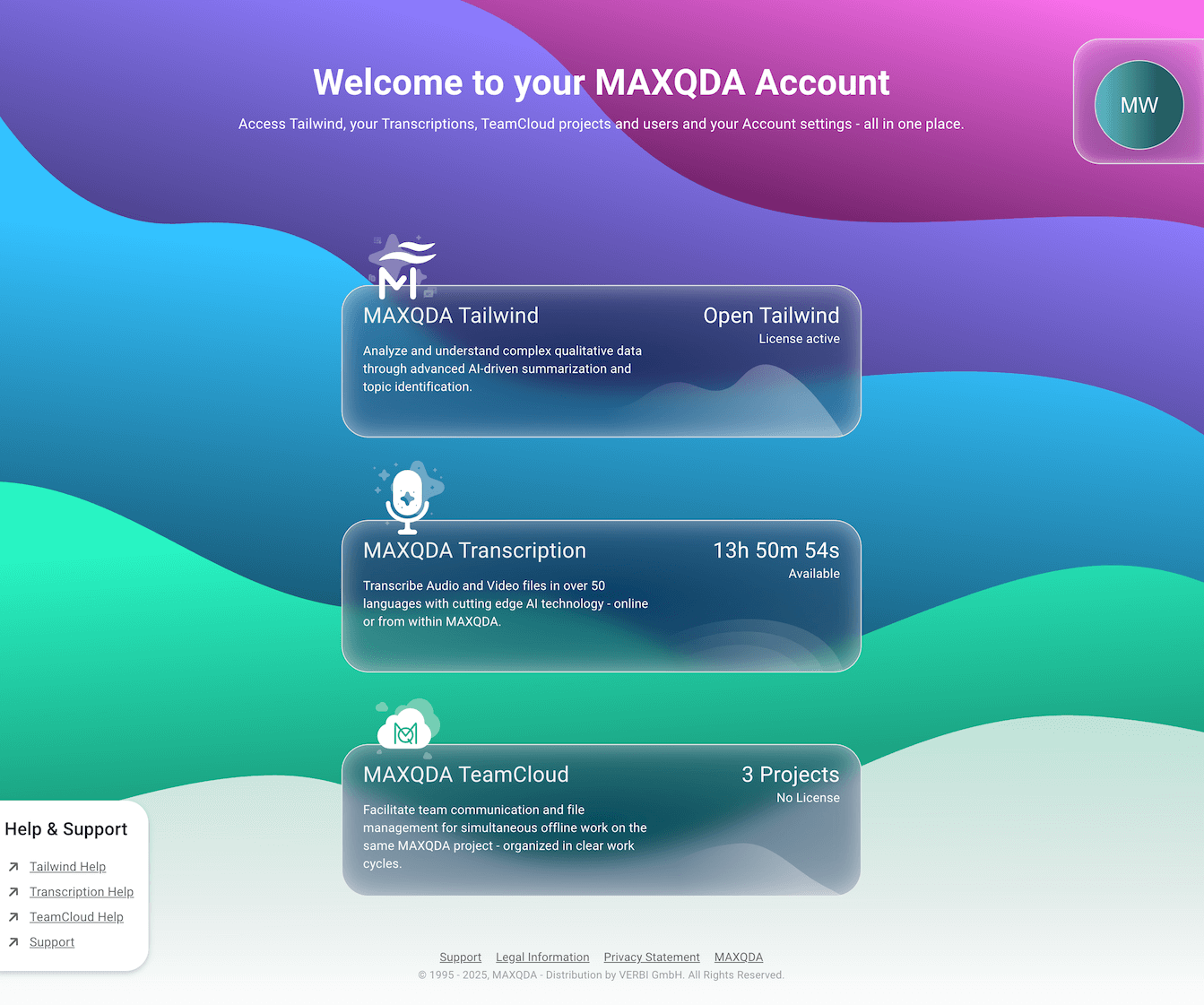
This opens the TeamCloud area of your MAXQDA Account. The Projects tab shows all TeamCloud projects you are involved in, including those you lead or have joined as a team member.
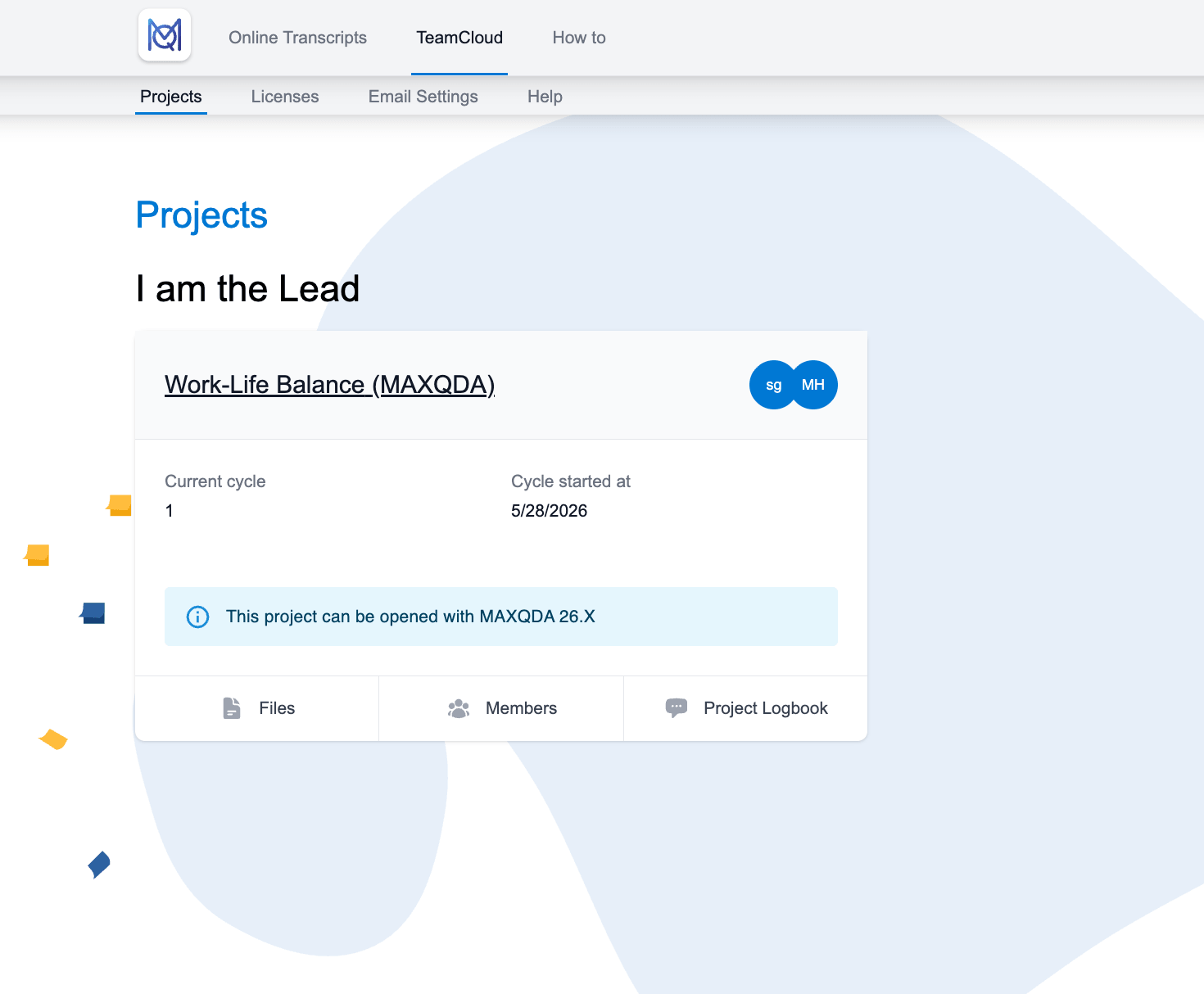
Each project shows the current cycle and when the cycle was started. Click the project name to open the project detail pages.
Project detail pages
Each TeamCloud project has several detail pages: Overview, Files, Members, and Project Logbook. Use these tabs to review the current project status, manage files and project members, and document important project notes.
On the right side of the project detail pages, the Project Size box shows the project's storage usage, and the Recent Activity section lists project events, such as member joins, uploads, new cycles, and upload comments.
Overview
The Overview tab summarizes the current project cycle. It shows the project status at the start of the cycle, including the number of documents, codes, coded segments, memos, summaries, and paraphrases.
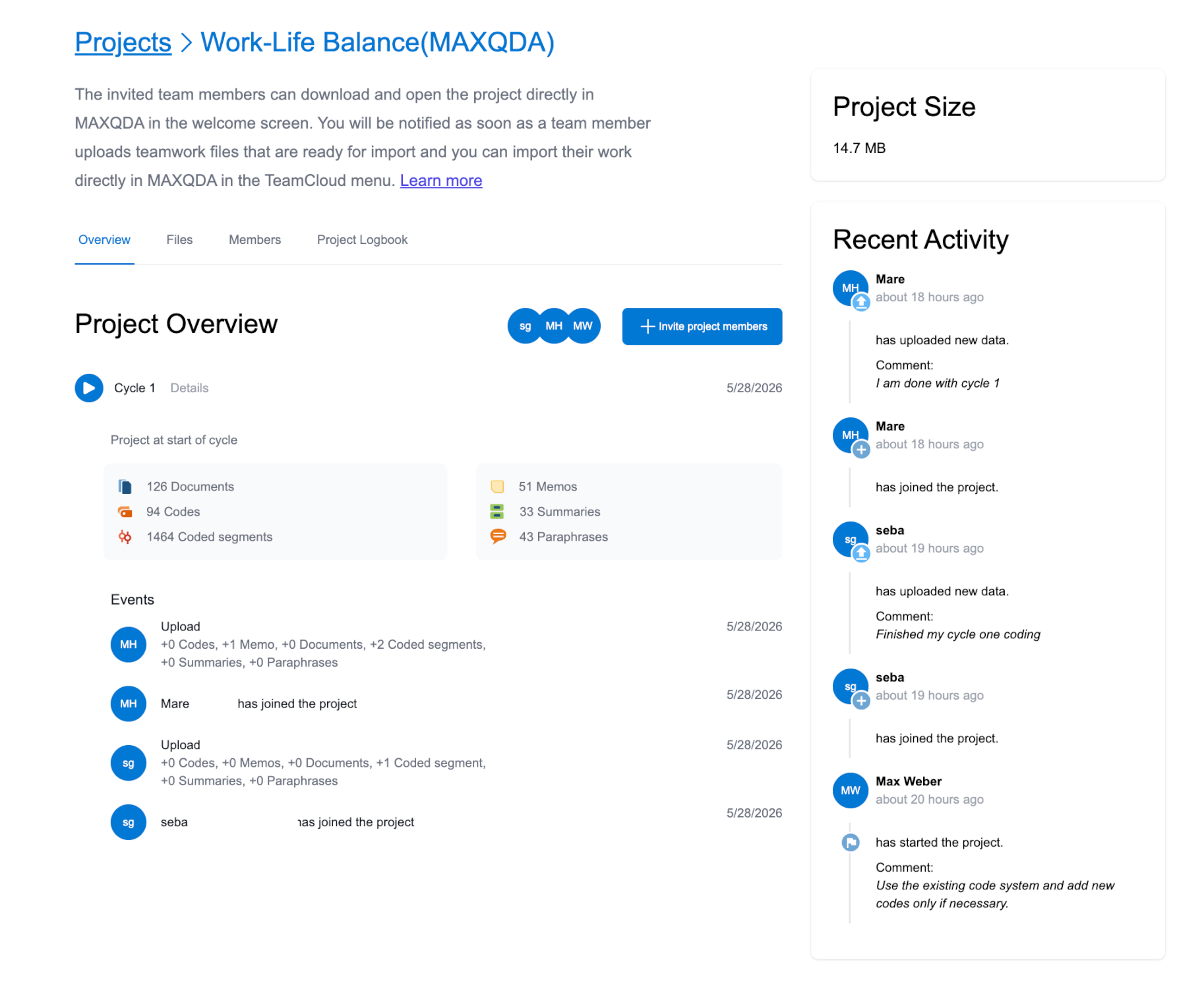
The Events section lists project activity for the current cycle, such as uploads and newly joined project members. For uploads, it also shows how many elements were added by each team member.
Files
The Files tab shows the current project file and the upload status of each team member for the current cycle.
- Project File: Shows the current project file, the current cycle, the upload date, and the upload comment. Use the clock icon in the Actions column to view previous versions and download them as local .mqda files. As team lead, you can also delete individual previous versions from here.
- Teamwork Status: Shows whether each team member has uploaded their work for the current cycle, when they uploaded it, and any comment they added.
- Delete Project: The Delete Project button at the bottom of the page permanently deletes the entire TeamCloud project, including all cycles and external files.
Only delete a TeamCloud project if you are sure that the project and all associated files are no longer needed.
Members
The Members tab shows all current project members. Each member is shown on a separate tile with their name, email address, role, and last activity.
Managing project members
Team leads can invite and remove project members from the Overview or Members tab. For the full workflow, see the Team lead workflow page.
Project logbook
Each TeamCloud project has a shared logbook for collecting notes, decisions, and questions. All project members, team lead and team members, can create, edit, and delete logbook entries.
The logbook is stored on the cloud server, not locally, so it can only be viewed on the TeamCloud page of the MAXQDA Account website. You can open it directly from MAXQDA via TeamCloud > Project Logbook.
The Project Logbook tab shows all existing logbook entries for the project. Each entry includes the entry title, the entry content, and information about who created it and when it was created.
- Add an entry: Click + Add Logbook Entry, enter a title and content, and click Add new logbook entry. Your username and the creation date are added automatically.
- Edit an entry: Click the pencil icon next to the entry. The editor's username and edit date are added automatically on save.
- Delete an entry: Click the trash icon next to the entry.
Entries are sorted newest first. To back up the logbook, use your browser's Print function and save the page as a PDF. This also captures the Recent Activity history.
If you use Google Chrome with the MAXQDA Web Collector extension, you can import the logbook page directly into your MAXQDA project as a web document.
