
Teamwork often begins like this: researchers work on the same data in parallel, each in their own project file on their own computer. One person may assign selected codes to the data, while another may work on selected documents. Both use existing codes and add new codes, create variables, and write new memos or summaries. In these cases, MAXQDA allows you to transfer codes, coded segments, memos, paraphrases, summaries, and variables from one project file to another.
This type of teamwork requires everyone to work with the same data. To make sure this is the case, it is best to import the existing data, such as documents, variables, and interview notes as memos, into a MAXQDA project file on one computer and then distribute the project file to all team members. It often also makes sense to define fixed categories as codes in the codes window before distributing the file.
Let's look at a simple example: Two people divide their work, with one person applying Code A and the second person applying Code B. Both people have also added their own codes, Code C and Code D. In principle, the situation looks like this. The procedure is essentially the same when working with several people or dividing the work by document.
MAXQDA project of Person 1 Documents
Codes
| MAXQDA project of Person 2 Documents
Codes
|
How does the transfer process work?
Suppose colleague 1 works on computer 1 and has coded "Interview 1" and added some memos. How can you make the results of this work available to colleague 2 on computer 2, especially if colleague 1 has redefined some codes during their work and colleague 2 has also continued working on the project file separately?
This is how it works in MAXQDA: colleague 1 exports all relevant information from their project file into a MAXQDA exchange file with the extension "MQEX" and sends this file to colleague 2. Colleague 2 then imports the information into their own project file.
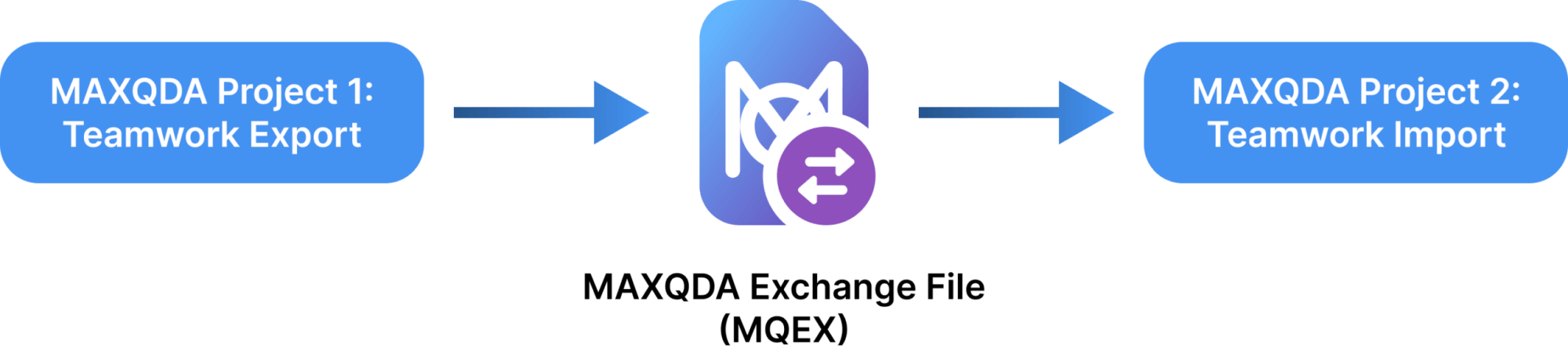
Export Teamwork: Saving data to an exchange file
To start the export process, select Teamwork > Teamwork Export: Export Data to Exchange File in the Home tab.
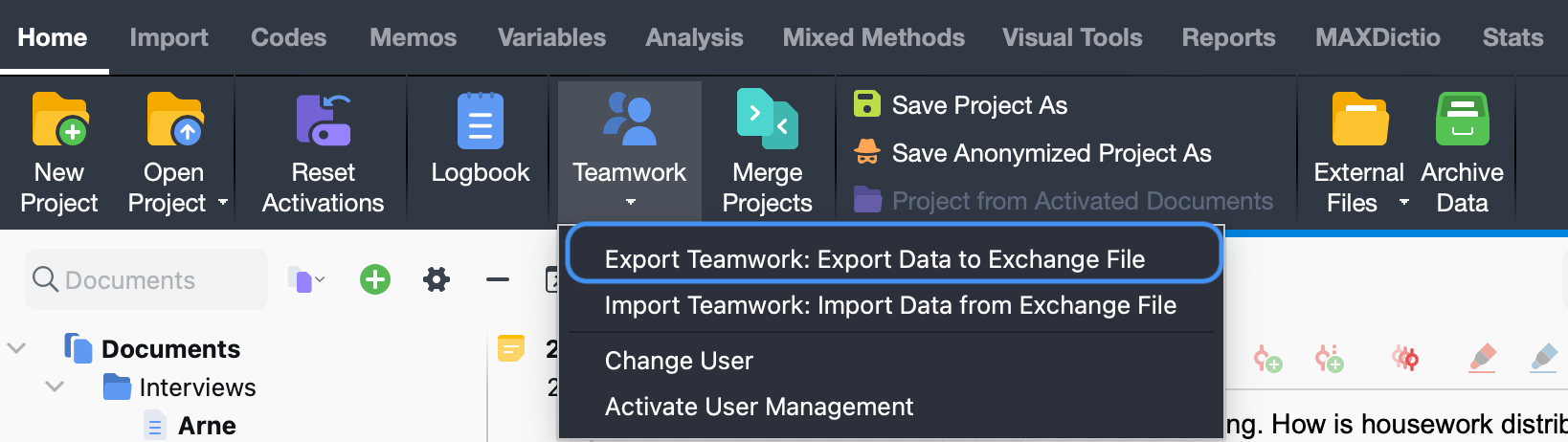
A dialog box will appear where you can select the following options step by step.
First, select the documents whose data you want to export. After clicking Next >>, a dialog box for selecting codes will appear. At the bottom, you can see how many codes are currently selected and how many coded segments occur in the previously selected documents.
Click Next >> to assign a file name and select a storage location. MAXQDA then exports all data from the selected documents, such as codes, code assignments, memos, variables, summaries, and paraphrases, into the export file.
What elements does the MQEX file include?
The MQEX file includes only document-related elements from the source project. For all documents you select during export, it includes the following elements:
- coded segments,
- document memos as well as memos in documents and media files,
- document variables and variable values, including those for focus group documents and focus group participants,
- paraphrases,
- summaries,
- and all codes you select during export.
The MQEX file does not include the following items from the source project:
- free memos, memos for document groups and document sets, project memo, and logbook,
- code variables and code sets,
- document sets,
- QTT worksheets,
- summary tables,
- concept maps from MAXMaps,
- internal links between documents or memos, geolinks, and external links.
Import Teamwork: Reading the exchange file into the target project
You can import the data from the exchange file into any MAXQDA project, typically one that already includes the same documents.
Select Teamwork > Teamwork Import: Import Data from Exchange File in the Home tab. A dialog box will appear and guide you through the import process step by step:
- First, select an MQEX file. MAXQDA analyzes the file and opens a dialog box for checking the correspondence between source and target documents.
In this dialog box, check the correspondence between the source and target documents. If the documents in the MAXQDA projects have the same name, you only need to check the automatic assignments MAXQDA made. Otherwise, you need to assign each text to the appropriate matching text yourself.
If the document does not yet exist in the project, you can select the <New Document> option to import the document from the exchange file.
You can deselect a document in the first column if necessary. MAXQDA then ignores it during the import process. - When you click Next >>, the dialog box for selecting codes will appear. MAXQDA shows new codes that do not yet exist in the target project in green.
- In the third step, select the data you want to import. MAXQDA only displays the data types included in the MQEX file. You can deselect individual elements, such as variables or paraphrases, to ignore them during the import process. The other options determine how MAXQDA handles conflicts during import. The following sections describe them in more detail.
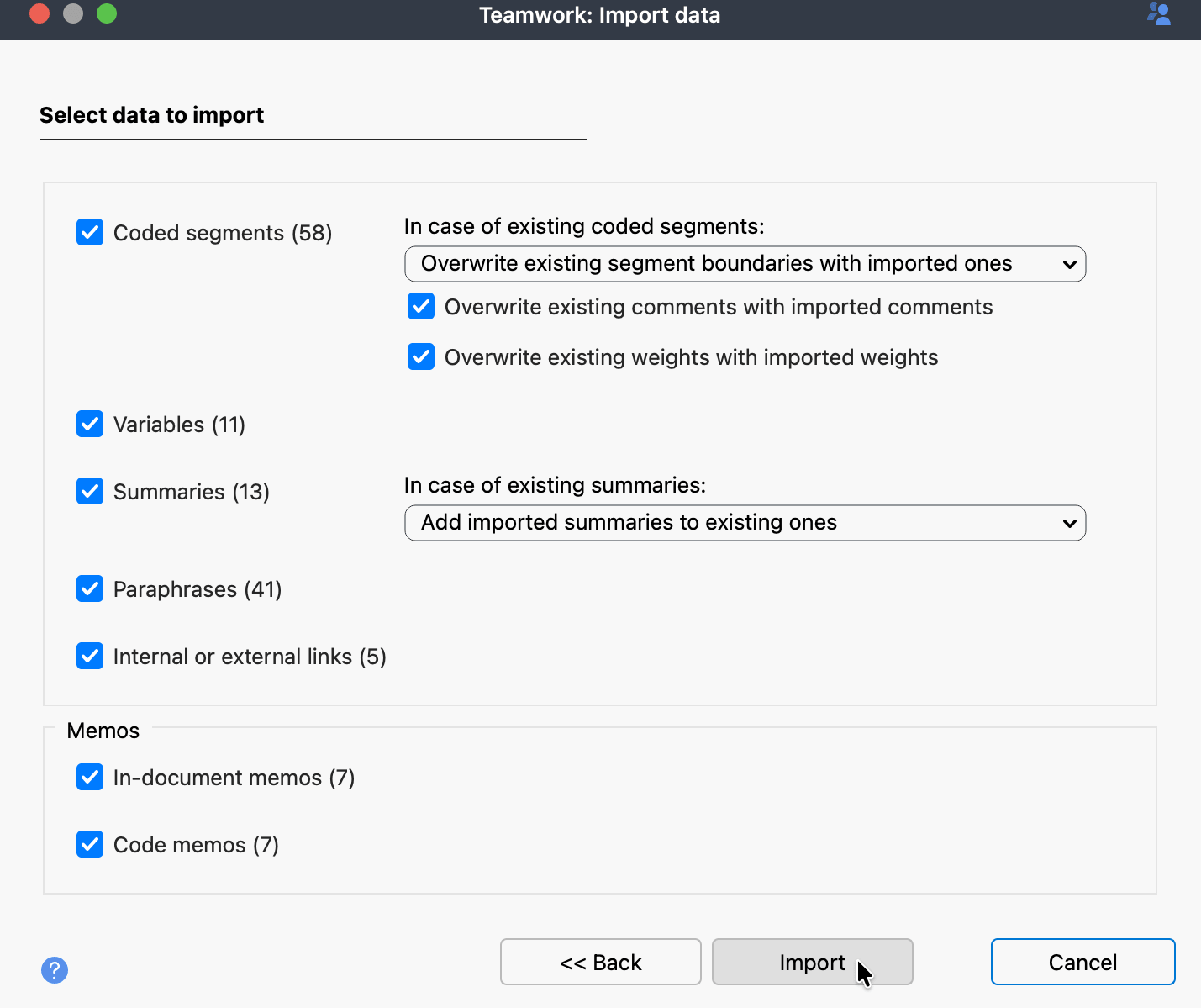
- Click Import to start the import process.
Handling conflicting code assignments
When importing coded segments, the same code may already be assigned to the corresponding segment in the target project. This segment may also have different segment boundaries than the coded segment you want to import. Since MAXQDA allows a segment in a document to be coded only once with the same code, you can use the drop-down menu to specify which segment boundaries MAXQDA should use during the import process:
- Overwrite existing segment boundaries with imported ones – This is the default selection. In the case of a conflicting code assignment, the segment boundaries of the imported coded segment overwrite those in the opened project file.
- Preserve existing segment boundaries – In the event of a conflict, the existing code assignment is kept, and the segment boundaries remain unchanged.
- Use outer segment boundaries of the code assignments – In the event of a conflict, MAXQDA uses the outermost segment boundaries of the two code assignments.
- Use inner overlapping area of code assignments – In the event of a conflict, MAXQDA uses only the overlapping area of the two code assignments as the coded segment.
Each code assignment in MAXQDA also includes a comment and a weight. In the event of a conflict, you can specify whether MAXQDA should retain the existing comments and weights or overwrite them with the imported ones:
- Overwrite existing comments with imported comments – When you activate this option, the comment of the imported coded segment always takes precedence and overwrites the comment in the opened project file. If the imported coded segment has no comment, MAXQDA ignores it, meaning that an empty comment never overwrites an existing comment.
- Overwrite existing weights with imported weights – If this option is enabled, the weight of the imported coded segment always takes precedence.
When importing summaries, you can also control how MAXQDA should proceed if a summary already exists for a document in a code:
- Do not change existing summaries – With this setting, MAXQDA imports only summaries where the corresponding summary in the project file is empty. In the event of a conflict, the imported summaries are ignored and not imported.
- Overwrite existing summaries with imported summaries – With this setting, in the event of a conflict, existing summaries in the project are replaced with the imported summaries.
- Add imported summaries to existing ones – In the event of a conflict, MAXQDA adds the imported summaries to the existing summaries.
What exactly happens during the import process?
- Code assignments
- Depending on the selected option, MAXQDA keeps or adapts code assignments that already exist in the document.
- Code assignments that do not yet exist are added to the opened project.
- If the exchange file includes a coded segment with a code that does not yet exist in the codes window, MAXQDA adds the code at the corresponding position. Codes with the same name at the same hierarchy position are considered identical, regardless of their color.
- Memos
- MAXQDA imports all in-document memos, except for memos at the same location with the same title.
- Document memos in the documents window are imported only if the document does not already have a memo. Existing document memos remain unchanged.
- Code memos are handled in the same way.
- Paraphrases
- MAXQDA ignores a paraphrase to be imported if a paraphrase already exists at the same location in the current project.
- Variables
- MAXQDA adds any variables that do not yet exist in the list of variables and imports their values.
- For existing variables, MAXQDA replaces the current value with the value from the import file.
Starting teamwork export/import in the documents window
You can also start the teamwork export or import process directly from the documents window for a document, document group, or document set.
To export teamwork data, right-click an entry and select Teamwork > Teamwork Export: Export Data to Exchange File.
To import teamwork data, right-click an entry and select Teamwork > Teamwork Import: Import Data from Exchange File.
