
Using AI Assist, you can generate summaries of coded text segments. Individual summaries are saved as comments on the corresponding segments. You can also generate a combined summary of multiple retrieved segments and save it as a free memo.
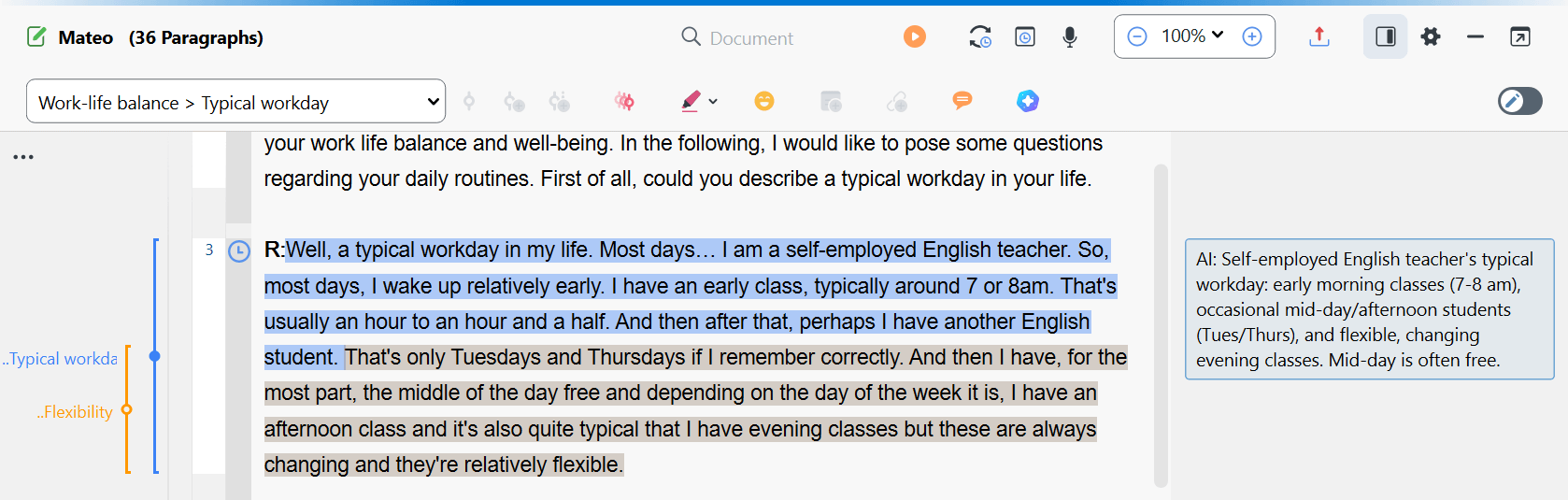
Summarize a single coded segment
To create a summary of a coded segment in the "Document Browser:"
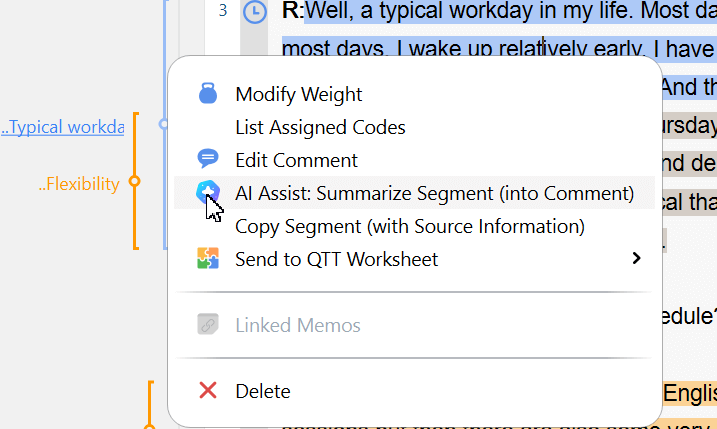
- Right-click the vertical coding stripe or the code name next to the stripe and select AI Assist: Summarize Segment (into Comment), as shown below.
- In the dialog box that opens, specify the desired language for the summary. AI Assist automatically detects the language of the coded segment and, if necessary, translates the contents into the language of the summary.
- You can choose between three summary lengths: short, medium, and long.
- You can also choose between two summary formats:
Sentences — generates short concise statements.
Topic list — lists the topics occurring in the segment's text. Typically, topics are separated by commas or occasionally presented as bullet points.
After clicking OK, AI Assist generates the summary and saves it in the comment of that segment. In the comment window, you can adjust the summary as needed. Comments created with AI Assist start with the abbreviation "AI:". You can remove this prefix from the comment at any time.
- If a comment already exists for the coded segment, you will be asked whether you want to overwrite the existing comment.
- AI Assist summaries saved in comments are limited to 511 characters. While AI Assist tries to stay within this limit, longer coded segments may result in truncated summaries. In such cases, the summary ends with three dots ("...") to indicate truncation.
Other locations for single-segment summaries
The AI Assist: Summarize Segment feature is also available at other locations in MAXQDA where coded segments are listed:
- In the tabular Overview of Coded Segments, right-click on an individual row.
- In the "Retrieved Segments" window, right-click on the coding stripe.
- In the Segment Matrix, right-click on a displayed segment; the same applies to the Compare Codes feature.
Summarize multiple coded segments
Summarize retrieved segments
You can generate a combined summary of the coded segments currently listed in the "Retrieved Segments" window:
- Activate the documents and codes you want to include, so that the desired segments are listed in the "Retrieved Segments" window.
- Click the
 AI Assist icon in the toolbar of the "Retrieved Segments" window and select Summarize the Listed Text Segments.
 - In the dialog box that appears, configure your summary request:
- Set the summary language and length (short, medium, long).
- Optionally, choose a bullet-point format.
- Add additional instructions to guide AI Assist, if needed.
- Click OK to generate the summary.
 AI Assist icon in the toolbar of the "Retrieved Segments" window and select Summarize the Listed Text Segments.
The generated summary is displayed in a popup window. You can edit it if necessary and then choose how to handle the result:
 Copy to Clipboard: Copy the summary text to your clipboard.
 Save as Free Memo: Save the summary as a free memo in your project.
Close: Close the popup without saving. A confirmation message will appear asking whether you want to discard the summary.
Summarize listed segments into individual comments
In the Smart Coding Tool and the Survey Analysis workspace, you can summarize multiple coded segments at once, with each segment receiving its own summary saved as a comment:
- Right-click on one or more selected segments and choose AI Assist: Summarize Segment (into Comment).
- In the ribbon bar, click AI Assist and choose Summarize Listed Text Segments/Responses (into Comments) to process all listed segments at once.
Processing times depend on the number of segments: 250 segments will take about 1 minute and 30 seconds, while 500 segments will take about 3 minutes. If you try to summarize more than about 800 segments, you will get an error message telling you to try again later — but since this is the technical limit, we don't recommend to try again and run batches of max. 400 instead (which will take about 2 minutes each).
- AI Assist provides very good results for very many use cases. Nevertheless, you should still review the results.
- If you analyze texts with critical content (violence, hate speech, bullying, etc.), summaries may not be created.
- Usually, you will receive the same or very similar summary for the same segments. However, a summary may differ from previous ones because the underlying language model produces variable results and is continuously updated.
