
While working in the Media Player, you can attach memos to specific time positions, paraphrase scenes, and create internal links between video clips and other content in your project.
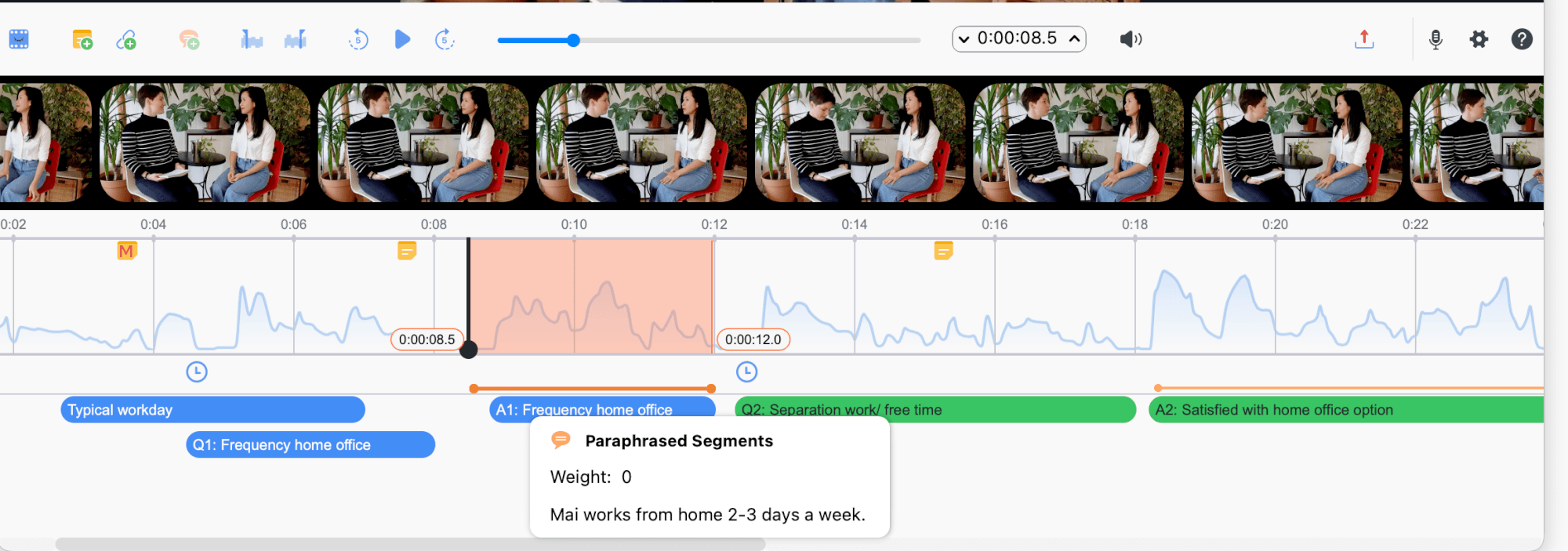
Attaching memos to time positions
You can attach a memo to any playback position in a video or audio file to record notes, hypotheses, interpretations, or observations about that moment. To create a memo at the current playback position:
- Click the
 New memo icon in the toolbar
 - Right-click a position in the waveform and choose New Memo
- Use the keyboard shortcut Alt+Shift+M (Windows) / Option+Shift+M (macOS)
 New memo icon in the toolbar
For information on opening, editing, and managing memos, see Creating and Writing Memos.
Paraphrasing video and audio
You can paraphrase scenes in a video or audio file directly in the Media Player. To create a paraphrase:
- Select a clip in the waveform. The selected clip must not overlap an existing paraphrase.
- Create the paraphrase using any of these methods:
- Click the New Paraphrase icon in the toolbar
- Right-click the selected clip and choose New Paraphrase
- Use the keyboard shortcut Ctrl+P (Windows) / Cmd+P (macOS)
- Click the
 New Paraphrase icon in the toolbar
Existing paraphrases are always visible in their own row below the waveform, marked in orange. Click a paraphrase to highlight the corresponding section of the audio or video.
Editing and deleting paraphrases
- Edit: Double-click a paraphrase to open it for editing. Alternatively, right-click it and choose Edit Paraphrase.
- Delete: Right-click a paraphrase and click Delete Paraphrase.
For information on categorizing and analyzing paraphrases, see Paraphrasing.
Setting internal links in video clips
Internal links connect two parts of your project, such as a video scene and a section in a transcript, a text passage, or a memo. To set an internal link in a video:
- Select a clip in the waveform.
- Set the link's anchor using any of these methods:
- Click the Insert Internal Link (Anchor/Target) icon in the toolbar
- Right-click the selected clip and choose Insert Internal Link (Anchor/Target)
- Use the keyboard shortcut Ctrl+L (Windows) / Cmd+L (macOS)
- Click the
- Select the target (another clip in the video, a text passage in a document, or a memo) and repeat step 2 to complete the link.
 Insert Internal Link (Anchor/Target) icon in the toolbar
A link icon appears at the start of the linked clip. Hover over it to preview the linked location, or click it to jump there. To remove a link, right-click its icon in the waveform.
