
What is "AI Coding: Coded Segments and Survey Responses"?
The "AI Coding for Coded Segments and Survey Responses" feature lets you apply a selected set of codes to segments or survey responses that have already been coded. The AI-based code assignment is based on the code names and the code definitions stored in your code memos. For each suggested code, AI Assist provides a short explanation so that the suggestions remain transparent and easy to understand. You decide which suggestions to accept.
The feature is available in the Smart Coding Tool and the Survey Analysis workspace, and it is especially useful for the following types of analysis:
- Refining coded segments with subcodes - For example, assume you have already coded all passages related to "job satisfaction." You now want to differentiate those passages further using subcodes such as "team climate," "pay," and "work-life balance." AI Coding analyzes each segment and suggests the most relevant subcodes for each passage.
- Categorizing responses to open-ended survey questions - For example, if you asked "What suggestions do you have for improvement?" in a course evaluation, AI Assist can assign the individual responses to categories you created, such as "practical relevance," "time management," or "materials," making it easier to categorize and count them.
- Reviewing existing coding - AI Assist can serve as a second perspective. Let the AI review your existing coding to help identify possible inconsistencies or missing code assignments.
The "AI Coding for Coded Segments and Survey Responses" feature works especially well together with the AI Assist feature Suggest Subcodes: first, you can use AI to develop suitable subcodes for the segments of a code, and then you can use AI again to apply those subcodes to the segments.
Requirements
There are two key requirements for using AI Coding:
- Codes for the analysis have already been created: You have already created suitable codes, usually subcodes, that should be applied to coded segments or survey responses.
- Meaningful code memos are available: AI Assist uses your code memos to understand how you define a code and when it should apply. The clearer and more precise your memos are, the more relevant the suggestions will be. In your memos, you can explain not only when a code should be assigned, but also when a different code should be used instead.
Start AI Coding
For coded segments
- Open the Smart Coding Tool, for example via Codes > Smart Coding Tool in the main menu.
- Click one of the codes in the code system to display its associated segments.
- If needed, filter the list using options such as Only Activated Documents or by searching for words. AI Coding analyzes only the segments that are currently listed.
- In the main menu, click AI Coding > AI Coding of Listed Segments.
For responses to open-ended survey questions
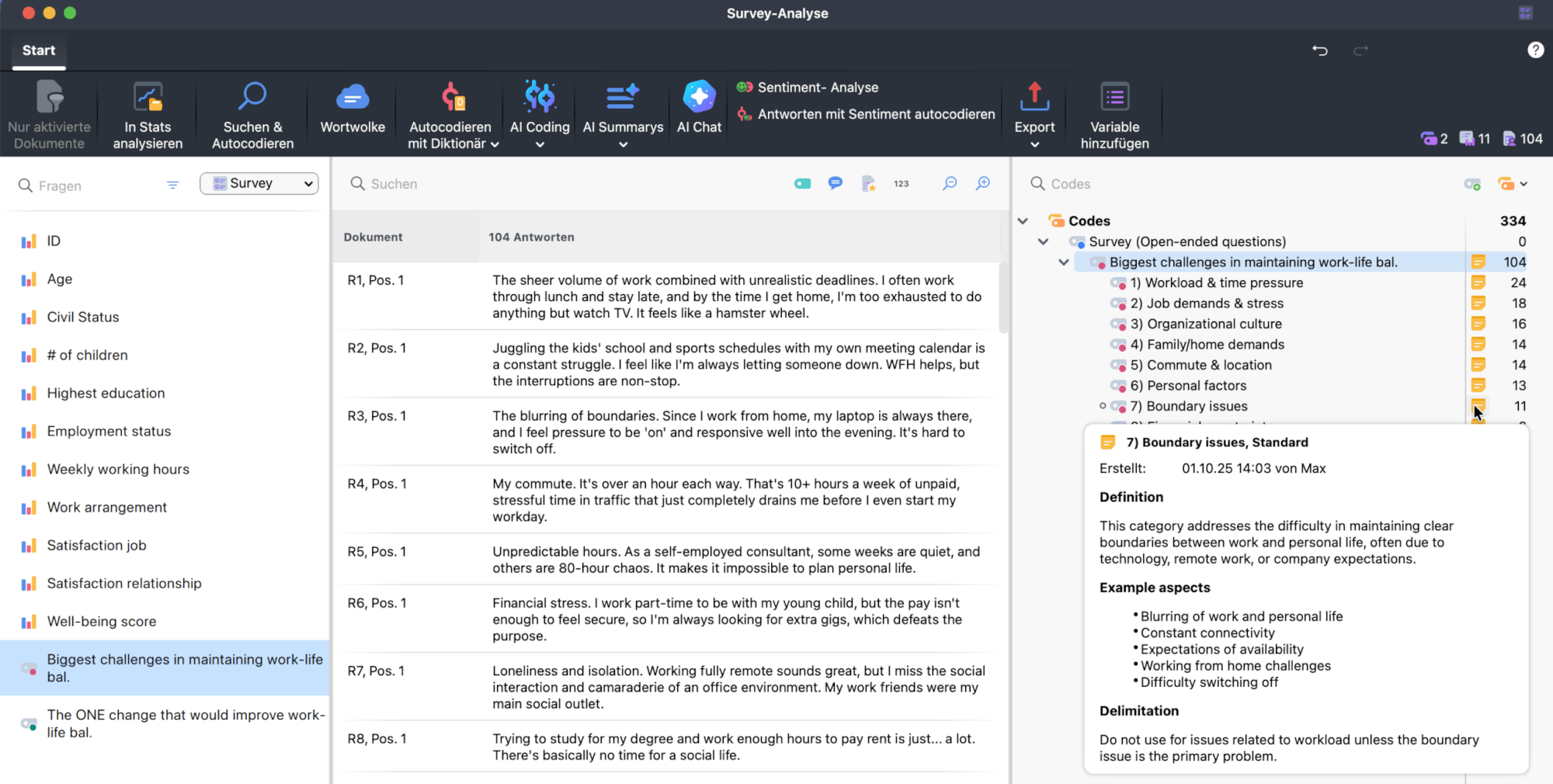
- Open Survey Analysis, for example via Analysis > Survey Analysis in the main menu.
- In the list of survey questions, click one of the open-ended questions to display its responses.
- If needed, filter the list using options such as Only Activated Documents or by searching for words. AI Coding analyzes only the survey responses that are currently listed.
- In the main menu, click AI Coding > AI Coding of Listed Responses.
Select codes for analysis
When you start the function, a code selection dialog opens. Here, specify which codes AI Assist should apply to the listed segments or responses.
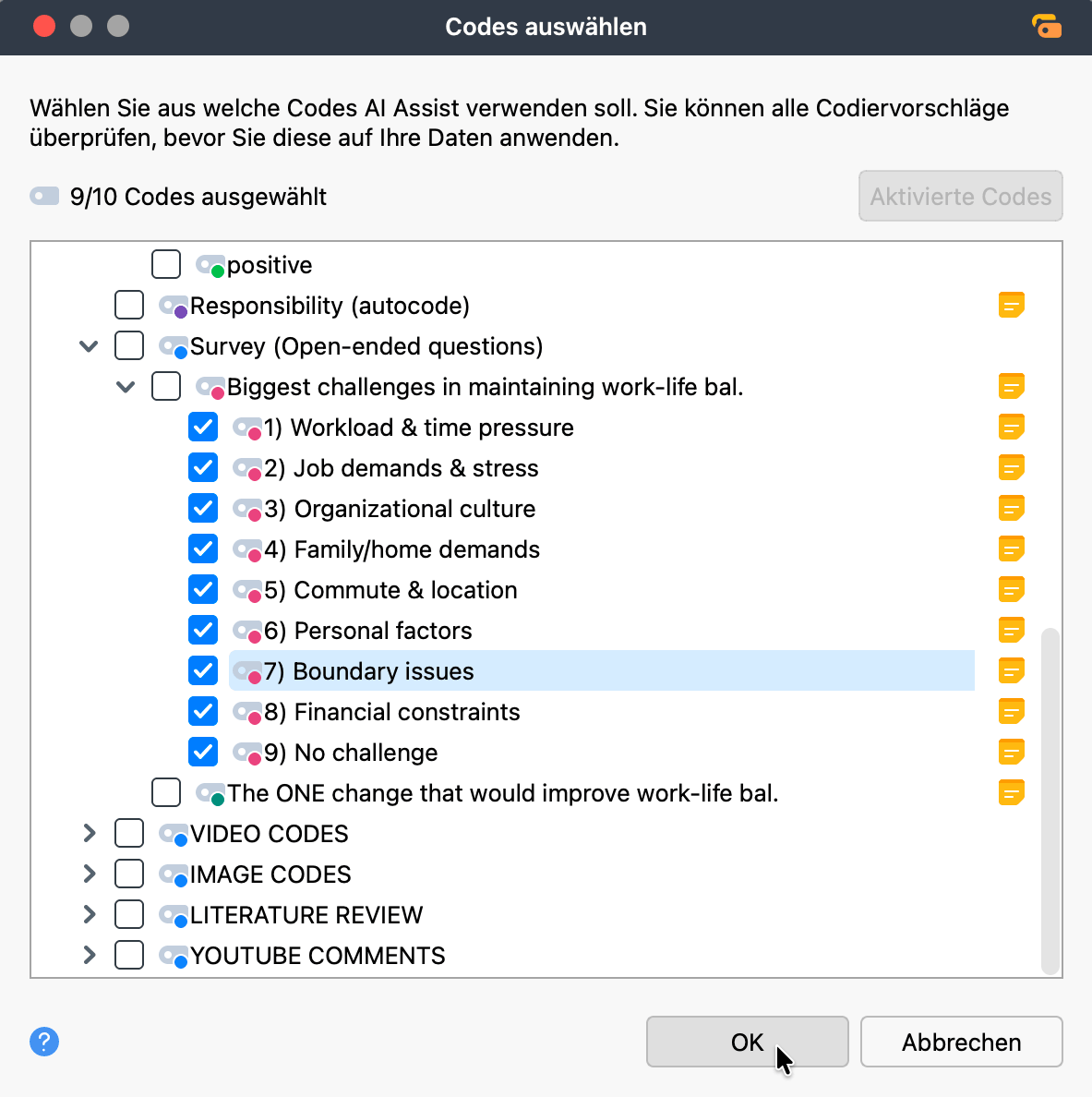
A counter shows how many codes are currently selected. If you exceed the maximum allowed number, the counter turns red and the OK button is disabled until you reduce the selection.
Click the Activated Codes button to select the codes that are currently activated.
Click OK to start the analysis.
Review suggested codes
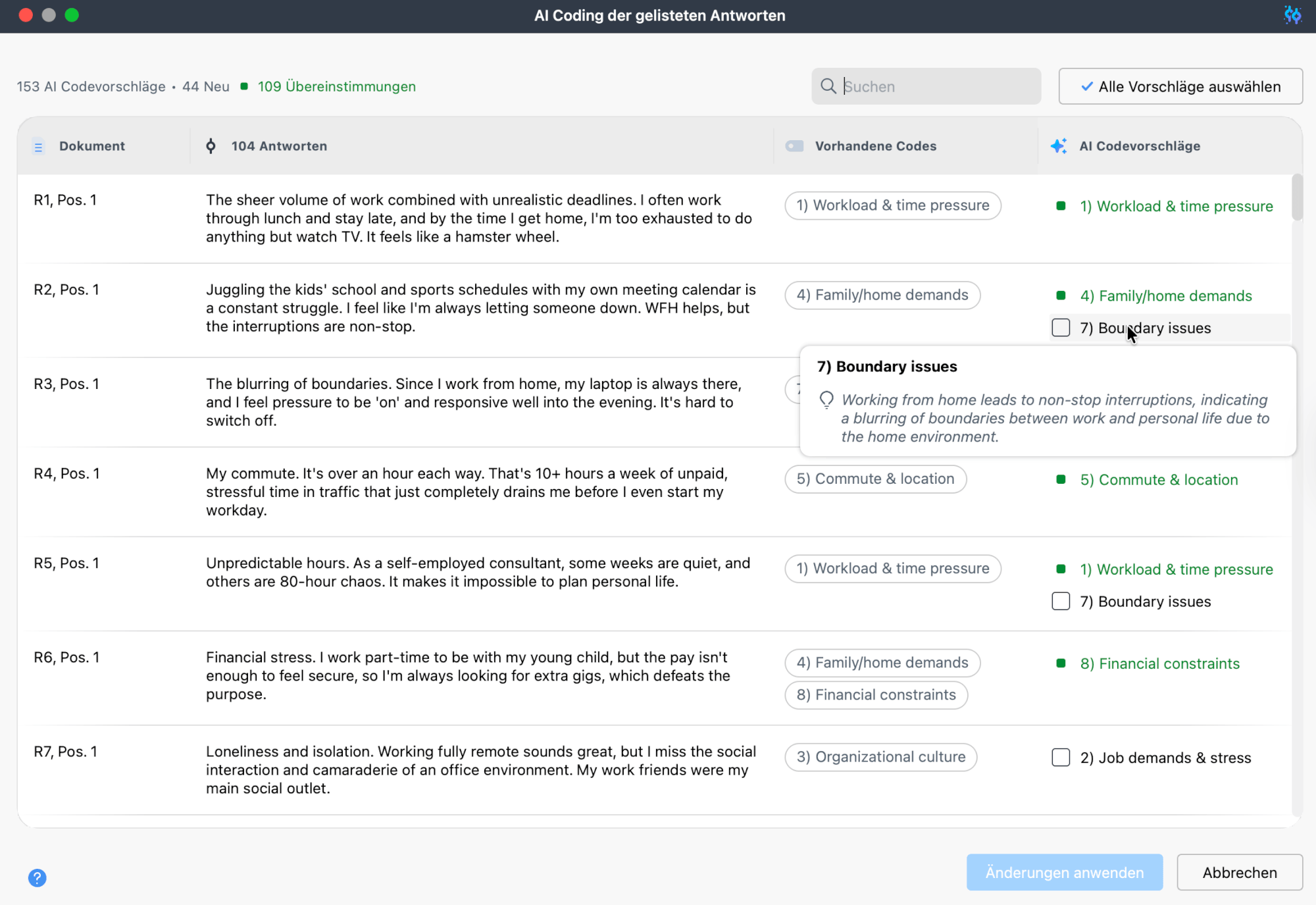
Once the analysis is complete, the suggestions appear in a table where you can review each one individually before any changes are applied.
Each row contains one segment or response and shows any existing codes alongside the codes suggested by AI Assist.
In the upper-left corner of the results window, the following information is displayed:
- AI Suggestions - The total number of AI code suggestions
- New - The number of new code suggestions, meaning codes that were not previously assigned to the segment or response
- Matching - The number of suggestions that match codes already assigned
The table contains the following columns:
- Document - The source document that contains the segment or survey response
- Coded Segments/Responses - The analyzed text segment or response
- Existing Codes - Codes already assigned to the segment; codes that were already assigned but not considered in the AI analysis appear in a lighter color
- AI Suggestions - Codes that AI Assist suggests for this segment or response
You can sort the table by clicking any column header. To restore the original order, right-click a column header and select Reset Sorting.
Several table tools make it easier to work with the results:
- Right-click a column header and select Search to highlight matches in the table.
- Use Set Filter to display only rows that meet specific conditions.
- Use Hide Column or Select Columns to adjust which columns are visible.
For detailed information about working with tables in MAXQDA, see the chapter Managing Tables.
Types of suggestions
There are two types of code suggestions in the AI Suggestions column:
- New suggestions - Codes that are not yet assigned to the segment. These appear with a checkbox so you can select them for application.
- Matching suggestions - Codes that are already assigned to the segment. These appear highlighted in green.
Hover over a suggestion to view AI Assist's explanation. This helps you assess how well your code definitions are reflected in the suggestions and whether revising the code memo could improve future results.
Select suggested codes
You can apply suggested codes as follows:
- Select the checkbox next to any new suggestion to choose it.
- Click Approve All Suggestions to select all new suggestions at once.
- Click Discard All Suggestions to clear all selected suggestions.
The Apply Changes button shows how many new codes are currently selected, for example, "Apply Changes (3 New)."
To discard your current selection and start over, click Revert Changes. The table returns to its original state, but the AI suggestions remain visible so you can make a new selection.
Remove existing codes
If needed, you can also remove codes that are already assigned to a segment:
- Hover over a code in the Existing Codes column and click the remove icon.
- The code appears with a strikethrough to indicate that it will be removed when you apply the changes.
- To undo the removal, hover over the code again and click the restore icon.
The Apply Changes button also includes codes marked for removal, for example, "Apply Changes (3 New, 1 Removed)."
Apply or discard changes
Click Apply Changes to apply all selected additions and removals to your data. The explanation provided by AI Assist is saved for each newly assigned code as a comment for the coded segment. A confirmation message shows how many coding changes were made.
Click Cancel to close the dialog without applying any changes.
Further notes
- If you run AI Coding again on the same documents using the same code names and the same code memos, the suggestions may vary slightly.
- The time required for the analysis depends on the current AI Assist workload, the number of segments, and the number of code suggestions.
- If your texts contain sensitive content such as violence, hate speech, or bullying, AI Assist may refuse to process the data.
