MAXQDA 26.2 (March 2026)
Elevate your qualitative analysis with three powerful new features in MAXQDA: smarter Memos, AI Coding for Segments, and AI Reports. These tools deepen your connection to the data, and streamline the path from raw observations to meaningful discoveries—all built directly into your research workflows.
Smarter Memos
A cleaner way to work with memos
Memos are the heart of qualitative analysis in MAXQDA—where observations become findings. Over time, memos have evolved from simple sticky-note comments into a central workspace for document and code summaries, and, more recently, for AI-generated output such as summaries and explanations.
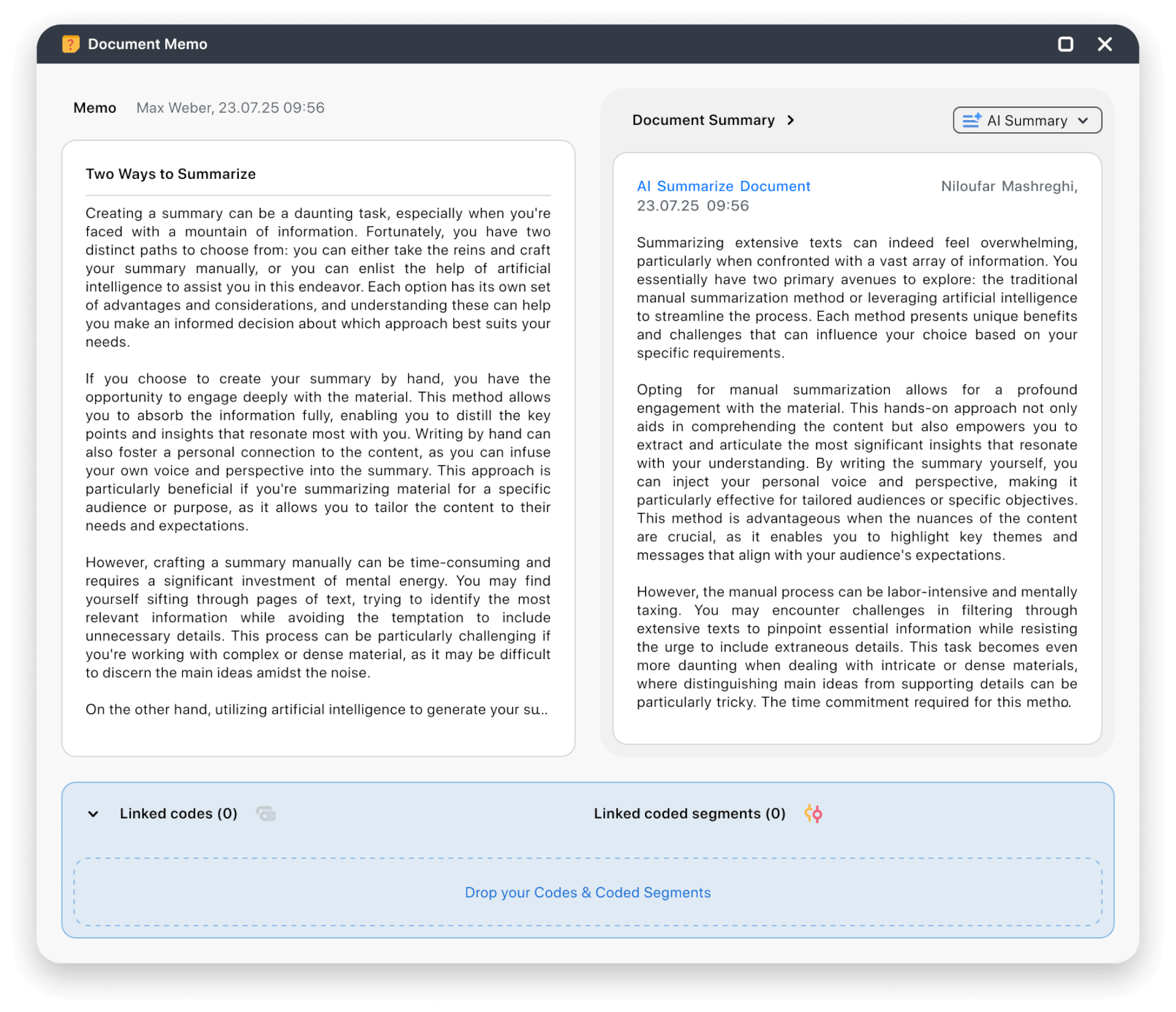
The refreshed memo layout makes memos easier to read and ready for the growing role they play in AI-assisted analysis.
- Side-by-side view: Easy reading and scrolling with memos and summaries next to each other.
- Clearer AI options: Better placement and labelling for AI features.
- Improved linked items area: Linked codes and coded segments are now easier to access and work with, whether the section is collapsed or expanded.
📍 Where you’ll see it: Open any memo in your project to experience the new layout.
AI Coding for Segments & Responses
Precision at Scale
When you have hundreds of pre-coded segments across multiple documents, you may want to test additional codes or validate existing coding. Previously, AI Coding in MAXQDA worked at the document level; now, AI Coding for Segments & Responses delivers precise, segment-level analysis while keeping you in full control.
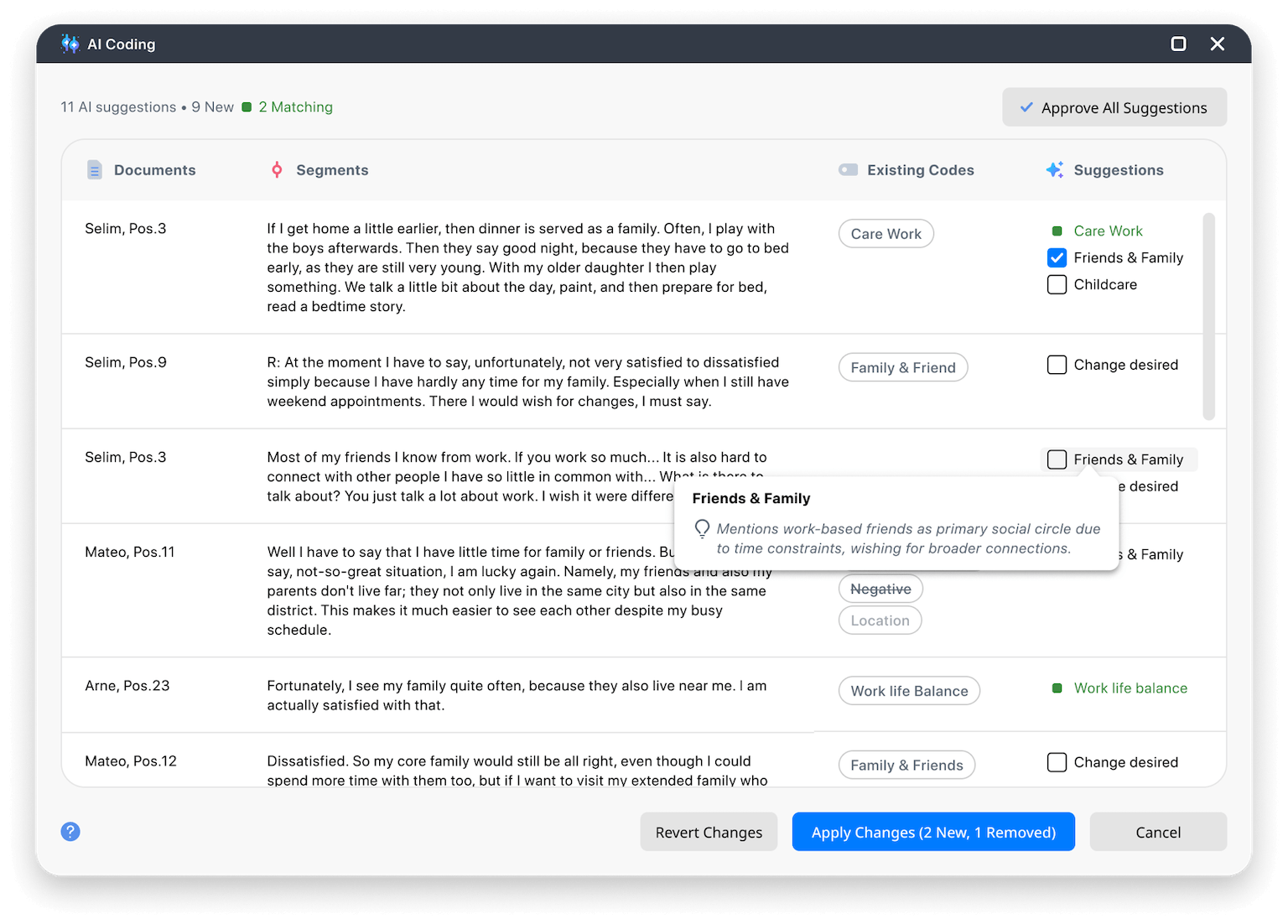
Select text segments and target codes to generate a results table showing each segment’s current codes alongside AI suggestions with transparent reasoning. You can approve, decline, or bulk-edit suggestions and decide which existing codes to remove or replace.
How AI Coding for Segments & Responses fits into the workflow:
- Targeted selection: Choose text segments and codes for match analysis.
- Trusted context: Your code definitions (in code memos) guide the AI results.
- Clear reasoning: Each code suggestion includes a concise explanation.
- Human control: Apply only approved suggestions. Refine existing codes simultaneously.
- AI validation: Test AI suggestions against your manual coding to verify accuracy.
📍 Where to find it: Launch the feature from the Survey Analysis workspace or the Smart Coding Tool.
AI Reports
Professional Reports in Seconds
Turn complex qualitative data into actionable findings with AI Reports. Whether you’re analyzing academic articles, interview transcripts, or other types of documents, AI Reports helps you move from raw data to clear, problem-focused summaries in just a few clicks. Choose the documents you want to include, guide the AI with your question, and generate a report with insights linked directly to your source material.
Need inspiration? AI Reports can suggest alternative questions to broaden your perspective or explore new analytical angles.
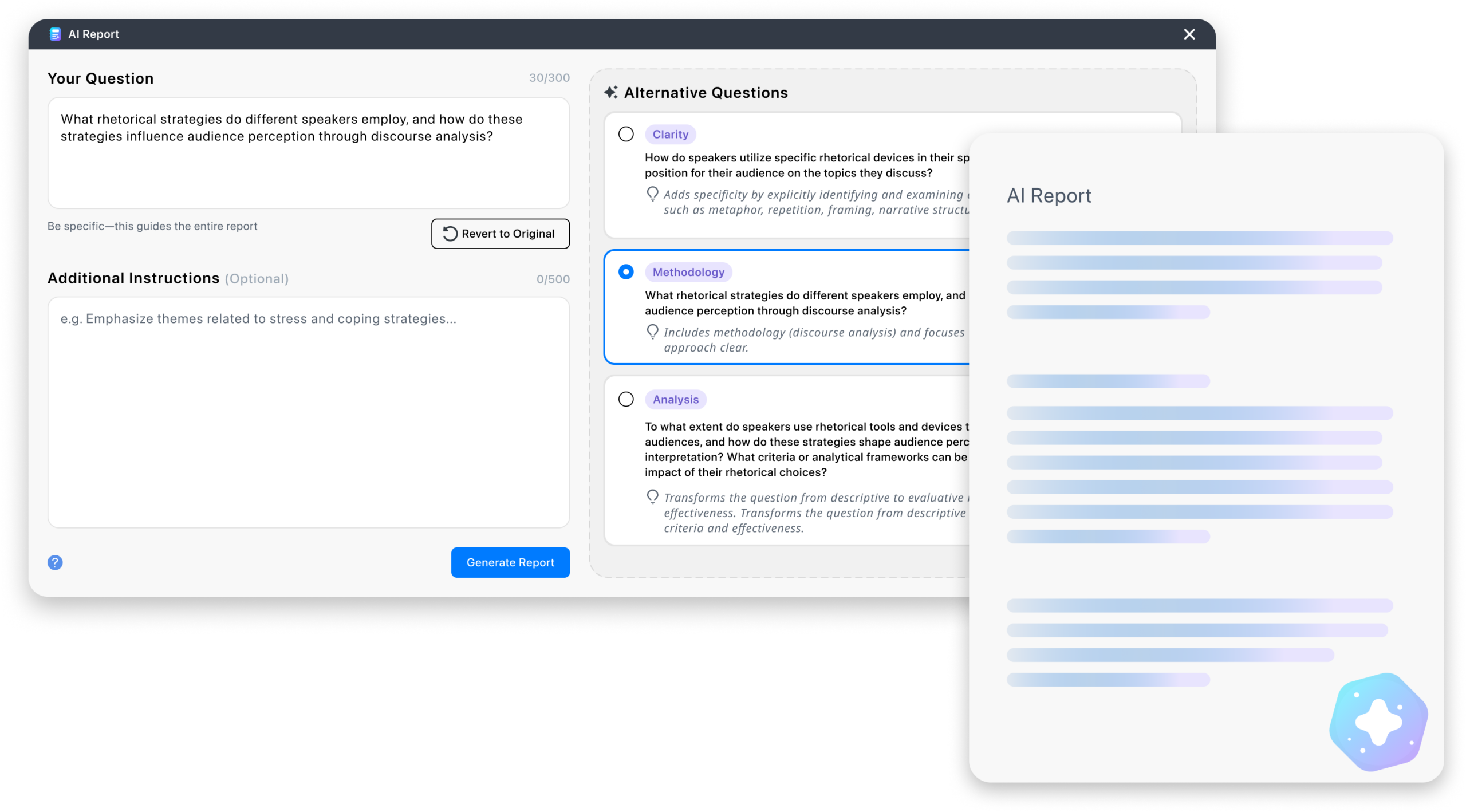
Key features and benefits:
- Instant reporting: Generate clear, problem-specific reports from your unique question.
- Full control: Add instructions, refine prompts, and select which documents to consider.
- Smart suggestions: AI-generated question suggestions to deepen or redirect your analysis.
- Transparent insights: Interactive references link each finding back to the original data.
- Easy organization: Save reports in your project and edit them like any other document.
📍 Where to find it: Go to AI Assist > AI Report in MAXQDA’s main menu.
Other Notable Improvements
- Spell checking in any language: Use spell checking with any language installed on your computer.
- AI Summaries for retrieved segments: Quickly generate summaries for all coded segments shown in the Retrieved Segments window.
- Automatic backups during manual transcription: Additional backups now preserve annotations such as codes and memos and can be restored as functional documents.
- Cleaner matrix and crosstab toolbars: Related toolbar options are grouped into labeled dropdowns for a more streamlined interface.
- More efficient automatic transcription: When transcribing video files, MAXQDA now extracts only the audio layer before sending it for transcription, reducing data transfer.
How to Update and Upgrade
- How to Update MAXQDA
To update MAXQDA, follow these three simple steps:
- Launch MAXQDA with a stable internet connection.
- Click the
 help menu icon in the bottom bar at the left.
 - Select Search for updates from the menu.
Once MAXQDA has been updated, you will have access to all new features and improvements. Contact your local administrator if you have limited admin rights on your institution’s computers.
 help menu icon in the bottom bar at the left.