
AI Chat lets you interact with your MAXQDA data and the MAXQDA Manual using natural language. You can request summaries, explore themes across documents, coded segments, your code system, and memos, or ask how MAXQDA features work.
For example, you might ask AI Chat to identify recurring themes across a set of interview transcripts, look for inconsistencies in a group of coded segments, or synthesize insights from your analytical memos. AI Chat responds within seconds and adds numbered references that link back to the source material.
All conversations take place in the same AI Chat window, and MAXQDA saves them automatically to your history. AI Chat works with text-based data only. It does not support audio, video, or image documents, nor image-based text in PDFs, such as scanned documents.
The AI Chat window
Open AI Chat from the main menu by selecting AI Assist >  AI Chat. The window remains open independently of MAXQDA's main windows, so you can work in both at the same time.
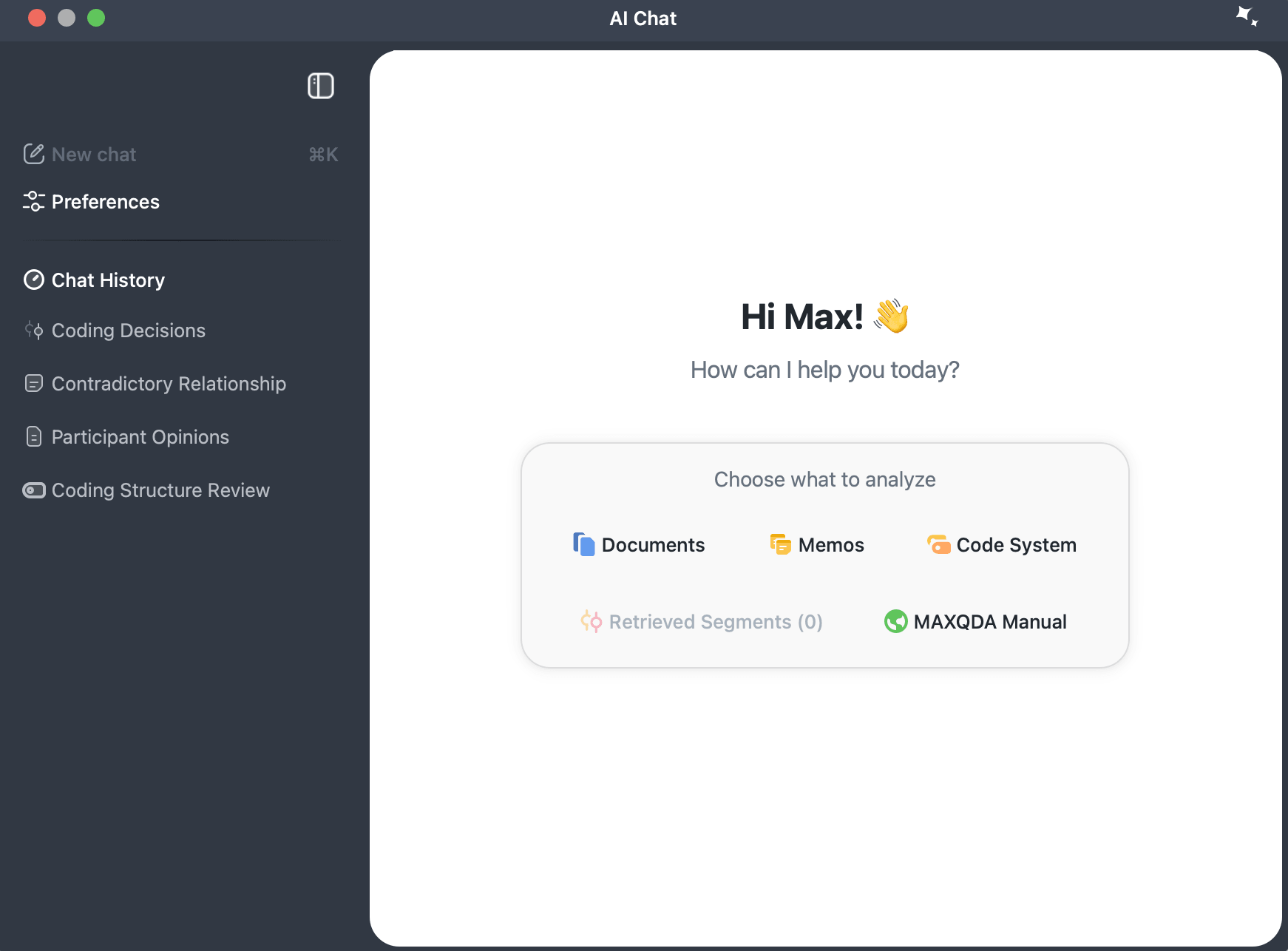
The window is divided into a chat panel on the right, where you converse with AI Assist, and a sidebar on the left for navigation.
The sidebar gives you access to:
 New chat — Start a new chat.
- Settings — Open Chat Settings to configure project context and response style for all chats.
- Chat History — Access and manage previously saved chats.
 New chat — Start a new chat.
 Chat History — Access and manage previously saved chats.
To hide the sidebar, click the  Expand/Collapse Sidebar icon at the top of the sidebar. Click it again to restore the sidebar.
The sections below describe all sidebar features in more detail.
Starting a chat
To begin, select a data source on the landing screen: Documents, Memos, Code System, Retrieved Segments, or MAXQDA Manual. Each source follows its own workflow, described in the sections below. You can also start a chat directly from other locations in MAXQDA without using the landing screen.
Chatting with documents
You can chat with any text or PDF documents in your project.
Selecting Documents opens the document selection dialog. Use the document tree to select one or more documents. The dialog shows how many documents you have selected and what percentage of your character quota they use. To narrow the list to your currently activated documents, click Activated documents. When your selection is ready, click Start Chat.
During the chat, the input field shows how many documents the conversation includes.
Chatting with coded segments
AI Chat uses the segments currently listed in the Retrieved Segments window and reads the text of those coded segments. It includes code names only as labels for the text, not as a representation of your code structure. To chat with the code structure itself, see Chatting with the code system below.
The retrieval mode must be set to Simple Coding Query. AI Chat does not support Complex Coding Query.
Ensuring the correct retrieval mode
To verify the retrieval mode, check the mode shown in the Retrieved Segments window below the toolbar. If it does not display Mode: Simple Coding Query, click the  Reset Coding Query icon.
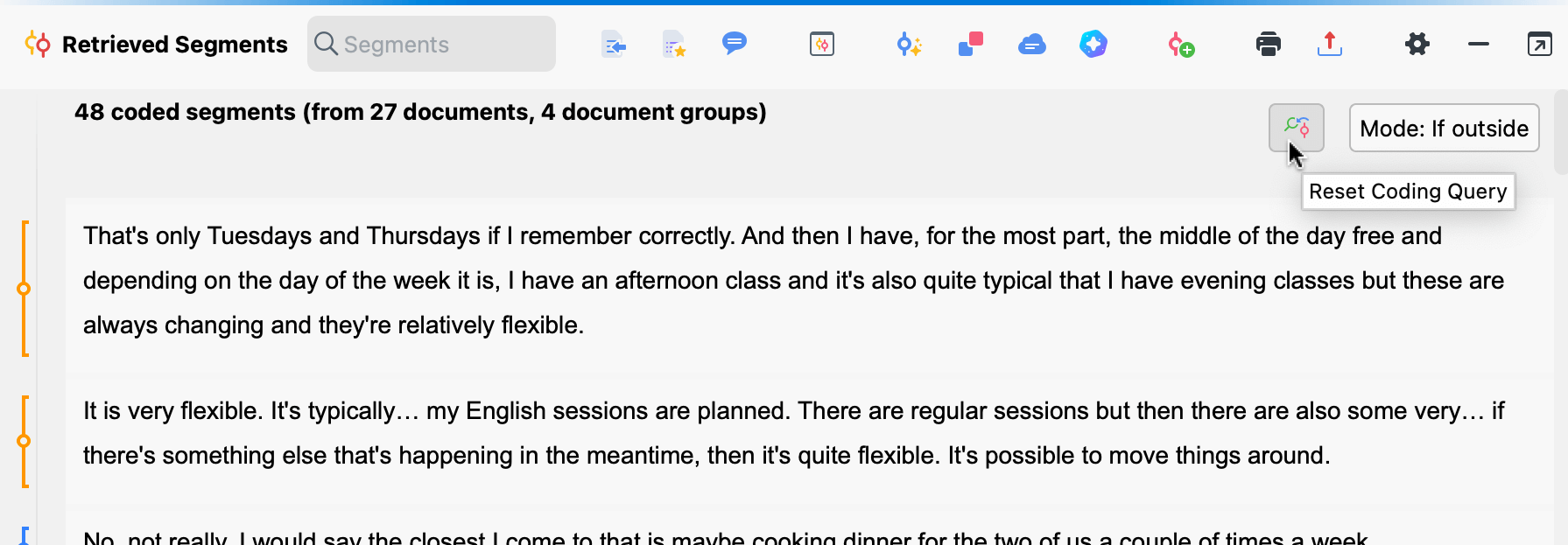
The Retrieved Segments option on the landing screen is disabled if no segments have been retrieved. During the chat, the input field shows how many segments the conversation includes.
Chatting with the code system
A chat with the code system uses the code structure itself rather than the text of your coded segments. AI Assist receives the codes you select, their names and hierarchy, and, optionally, their code memos and frequencies. Chat with coded segments to ask what is in your data; chat with the code system to ask how you have organized your codes.
Chatting with your full code system requires AI Assist Premium. With AI Assist Free, you can include only a limited number of codes in a chat. Learn more.
Selecting Code System on the landing screen opens the Select Codes dialog, which displays your codes in a tree view. Use the tree to select the codes you want to include. The header shows how many codes you have selected. To narrow the selection to your currently activated codes, click Activated codes.
You can also include additional information about each selected code:
- Include code memos: Adds the code memo attached to each selected code.
- Include code frequencies from: Adds how often each code has been applied, based on either All documents or Activated documents.
When your selection is ready, click Start Chat. The dialog remembers its size and your option settings the next time you open it.
The Code System option on the landing screen is disabled if your project contains no codes.
During the chat, the input field shows how many codes the conversation includes. A system message at the top of the conversation confirms how many codes were included when the chat started. Click the info icon next to it to open a scrollable list of the included codes.
Chatting with memos
Selecting Memos on the landing screen opens the Select Memos dialog, which displays all memos in your project in a tree view. Select the memos you want to include. The dialog shows how many memos you have selected and what portion of your character quota they use. When your selection is ready, click Start Chat.
The Memos option on the landing screen is disabled if your project contains no memos. During the chat, the input field shows how many memos the conversation includes. If you delete a memo while a chat is active, a notice appears in the conversation, and references to that memo are disabled the next time the conversation is displayed, as described under References below.
Sorting and filtering memos
Use the sort dropdown to order the memo tree by Origin, Title, Last Modified, or Memo Icon. MAXQDA remembers the last selected sort option between sessions.
To narrow the list to memos connected to your currently activated elements, use the filter icons:
- Only activated codes: Shows code memos attached to activated codes.
- Only activated documents: Shows document memos and in-document memos from activated documents.
When both filters are active, the list shows memos that match either condition. The filters are turned off each time you open the dialog. Previously selected memos that no longer match an active filter are excluded from the chat but come back when you remove the filter.
Chatting with the MAXQDA Manual
Select MAXQDA Manual on the landing screen to ask questions about MAXQDA features. You do not need to select any project data. The chat opens immediately and uses the MAXQDA Manual as its source.
Chat Settings
Chat Settings let you customize how AI Assist responds across all your chats. Open them by clicking  Settings in the sidebar of the AI Chat window.
- Project Information (up to 5,000 characters): Describe your research project, such as your research question, data types, or analytical approach, to give AI Assist context. The same description is available in the main Settings under AI Settings. For details, see the AI Settings section of the AI Assist overview.
- Response Instructions (up to 500 characters): Specify how you want AI Assist to respond, for example: "Respond in English and keep answers short."
These settings apply to all chats, regardless of the data source, and persist across sessions.
During a chat
When a chat starts, a notice appears at the top of the conversation showing which data the chat uses. Click the info icon next to it to see the full list of included sources. Chats with the MAXQDA Manual show neither this info icon nor a source indicator in the input field.
To stop a response while AI Chat is generating it, click the stop icon that replaces the send button in the input field.
References
AI Chat includes numbered references in its responses to help you trace information back to the source. Hover over a reference to see a preview with source details. Click a reference to open the source directly in MAXQDA:
- Documents: The document opens in the Document Browser with the relevant paragraph or page highlighted.
- Coded segments: The segment is highlighted in the Document Browser.
- Codes: The code is selected in the codes window and scrolled into view.
- Memos: The memo opens in front of the chat.
In a chat with the MAXQDA Manual, links to manual pages in the answers are clickable and open the corresponding manual page.
References to project elements that are no longer available appear disabled when the conversation is displayed, and you cannot click them. Hovering over them displays the message "This element is no longer available."
Copying and pasting responses
You can copy AI Chat responses to the clipboard in several ways:
- Copy a single response: Click the copy icon below the response.
- Copy part of a response: Highlight the relevant text, right-click, and select Copy, or press Ctrl+C (Windows) or Cmd+C (Mac).
- Copy the entire chat: Click the chat menu icon and select Copy Chat.
 copy icon below the response.
When you paste into MAXQDA, for example into a memo, the conversation structure is preserved and references remain active as clickable links.
When you paste outside MAXQDA, for example into a Word document, the conversation structure is preserved, but references are converted to plain text and are no longer clickable.
Links to manual pages in a chat with the MAXQDA Manual are an exception: they stay clickable when you paste outside MAXQDA.
References to codes are another exception: they always convert to plain text using the code name only, without its parent path, whether you paste inside or outside MAXQDA.
Starting a new chat
Click New chat in the sidebar or press Ctrl+K (Windows) or Cmd+K (Mac) at any time to start a new conversation. Only one chat can be active at a time. MAXQDA saves your current conversation to the chat history before the new chat opens.
Restart as new chat
To start a new chat with the same source data as your current conversation, click the  chat menu icon and select New Chat with Same Data. The new chat uses the same data source, so you do not need to go through the selection dialog again.
Chat History
MAXQDA automatically saves each chat to the history when you close it or start a new chat. It stores each saved chat locally in your MAXQDA project file with the date and author's name. Anyone you share the file with can see the saved chats. All saved chats are listed under Chat History in the sidebar. You can reopen and continue chats with the MAXQDA Manual like other chats.
Each chat displays an icon indicating its data source. For a chat with the code system, a code icon is displayed. Hover over it to see the chat name and the number of codes the chat included.
Continuing a chat
Select any chat from the history to reactivate it. If the underlying data has changed since MAXQDA saved the chat, for example because documents or memos were modified or deleted, or a code used in the chat was deleted or merged, you cannot continue the chat.
If you open a chat from the history while another conversation is active, MAXQDA saves and deactivates the current chat first.
Renaming and deleting chats
MAXQDA names each chat automatically after your first message. To rename a chat, hover over it in the history list to reveal its context menu and select Rename Chat. To remove a chat permanently, select Delete Chat from the same menu.
To delete the chat you are currently viewing, click the chat menu icon and select Delete Chat.
MAXQDA does not transfer chat history when you merge projects or when a team lead imports a team member's file in TeamCloud.
Other ways to open AI Chat
You can also open AI Chat directly from several locations in MAXQDA without using the landing screen.
Documents
- Documents window: Right-click a document and choose AI Assist > Chat with This Document. To chat with multiple documents, hold Alt (Windows) or Option (Mac) while selecting them, then right-click and choose AI Assist > Chat with Documents. You can also right-click a document group or set and choose AI Assist > Chat with Documents.
- Document Browser toolbar: Click the AI Assist icon and select Chat with This Document.
 AI Assist icon and select Chat with This Document.
Coded segments
- Codes window: Right-click a code and choose AI Assist > Chat with This Code's Segments to chat with all segments assigned to that code. AI Chat does not take subcodes and document activation into account.
- Retrieved Segments window toolbar: Click the AI Assist icon and select Chat with Listed Text Segments.
Code system
- Codes window: Right-click Codes at the top of your list of codes and choose AI Assist > Chat with the Code System.
Memos
- Memo window toolbar: Click the chat icon to start a chat with the current memo.
- Memo Manager: Click the chat icon to start a chat with the memo currently open or with all listed memos.
Smart Coding Tool and Survey Analysis
Click AI Chat in the main menu of the Smart Coding Tool or Survey Analysis workspace to open AI Chat. If you open the chat this way, it closes automatically when you exit the workspace unless you also opened it from another entry point. In that case, it remains open.
MAXQDA toolbar
A persistent AI Chat button in the status bar at the bottom of the MAXQDA window provides quick access to AI Chat from anywhere in the application. Hover over the button to expand it, then click it to open the chat.
Best practices
- Start a new chat when switching to a different topic. Previous messages influence subsequent responses, so a new chat gives you a clean context.
- Break complex tasks into a sequence of simpler prompts rather than asking everything at once.
- Be as specific as possible in your queries. Specify the desired output format or style when relevant, for example: "summarize in three bullet points" or "respond in academic style." You can set a default response style in Chat Settings to avoid repeating this in every chat.
- For tasks that do not require AI, use MAXQDA's other tools, such as Text Search for finding words or phrases.
Frequently asked questions
Are AI Chat responses accurate?
AI Chat generally provides accurate results, but you should always verify its responses, including the references it provides. Your own judgment remains essential throughout the analysis.
Are the references accurate?
References generally point to relevant source material. In some cases, they may link to adjacent or less relevant passages, particularly in long texts with many short paragraphs. Always check the references before drawing conclusions.
Which languages does AI Chat support?
AI Chat supports almost all widely spoken languages. The language of the source data does not need to match the language of your query. For example, you can ask questions in Spanish while analyzing documents written in English. Responses are typically provided in the language of your query, although AI Chat may default to English for less commonly used languages.
Is there a limit to how much data I can include in a chat?
Yes. The character limit depends on your AI Assist plan and the type of data. MAXQDA notifies you if your selection exceeds the limit for your plan.
Does AI Chat always give the same answer to the same question?
No. Responses may vary slightly between sessions, even when the question and data are identical. The wording and emphasis may differ, although the overall content is generally similar.
Additional considerations
- If your data contains sensitive content such as violence, hate speech, or similar material, AI Assist may decline to respond.
- If AI Assist indicates that a query does not match the content, try rephrasing your prompt.
- Response times may vary depending on server load.
Data protection and privacy
To learn more about how we safeguard your data and privacy when you use AI Assist, visit our Data Privacy and Security page.
