Here’s what’s new in MAXQDA:
MAXQDA 27.0 brings two new AI Assist capabilities, plus a new way to import YouTube data. One of the new AI features lets you run AI Assist entirely on your own local infrastructure.
- Group Codes (AI Assist)
- Local AI (AI Assist)
- Import YouTube Shorts Data
Group Codes with AI Assist
Automatically organize your code system into meaningful categories
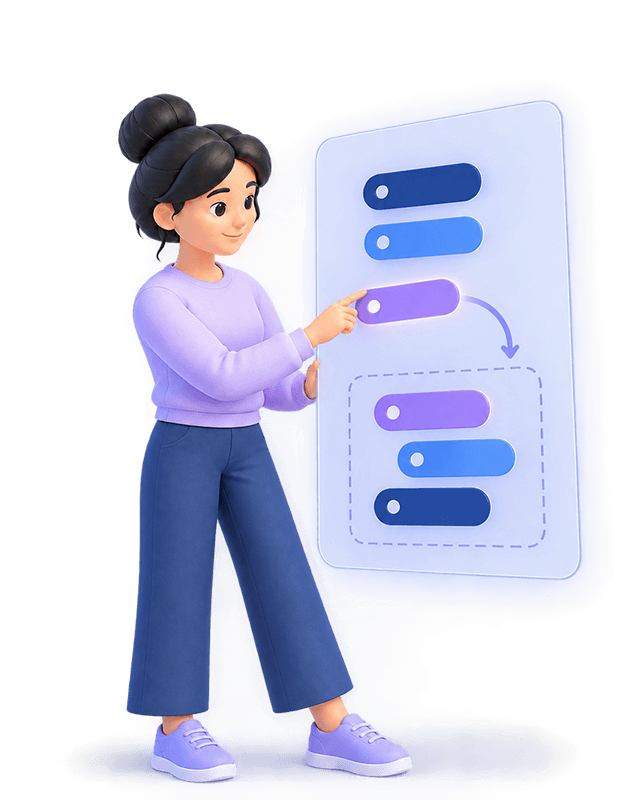
If your code system has grown into one long flat list, Group Codes helps you turn it into structured groups. Select the codes you want to organize, choose a language, and optionally include project information or additional instructions to guide the grouping. AI Assist then proposes new parent codes. You decide whether to apply them to your code system or save separately as a code set.
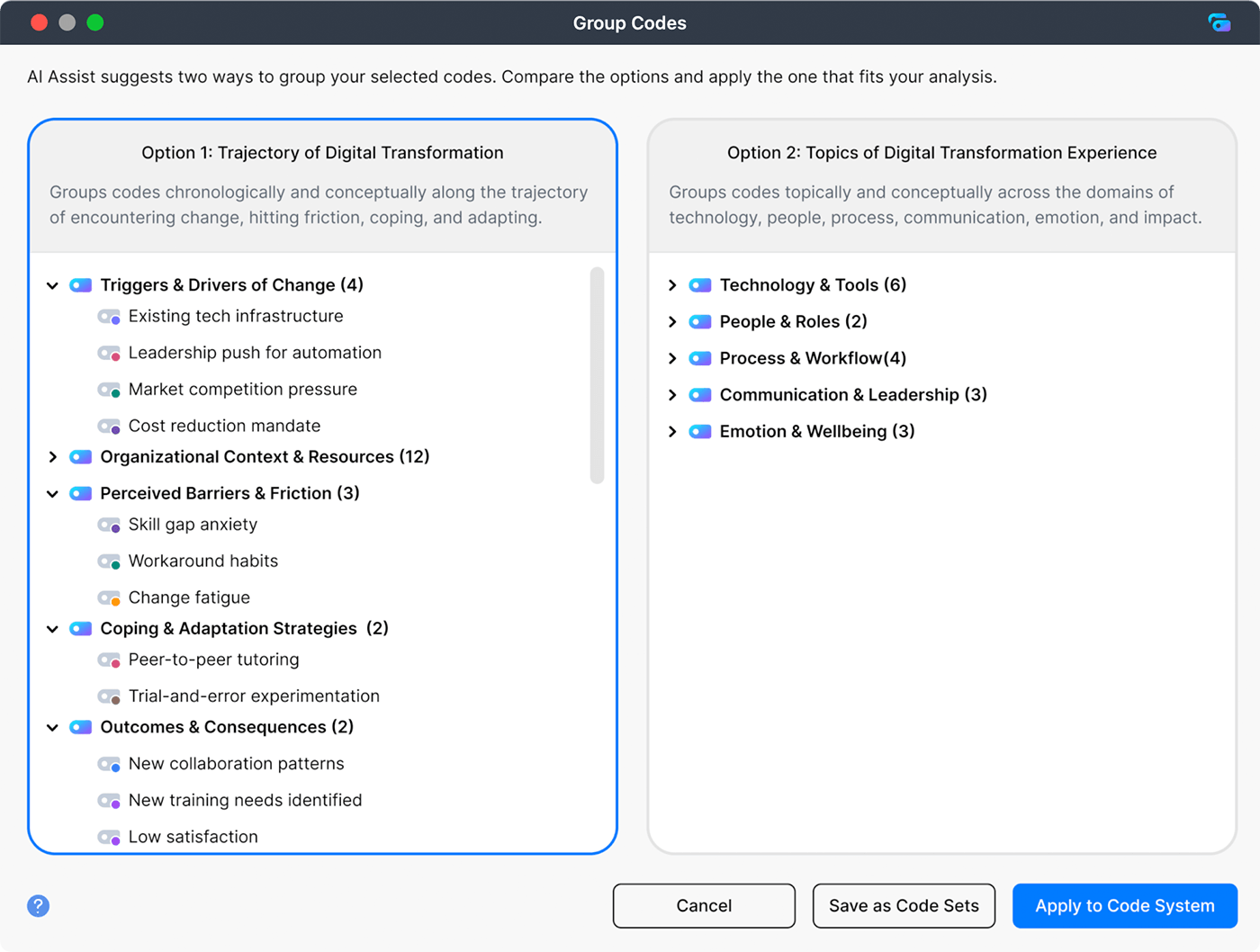
- Selection: Select which codes to group, choose a language, and optionally add project info or custom instructions.
- Two grouping options: AI Assist suggests two different ways to organize your codes.
- New parent codes: The suggested groupings become new codes in your code system.
- Apply or save for later: Apply the result straight to your code system, or save it as a code set to review later.
📍 Where to find it: Group Codes is available in the AI Assist ribbon menu. You can also right-click on the root of the Code System and find it in the context menu.

Local AI for AI Assist
Run AI Assist on your own local LLM, with your data staying on your computer or in your organization’s network
For some researchers, cloud-based AI analysis simply isn’t an option. Maybe your organization’s ethics board says no. Or you are working with sensitive hospital data that cannot leave the building. That’s why we’re introducing Local AI for AI Assist: connect directly to an LLM running on your own computer or server, and use all of MAXQDA’s AI features without sending any data to the cloud.
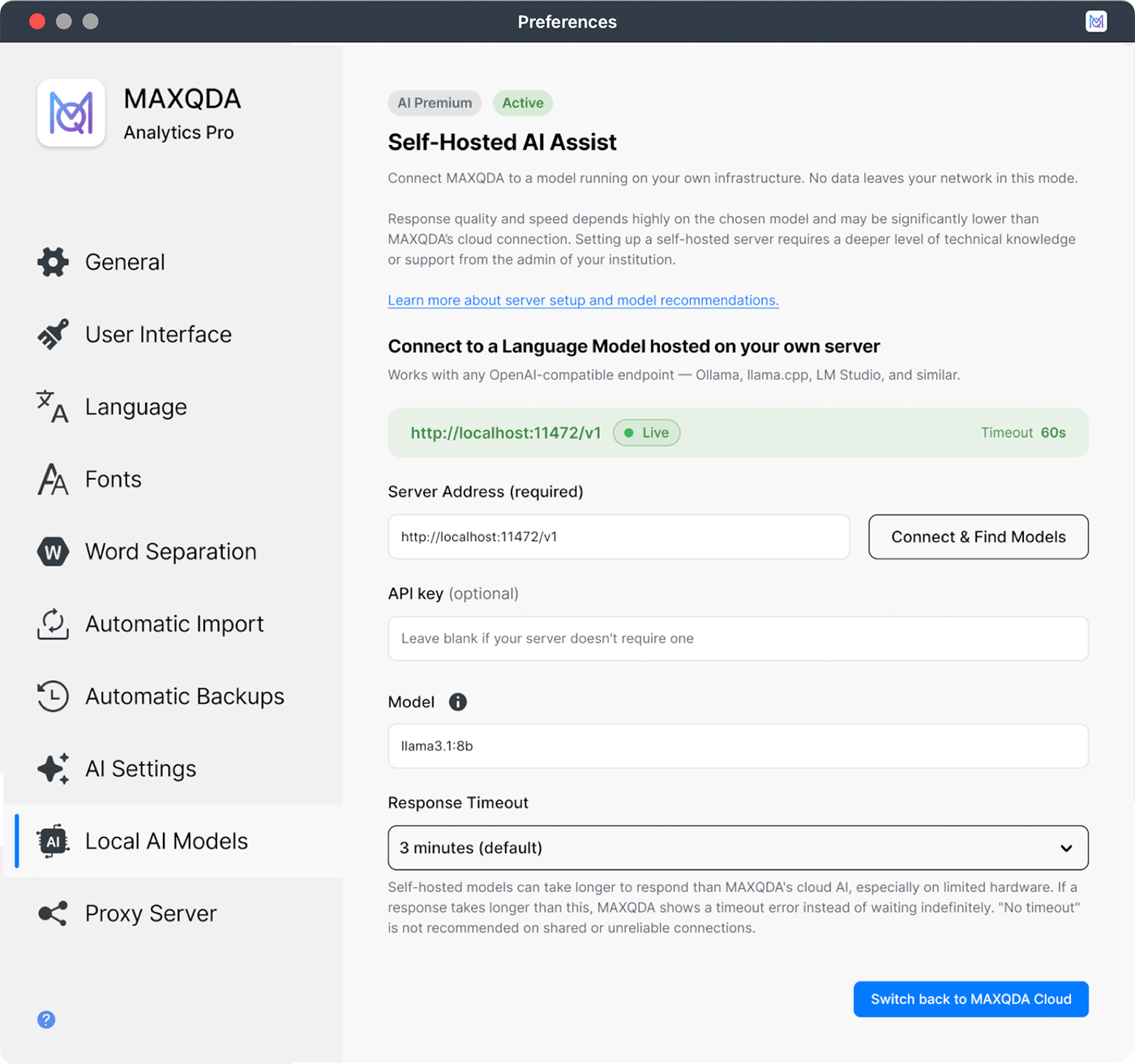
- AI Assist, locally: Use all of MAXQDA’s AI features without sending data to the cloud.
- What to expect: Results may be less accurate and responses slower than with MAXQDA’s cloud, depending on your hardware and the model you choose.
- Model flexibility: Easily switch models for different tasks.
- Included in AI Assist Premium: Local AI is part of AI Assist Premium.
📍 Where to find it: AI Assist Premium users can set up their Local AI connection under Settings > Local AI Models.
Import YouTube Shorts
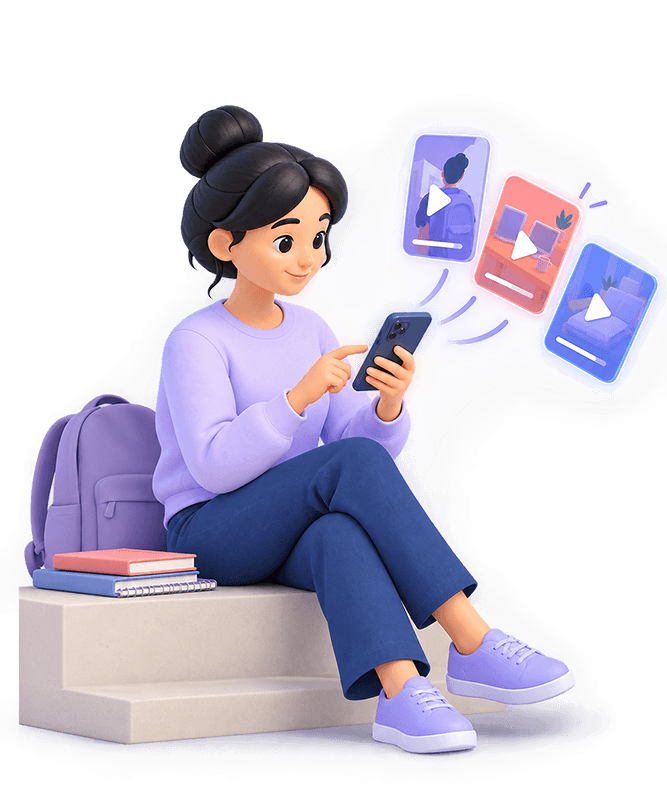
Short-form video shapes a lot of today’s public discourse. You can now bring social media data from YouTube Shorts straight into MAXQDA to analyze transcripts and comments of these short clips.
- Import: Paste the video URL of a YouTube Shorts clip.
- Transcript: Download the automatic transcript for the video in any available language.
- Comments: Additionally download user comments on the video for analysis.
📍 Where to find it: Click on the “YouTube Data” icon in the “Import” menu.
🌱 Further Improvements
- AI Assist: All AI features now run on the newest available Google Gemini models. Expect noticeable improvements in speed and quality across the board.
- TeamCloud: Working with large PDF and media files in TeamCloud is now easier.
- Timestamps: A new progress indicator in the Document Browser sidebar shows how far a media clip has advanced.
- First steps: Both the Document Map and Code Map now show first-step guidance when you start a new map.
- Tooltips: Document tooltips can now display any document variable, not just favorite variables.
- Interface: Several UI improvements, including the Document Browser sidebar (coding stripes and paragraph/line view).
How to Update and Upgrade
- How to Update MAXQDA
Updating works directly from within MAXQDA. If you’re using MAXQDA 26, MAXQDA 27 comes as an update and replaces MAXQDA 26. In most cases, a popup appears after launch asking you to install the update. If it doesn’t, you can update free of charge in three simple steps:
- Launch MAXQDA with a stable internet connection.
- Click the
 help menu icon in the bottom bar’s left corner.
 - Select Search for updates from the menu.
The update is downloaded and installed automatically, and gives you access to all new features and improvements. Contact your local administrator if you have limited admin rights on your institution’s computers.
Using TeamCloud? Updating from MAXQDA 26 to MAXQDA 27 requires no migration, and your team can keep working as before. Team members can work on the same project with MAXQDA 26 or 27. We recommend that everyone uses the same version, because MAXQDA 27 includes TeamCloud improvements.
 help menu icon in the bottom bar’s left corner.
Get started with MAXQDA 27.0
MAXQDA 27.0 is available now. AI Assist can group your codes automatically, and Local AI is included in AI Assist Premium.