
Using AI Assist’s Summarize Document function, you can summarize entire documents, be it transcripts or articles. MAXQDA allows you to adjust the output’s format depending on your needs. For example, you can request document summaries in a language different from the one in which the document is written.
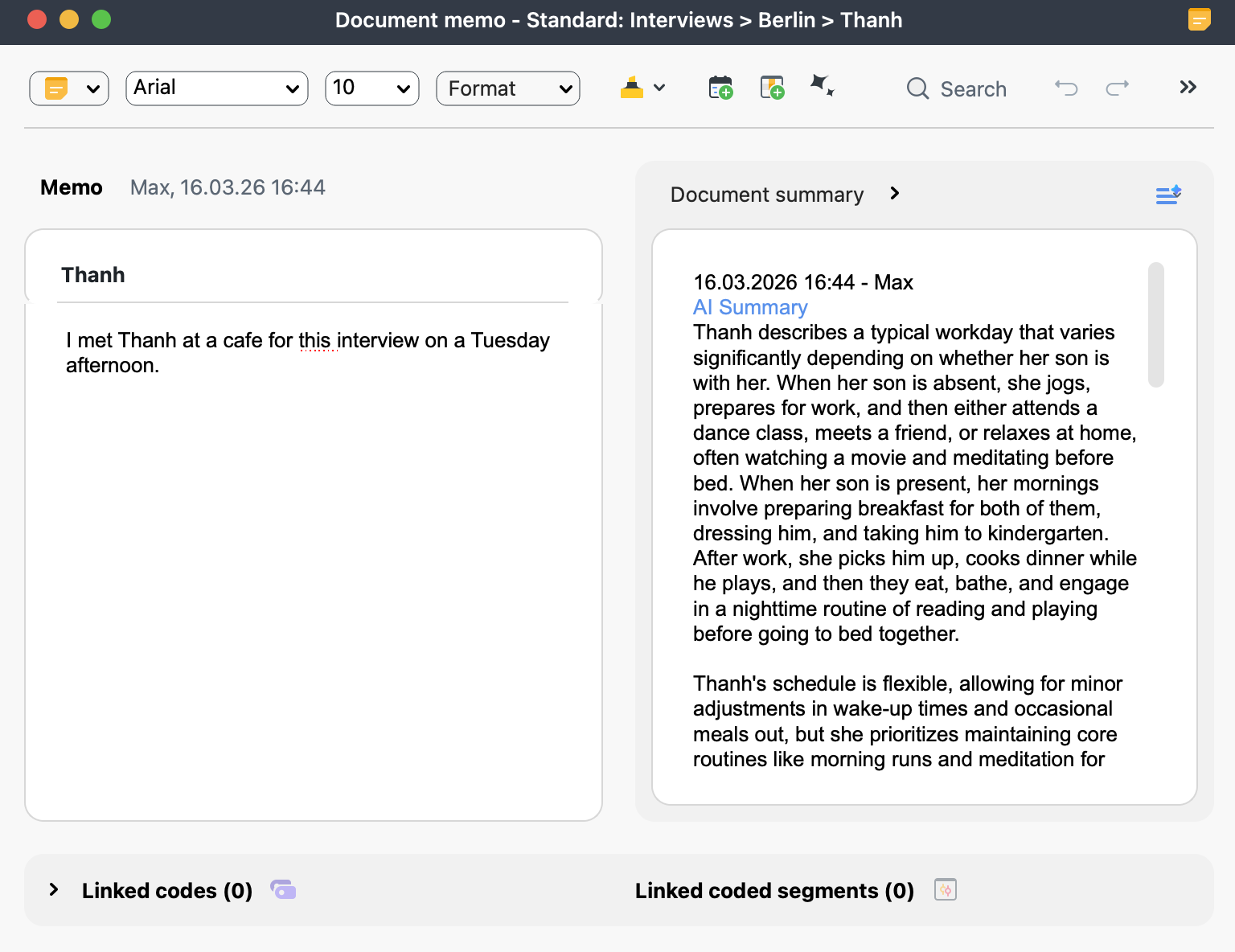
How to summarize a document using AI Assist
To generate a document summary using AI Assist:
- Navigate to the main menu and select AI Assist > Summarize Document.
- Drag and drop the document you wish to summarize from the documents window into the designated field in the AI Summary options dialog that appears.
- Once you have selected a document, additional options will appear. Here, you can specify the summary language, choose from three summary length options, and choose whether to include text references and format the summary as bullet points.
- When you are ready, click OK.
Further options
- In the documents window, right-click on the document you would like summarized and navigate to AI Assist > Summarize Document.
- Or, in the "Document Browser," ensuring you are viewing the document you would like to summarize, click on the
 AI Assist icon in the toolbar. Select Summarize Document from the dropdown menu.
 - Once you run the function, a dialog box will appear, as shown below. Here, you can specify the summary language, choose from three summary length options, and choose whether to include text references and format the summary as bullet points.
- When you are ready, click OK.
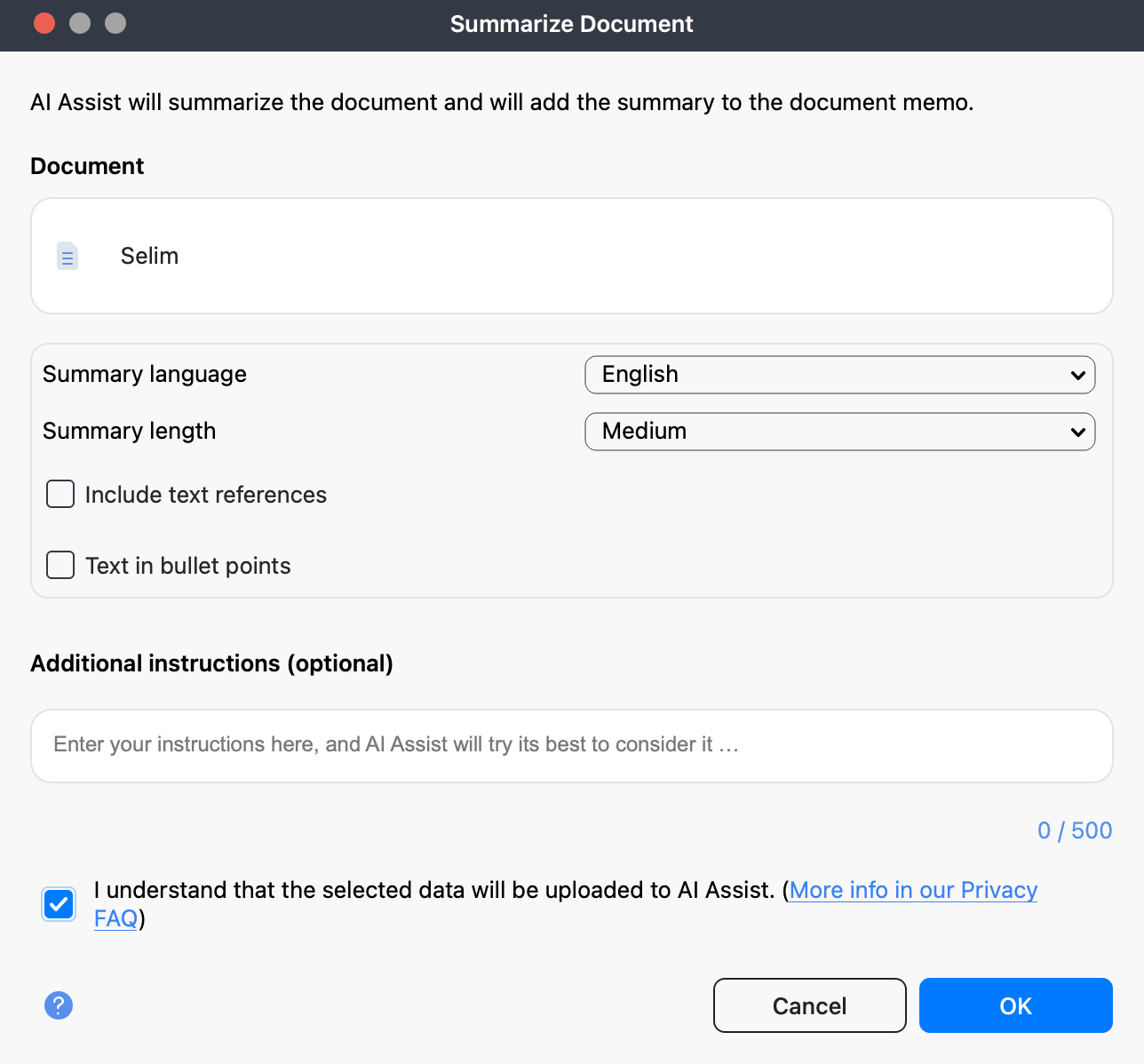
Additionally, you can access the function via the  AI Assist icon in a document's memo.
Additional Instructions let you guide how AI Assist creates a summary.
For example, you can specify a structure such as:
Organize the summary into the following sections: 1…, 2…, 3…
AI Assist will attempt to follow these instructions. Any instructions you enter are saved in the document memo together with the generated summary, so you can review them later.
Once AI Assist processes your request, it will save the generated summary in the document summary section of the document memo. This way, MAXQDA ensures that your summaries are securely attached to the original document, making them readily available until you delete them.
Text references in the summary
Enable Include text references in the AI Summary options dialog to add interactive references to the summary, pointing back to the passages they are based on. The option is unchecked by default; your last setting is remembered for future summaries on this computer.
References appear inline in the summary text. A single section of the summary can carry more than one reference, separated by a comma.
- Hover over a reference to see a preview tooltip of the linked text.
- Click a reference to open the document in the Document Browser with the source highlighted.
For text documents, references show paragraph numbers, for example 3, or a range such as 4-17, or several sources such as 7, 11-13. For PDF documents, references show page numbers instead, for example p. 3, pp. 3-4, or pp. 3-4, 8; clicking still jumps to the corresponding paragraph.
What type of summary does AI Assist generate?
It is important to note that AI Assist creates a descriptive, sequential summary of your document, meaning that it recaps information in the order in which it appears on the document.
- AI Assist provides reliable results in most cases. Nevertheless, it is still essential to check the output.
- AI Assist may not generate content if you analyze texts with critical content (violence, hate speech, bullying, etc.).
- If you run the function for the same document more than once, you may get slightly varying results.
- Text references are generated together with the summary, so a summary created with Include text references enabled may be worded slightly differently from one created without it. Both summarize the same content.
