With timestamps, you can link your transcript to the original recording. This lets you access the original sound and listen to sections that are difficult to understand or need closer attention.
When you transcribe manually in Transcription Mode, MAXQDA inserts a timestamp by default after each paragraph, usually between two speech contributions. The timestamps appear in a separate column in the left margin of the Document Browser.
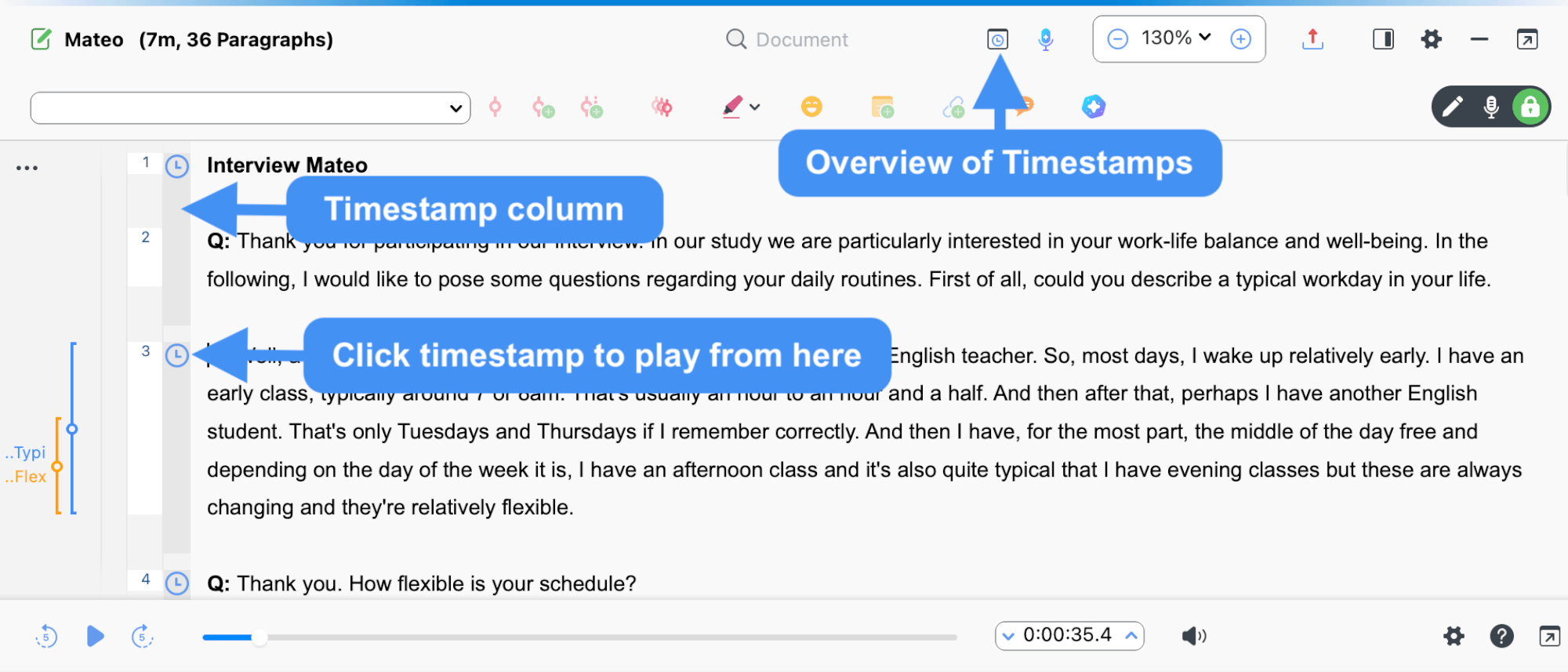
To show or hide the timestamps next to the transcript, click the
 gear icon in the playbar and turn Display Timestamp Column on or off. In Transcription Mode, the column is always shown.
Click a timestamp, or the range between two timestamps, to start playback at the stored position. If the Media Player is closed, playback starts in the Document Browser playbar. If the Media Player is open, playback starts there instead. Playback ends automatically at the next timestamp.
You can deactivate automatic timestamp insertion for manual transcription in the Transcription Settings window.
Add timestamps manually
While transcribing manually, you can also insert timestamps into a transcript yourself:
- Click the
 New timestamp icon in the Document Browser,
 - or press F6.
 New timestamp icon in the Document Browser,
MAXQDA then inserts a timestamp at the cursor position and displays it in the timestamp column at the left margin. You can also create several timestamps in a row, but the timestamp column displays only one timestamp.
You can insert new timestamps during transcription in Transcription Mode, or later by switching to Edit mode using the mode switcher in the Document Browser. This is useful if you want to add timestamps to an imported transcript, mark an important passage after transcription, or move an incorrectly placed timestamp.
You cannot insert timestamps arbitrarily. When you try to insert a timestamp, MAXQDA checks whether the timestamp chronology stays intact. For example, if the current playback position of an audio file is at 3 minutes, but a timestamp at 4 minutes already appears before the current text position, you cannot add another timestamp.
Delete timestamps
To delete an unnecessary timestamp, right-click the  timestamp icon in the column and select
  Delete Timestamp.
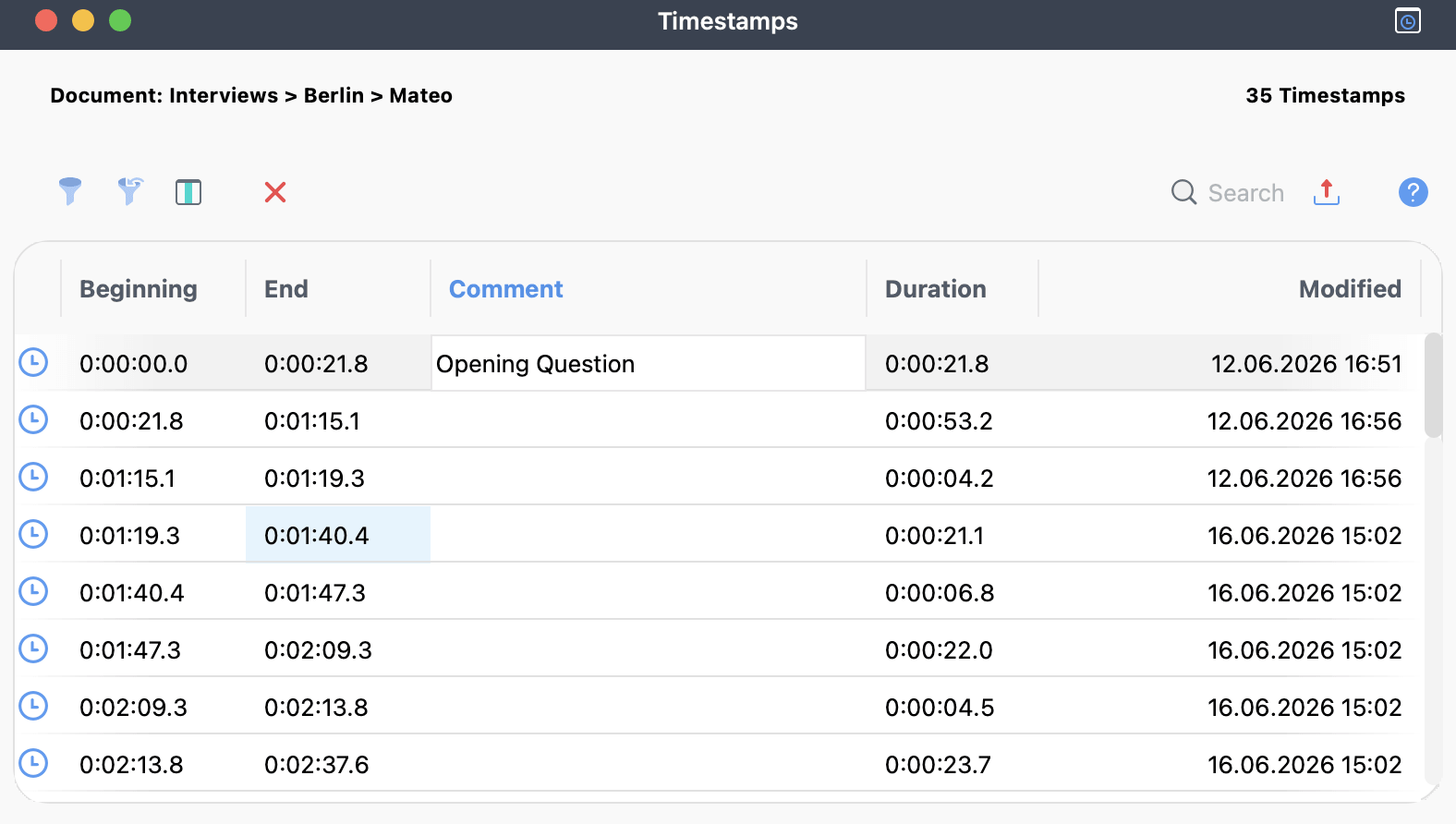
Right-clicking a timestamp also offers Edit Timestamp Comment, where you can write a short comment for that timestamp. The same menu opens on timestamps in the timestamp row of the Media Player and in the Overview of Timestamps.
You can also use the Overview of Timestamps to view and delete all timestamps in the currently opened transcript. To open it, click the  Overview of Timestamps icon in the Document Browser toolbar. Then select one or more rows and click the delete icon.