
Manual backups
Back up your projects regularly and keep the copies on an external hard drive, a flash drive, or in cloud storage, so you can recover your work if something goes wrong with your computer. Don't keep backups only on the computer that holds the project: if that computer fails, you lose both.
MAXQDA project files have the file extension .mqda, and backup files have the extension .mqbac. If your computer hides file extensions, you can tell them apart by their icons:
 Project file: .mqda
 Backup file: .mqbac
To back up a project manually, copy its project file to an external drive like any other file. Alternatively, open the project in MAXQDA and choose Home > Save Project As. MAXQDA then opens the save dialog of your operating system, where you choose a location and a file name and confirm.
Automatic backups
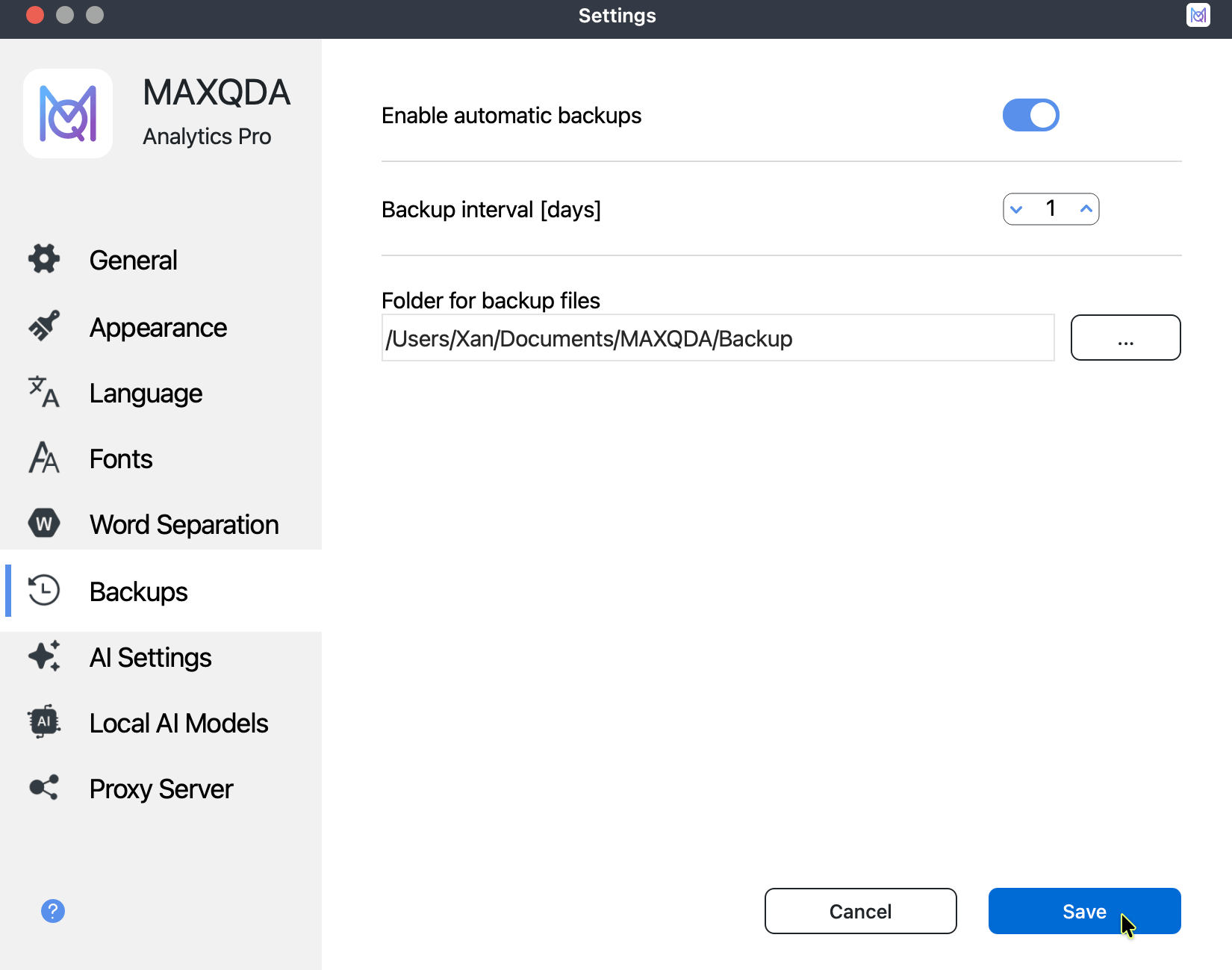
MAXQDA can also back up your projects automatically. When you open a project, MAXQDA checks whether the last automatic backup is older than your chosen time interval (one day by default). If it is, MAXQDA saves a copy of the project in your backup folder and adds the date and time to the file name.
To change the time interval or the backup folder, or to turn automatic backups off, open Settings > Backups by clicking the  Settings icon in the bottom bar of the MAXQDA window. Your changes take effect only after you save them.
Automatic backups are a useful safety net, but they do not replace regular backups of your important projects on an external storage device or in cloud storage.
