Can you transfer your license?
This section explains how to transfer your MAXQDA license to a different device. This might be necessary if you are giving the license to another user, have lost your original device, or are upgrading to a newer one.
If you use MAXQDA via a server connection, install MAXQDA on the new device and connect it to your organization's server as usual. There is no license to deactivate or transfer, and your IT administrator manages these licenses. The instructions below are for local licenses (such as single-user, teaching, or student licenses) that you activated with a serial number.
How to transfer a MAXQDA license
Transferring your MAXQDA license to a new computer involves different steps based on whether you still have access to your original device.
- Back up your project and external files:
- Go to Home > Save Project As to back up your project file.
- If using external files, bundle them into a compressed .zip file via Home > External Files > Bundle External Data Files.
- Save both files on the new device.
- Deactivate MAXQDA on the original device by following the instructions in Activate and Deactivate MAXQDA.
- Install MAXQDA on the new device following the steps in Download, Install, and Uninstall MAXQDA, then reactivate your license as described in Activate and Deactivate MAXQDA.
- Lastly, open your project file backup file with MAXQDA on the new device. If you have external files, navigate to Home > External Files > Unpack Bundled Data Files.
If you cannot deactivate the license (e.g., due to a lost or broken device), contact MAXQDA support via this form, providing your serial number and the device's name. We will manually deactivate your license. Once the license is deactivated, you can reactivate it on a new device.
Where to find your serial number?
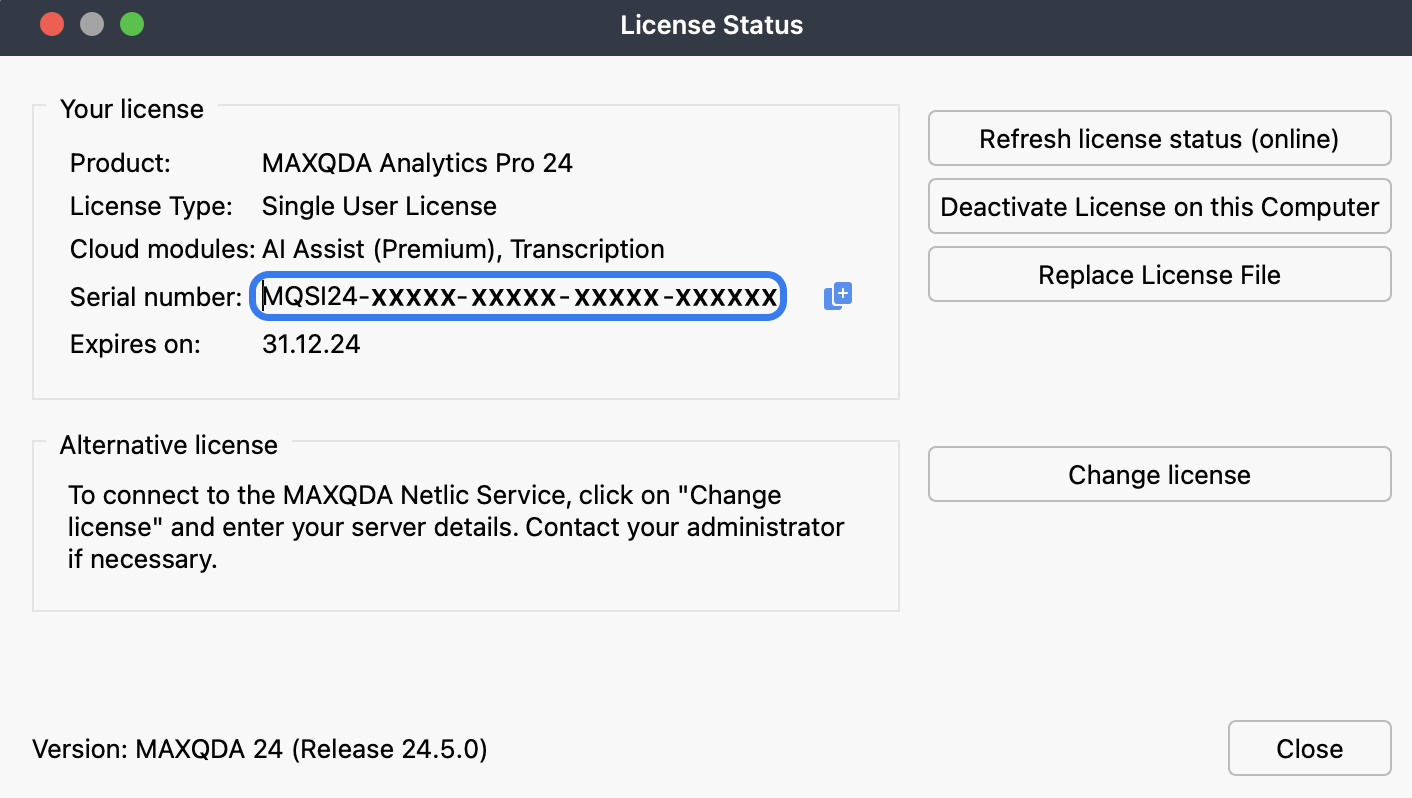
Your serial number is a unique code linked to your MAXQDA license, containing information about the version and type of product, as well as its validity period.
- If you have access to your original device where MAXQDA is still activated, you can find your serial number by clicking the
 information icon on the welcome screen, or, if a project is open, navigating to the
  help menu at the left side of the bottom toolbar and selecting License Status.
 - Cleverbridge GmbH sends your serial number upon purchase of a MAXQDA license. Therefore, you can look for your delivery email or your invoice sent from no-reply@cleverbridge.com.
- If you manage your subscription using our Subscription Manager, you may log in to find your serial number.
 information icon on the welcome screen, or, if a project is open, navigating to the
  help menu at the left side of the bottom toolbar and selecting License Status.