
This page walks through the TeamCloud workflow from the team lead’s perspective: starting the first cycle, inviting members, importing their work, and deciding whether to start a new cycle or close the project.
Your TeamCloud license must be activated, and you must be logged in to your MAXQDA account in MAXQDA. See Before you start if you have not done this yet.
Step 1: Upload your project and start Cycle 1
To share your project with your team, you first need to convert it to a TeamCloud project. You do this by uploading it from within MAXQDA.
- Open the local MAXQDA project you want to share with your team.
- Go to the TeamCloud tab and click Upload Project for Team (Start Cycle 1).
- A dialog box opens. Enter a name for the team project and, optionally, a comment for your team.
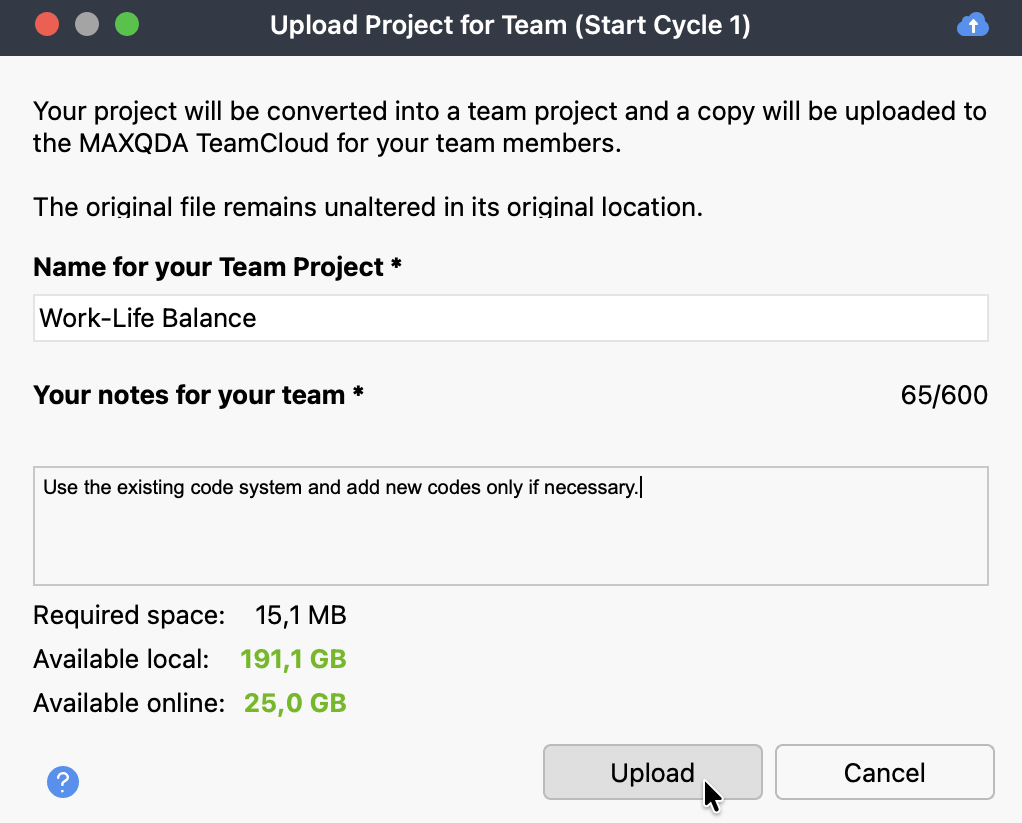
- Project names must be between 3 and 63 characters.
- Comments can be up to 600 characters.
- The dialog shows how much cloud storage your project will use and how much space remains.
- Click Upload. A progress bar tracks the conversion.
Once the upload finishes, your project is available for team members to download.
What happens during upload
When you upload a project, MAXQDA does the following:
- Your local project is converted to the TeamCloud format (.mqtc) and saved in your local TeamCloud workspace.
- All PDF and image files are saved as external files in the TeamCloud workspace.
- A copy of the project and all associated files are uploaded to the MAXQDA TeamCloud.
- Your original project file remains unchanged in its original location.
- If user management was enabled for local teamwork, MAXQDA disables it automatically.
By default, your local TeamCloud workspace is stored in:
- Windows: %APPDATA%\MAXQDA\TeamCloudWorkspace
- macOS: ~/Library/Application Support/MAXQDA/TeamCloudWorkspace
You can change this location under TeamCloud > Account > Preferences.
Step 2: Invite team members
After the upload, MAXQDA prompts you to invite team members. Click Invite team members.
This opens the MAXQDA TeamCloud page on the MAXQDA Account website, where you can manage your team and projects. If you are not logged in to the MAXQDA Account website yet, a login prompt will appear.
On the website:
- Click + Invite project members.
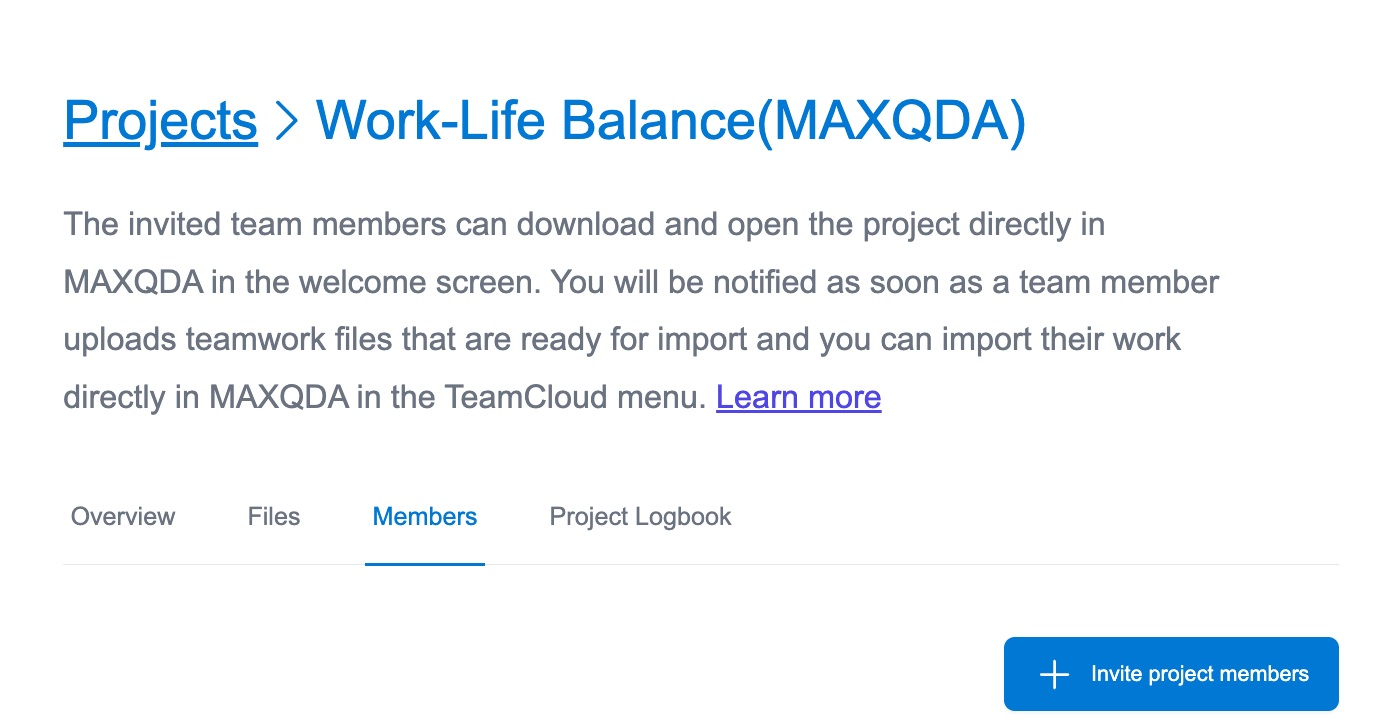
- Enter the email address of the person you want to invite. You can only invite users who already have a registered and verified MAXQDA Account.
- Optionally add a message, then click Invite project member.
- Repeat these steps for each additional team member.
Each invited member receives an email with a confirmation button. After clicking it, they are added to the project. You will receive both an email and a notification in MAXQDA when a member joins. The Recent Activity section also records this action on the TeamCloud project page.
You can invite or remove members at any time, not only at the start of the project.
Removing a team member
To remove a team member from the project, use the remove option on their member tile and confirm the action. This removes them from this project only. Their membership in other TeamCloud projects is not affected.
By default, you receive email notifications for project activity such as members joining, uploads, and members leaving. To manage these, log in to the MAXQDA Account website, select the TeamCloud tile from the dashboard, and click the Email settings tab in the TeamCloud page that opens.
Step 3: Import your team members' work
When a team member uploads their project, you receive an email notification and a notification inside MAXQDA. The notification appears as a red badge on the Recent Activity bell icon in the TeamCloud menu. Click the bell icon to see a summary of recent activity, or click More to open the full activity history on the TeamCloud website.
To import the uploaded work into your main project:
- Open your TeamCloud project in MAXQDA.
- In the TeamCloud tab, click Import Team Members' Files.
- The import dialog lists all team members and shows whether and when they uploaded, along with any upload comments.
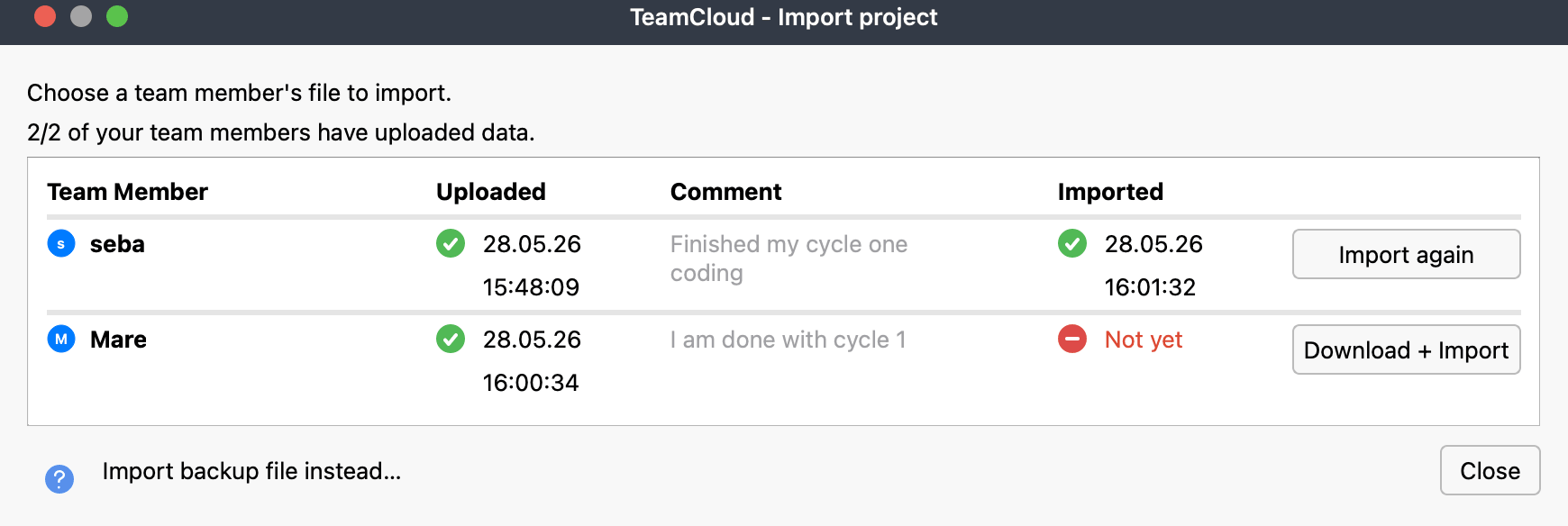
- Download and import each member’s file. You can import the same file more than once using the Import again button if you want to bring in different elements separately.
- The import runs in two steps. First, you review document-related elements.
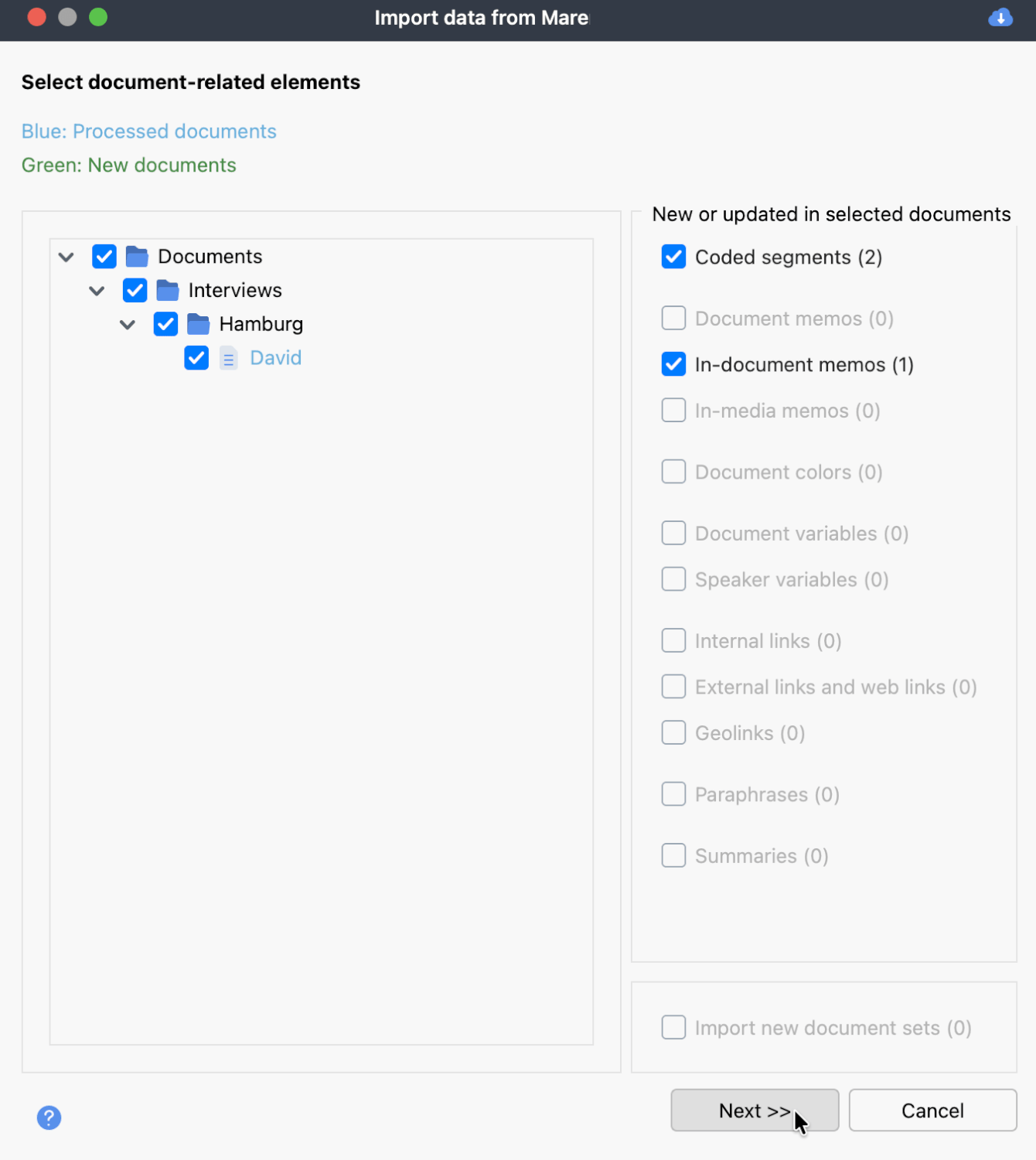
- The left column lists documents that have been added (green) or edited (blue).
- The right column shows the elements available to import for the selected documents. The number in brackets is the total count across all selected documents. For example, "Coded segments (3)" means 3 coded segments were added or updated across all selected documents.
- Select or deselect elements as needed and click Next.
- The second dialog shows document-independent elements such as free memos, summary tables, and maps.
- Finalize your selection and click Import.
After a successful import, MAXQDA displays an import log summarizing everything that was brought into the main project.
MAXQDA also saves the import log automatically as a free memo in your project and can be opened at any time via Memos > Free Memos.
When a TeamCloud project is open, the functions Home > Teamwork > Teamwork Import/Export and Home > Merge Projects are not available to anyone, lead or member. These functions are only available for regular MAXQDA projects.
How import works: the four key rules
- Only work from the current cycle is imported. Anything created or edited before the current cycle started is ignored.
- In most cases, the most recently edited version wins. If two members edited the same element, the version with the later editing date is imported. The same rule applies to any edits made by the team lead: if the team lead edited the same element as a member, and the team lead’s edit is older, the member’s version will be imported.
- Deletions are never imported. If a team member deletes a code, memo, coded segment, or any other element, that deletion is not applied to the main project. Elements can only be removed from the main project by the team lead.
- Moved or renamed documents and codes are treated as new. If a team member moves a code to a different parent or renames it, the result is imported as a new code — the original remains unchanged in the main project. The same applies to documents. Recoloring a code is the only exception: color changes are ignored entirely.
For a detailed breakdown of how each element type is handled, including edge cases, see the Import reference tables at the bottom of this page.
Step 4: Start a new cycle or end the project
Starting a new cycle
After importing all team members’ work, you can upload an updated version of the main project to start the next cycle.
In the TeamCloud tab, click Upload Project for Team (Start Cycle N).
Before the upload for the new cycle begins, MAXQDA shows a status check listing each member’s upload status and import state of the current cycle. Any unimported work is flagged in red, labeled "Not yet".
You can click Import to bring in any outstanding changes, or dismiss the check and proceed with the upload.
Team members who have done work in the current cycle but have not yet uploaded it will lose that work when you start a new cycle. MAXQDA will warn you if any member has not uploaded yet or if you have not imported all available uploads. Make sure all work is accounted for before proceeding.
After the upload starts, you can optionally add a comment for your team. Once the upload is complete, the new cycle begins. Team members will see a notification in MAXQDA the next time they open the project and can download the updated file to begin the next cycle.
Ending the project
When your team’s work is complete, export the main project as a regular MAXQDA project file to finalize it.
In the TeamCloud tab, click Export as Local Project. Choose a save location and click OK. This creates a standard .mqda file that can be opened in any MAXQDA installation and shared with your team by email or through a shared drive.
Import reference
The tables below document exactly when each element type is imported and how MAXQDA handles conflicts. This is reference material, so most users will not need it during normal use.
Document-related elements
| Element | Imported when | Notes and conflict handling |
|---|---|---|
| Codes | No code with the same name exists at that position in the hierarchy | Code color and order are not carried over. Changes to code alias names are ignored. |
| Code sets | No code set with the same name exists | Changes to existing code sets (added or removed codes) are ignored. |
| Coded segments | Creation or editing date is more recent than the start of the current cycle, and no newer coding exists at that position | Editing includes changes to weight, comment, and segment boundaries. Deleting a comment counts as a change. All existing codings of the same code at the same position are replaced by the imported coding, so a maximum of one coding per code per segment exists. |
| Document memos | Creation or editing date is more recent than the start of the current cycle, and no newer memo exists on that document | Older existing memos are replaced. |
| In-document memos and in-media memos | Creation or editing date is more recent than the start of the current cycle, and no newer memo exists at that position | Moved in-document memos are imported as new memos if the new assignment area is entirely outside the old one. Moved in-media memos are always imported as new memos. Memos with changed titles are added as new memos. |
| Document colors | Colors differ | Special case: the most recently edited version does not win here. MAXQDA applies the version from the last imported project. |
| Document variables | Creation or editing date is more recent than the start of the current cycle and more recent than the existing variable’s last edit date | New text and date variables containing only empty values are not imported. Variables deleted by the team lead are not reimported within the same cycle. |
| Focus group variables | Same as document variables | Same as document variables |
| Internal links (between documents) | Creation date is more recent than the start of the current cycle and more recent than any existing link at that position | Links that overlap with a new link are replaced. |
| External links, geolinks, and web links (in document) | Creation date is more recent than the start of the current cycle and more recent than any existing link at that position | Links that overlap with a new link are replaced. |
| External links (in document properties) | External links differ | Special case: the most recently edited version does not win here. The version from the last imported project is applied. |
| Paraphrases | Creation or editing date is more recent than the start of the current cycle, and no newer paraphrase exists at that position | All overlapping existing paraphrases are replaced. |
| Summaries | Creation or editing date is more recent than the start of the current cycle, and no newer summary exists at that position | Older existing summaries are replaced. |
| Document sets | Name does not yet exist | MAXQDA does not import changes to existing sets. New sets are added without conflict. |
Document-independent elements
| Element | Imported when | Notes and conflict handling |
|---|---|---|
| Project memo | Creation or editing date is more recent than the start of the current cycle, and no newer project memo exists | Older existing project memo is replaced. |
| Document group and document set memos | Same as project memo | Same as project memo |
| Free memos | Creation or editing date is more recent than the start of the current cycle | Existing memos with the same title and creation date are replaced. If the title does not exist yet, or the creation dates differ, the memo is added as a new free memo. |
| Code memos | Same as project memo | Same as project memo |
| Code set memos | Same as project memo | Same as project memo |
| Code variables | Same as document variables (see table above) | Same as document variables (see table above) |
| Summary tables | Creation or editing date is more recent than the start of the current cycle | Existing summary tables with the same name and creation date are replaced. |
| QTT Worksheets | Creation or editing date is more recent than the start of the current cycle | Existing worksheets with the same name and creation date are replaced. New worksheets whose name already exists receive a sequential number suffix. |
| Maps (MAXMaps) | Creation or editing date is more recent than the start of the current cycle | Existing maps with the same name and creation date are replaced. |
| Internal links (start or end point in a memo) | Creation date is more recent than the start of the current cycle and more recent than any existing link at that position | Links overlapping with a new link are replaced. If the start or end point is in a document, the link is only imported if that document was selected in the first import dialog. |
What is never imported
The following elements are always excluded from import, regardless of when they were created or edited:
- Stop word lists, go word lists, and dictionaries from MAXDictio (these can be transferred separately via Excel export and import)
- Geolinks in MAXMaps
- Codes or coded segments added inside memos
- Changes to existing timestamps
- Changes to a document set (removal or addition of documents)
- New code sets, and changes to existing ones
- Distance matrices and similarity matrices from Mixed Methods > Similarity Analysis for Documents
- New documents added by members that share the same name and hierarchical position as a document already in the team lead's project
- AI Chat histories from team members
