
AI Chat lets you interact with your MAXQDA data and the MAXQDA Manual using natural language. You can ask questions, request summaries, explore themes across documents, coded segments, your code system, and memos, or ask about MAXQDA features using the manual.
For example, you might ask AI Chat to identify recurring themes across a set of interview transcripts, to look for inconsistencies in a group of coded segments, or to synthesize insights from your analytical memos. AI Chat responds within seconds and includes numbered references that link back to the source material.
All conversations take place in the same AI Chat window and are saved automatically to your history. AI Chat works with text-based data only — audio, video, and image documents are not supported, nor is image-based text within PDFs, such as scanned documents.
The AI Chat Window
Open AI Chat from the main menu via AI Assist >  AI Chat. The window stays open independently of MAXQDA's main windows, so you can work in both simultaneously.
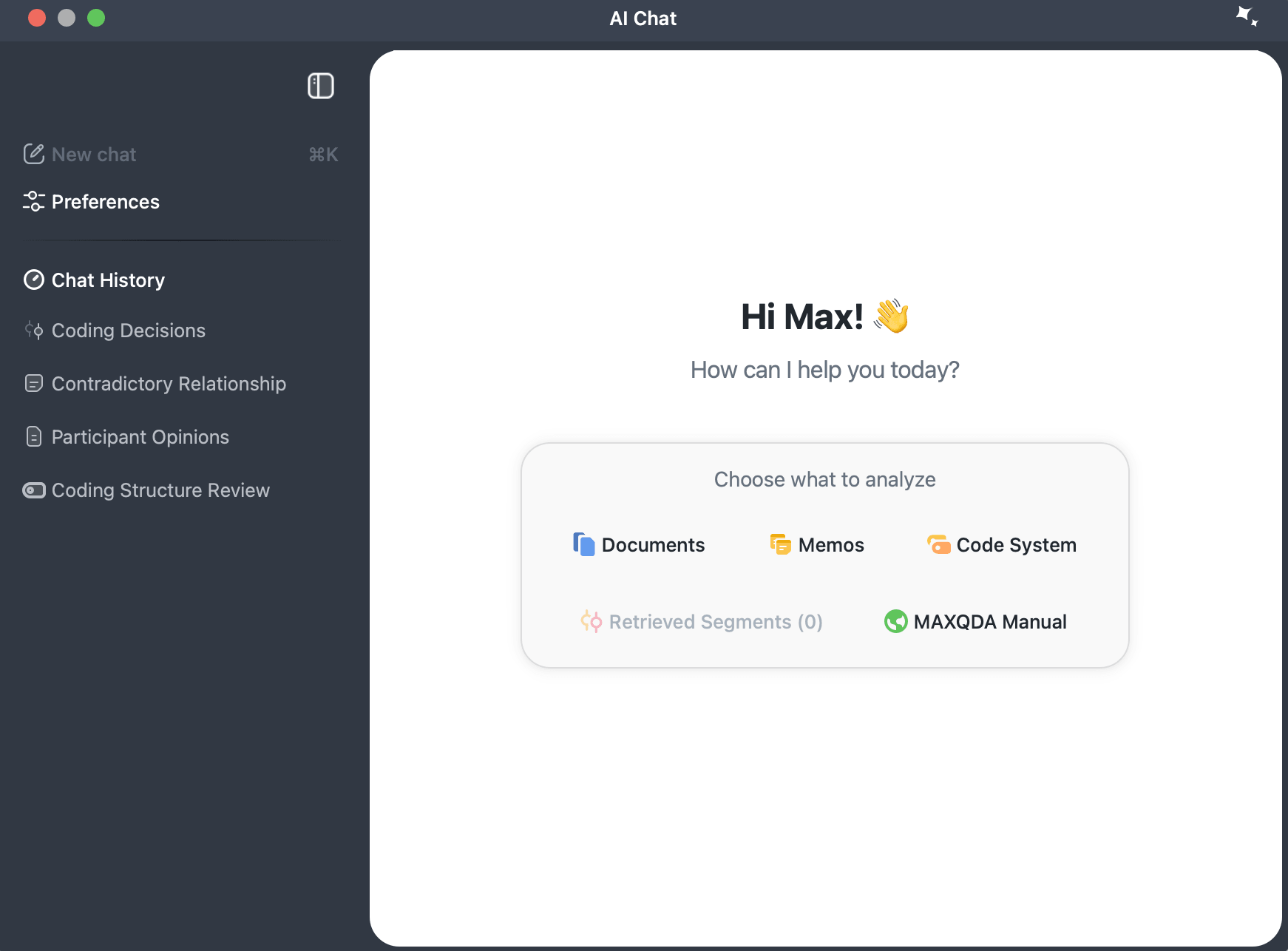
The window is split into a chat panel on the right, where you converse with AI Assist, and a sidebar on the left for navigation.
The sidebar gives you access to:
 New chat — Start a fresh chat.
- Preferences — Configure project context and response style for all chats.
- Chat History — Access and manage all previously saved chats.
 New chat — Start a fresh chat.
 Chat History — Access and manage all previously saved chats.
To hide the sidebar, click the  Expand/Collapse Sidebar icon at the top of the sidebar. Click it again to restore it.
All sidebar features are covered in detail further on this page.
Starting a Chat
Select a data source from the landing screen to begin: Documents, Memos, Code System, Retrieved Segments, or MAXQDA Manual. Each follows its own workflow, described in the sections below. You can also start a chat directly from other locations in MAXQDA without going through the landing screen.
Chatting with Documents
You can chat with any text or PDF documents in your project.
Selecting Documents opens the document selection dialog. Use the document tree to select one or more documents. The dialog shows how many documents are selected and what percentage of your character quota they use. To narrow the list to your currently activated documents, click Activated documents. When your selection is ready, click Start Chat.
During the chat, the input field shows how many documents are included in the conversation.
Chatting with Coded Segments
AI Chat uses whatever is currently listed in the Retrieved Segments window, reading the text of those coded segments; your code names travel along only as labels on that text, not as a view of your code structure. (To chat with the code structure itself, see Chatting with the Code System below.)
The retrieval mode must be set to Simple Coding Query; Complex Coding Query is not supported.
Ensuring the correct retrieval mode
To verify that the correct mode is active, check the upper-right corner of the Retrieved Segments window below the toolbar. If it does not display Mode: Simple Coding Query, click the  Reset Coding Query icon to reset it.
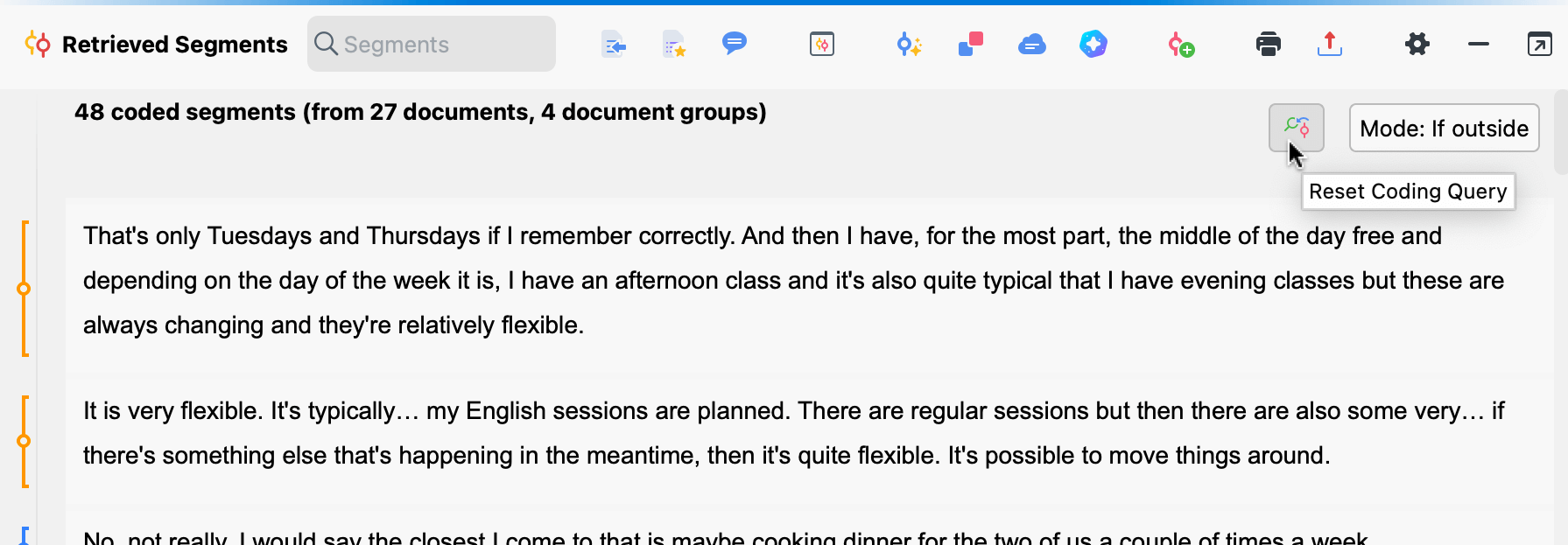
The Retrieved Segments option on the landing screen is disabled if no segments have been retrieved. During the chat, the input field shows how many segments are included in the conversation.
Chatting with the Code System
Chatting with the code system reads the code structure itself, not your coded segments' text: the codes you select, their names and hierarchy, and, optionally, their code memos and frequencies. Chat with coded segments to ask what is in your data; chat with the code system to ask how you have organized your codes.
Selecting Code System on the landing screen opens the Select Codes dialog, which shows your codes in a tree view. Use the tree to select the codes you want to include; the header shows how many codes are currently selected. To narrow the selection to your currently activated codes, click Activated codes.
You can enrich what AI Assist receives about each selected code:
- Include code memos: Adds the code memo attached to each selected code.
- Include code frequencies from: Adds how often each code has been applied, counted across either All documents or Activated documents.
When your selection is ready, click Start Chat. The dialog remembers its size and your option settings the next time you open it.
The Code System option on the landing screen is disabled if your project contains no codes.
During the chat, the input field shows how many codes are included in the conversation. A system message at the top of the conversation confirms how many codes the chat was started with; click the info icon next to it to open a scrollable list of the included codes.
Chatting with Memos
Selecting Memos on the landing screen opens the Select Memos dialog, which displays all memos in your project in a tree view. Select the memos you want to include; the dialog shows how many are selected and what portion of your character quota they use. When your selection is ready, click Start Chat.
The Memos option on the landing screen is disabled if your project contains no memos. During the chat, the input field shows how many memos are included in the conversation. If a memo is deleted while a chat is active, a notice appears in the conversation, and any reference to that memo becomes disabled the next time the conversation is displayed, as described in References below.
Sorting and filtering memos
Use the sort dropdown to order the memo tree by Origin, Title, Last Modified, or Memo Icon. The last sort setting is remembered between sessions.
To narrow the list to memos connected to your currently activated elements, use the filter icons:
- Only activated codes: Shows code memos of activated codes.
- Only activated documents: Shows document memos and in-document memos of activated documents.
When both filters are active, memos matching either condition are shown. The filters are turned off each time you open the dialog. Memos you had previously selected that no longer match an active filter are excluded from the chat, but are restored if you remove the filter.
Chatting with the MAXQDA Manual
Select MAXQDA Manual on the landing screen to ask questions about MAXQDA features. No project data needs to be selected; the chat opens immediately using the MAXQDA Manual as its source.
Chat Preferences
Chat Preferences let you customize how AI Assist responds across all your chats. Open them by clicking  Preferences in the sidebar.
- Project Information (up to 5,000 characters): Provide context about your research project, such as your research question, data types, or analytical approach. AI Assist uses this to give more relevant responses.
- Response Preferences (up to 500 characters): Specify how you want AI Assist to respond, for example: "Respond in English and keep answers short."
These settings apply to all chats, regardless of data source, and persist across sessions.
During a Chat
When a chat starts, a notice appears at the top of the conversation showing which data is being used. Click the info icon next to it to see the full list of included sources (Manual chats do not show this info icon or a source indicator in the input field).
To stop a response while it is being generated, click the stop icon that replaces the send button in the input field.
References
AI Chat includes numbered references in its responses to help you trace information back to the source. Hover over a reference to see a tooltip preview with source details. Click a reference to open the source directly in MAXQDA:
- Documents: The document opens in the Document Browser with the relevant paragraph or page highlighted.
- Coded segments: The segment is highlighted in the Document Browser.
- Codes: The code is selected in the codes window and scrolled into view.
- Memos: The memo opens in front of the chat.
References to project elements that are no longer available appear disabled when the conversation is displayed. They cannot be clicked; hovering over them shows the message "This element is no longer available."
Copying and pasting responses
You can copy AI Chat responses to the clipboard in several ways:
- Copy a single response: Click the copy icon below the response.
- Copy part of a response: Highlight the relevant text, right-click, and select Copy, or use Ctrl+C (Windows) or Cmd+C (Mac).
- Copy the entire chat: Click the icon in the upper right corner and select Copy Chat.
 copy icon below the response.
When pasting into MAXQDA (for example, into a memo), the conversation structure is preserved and references remain active as clickable links.
When pasting outside of MAXQDA (for example, into a Word document), the conversation structure is preserved but references are converted to plain text and are no longer clickable.
References to codes are an exception: they always convert to plain text using the code name only (without its parent path), whether you paste inside or outside MAXQDA.
Starting a New Chat
Click New chat in the sidebar or use Ctrl+K (Windows) / Cmd+K (Mac) at any time to start a fresh conversation. Only one chat can be active at a time; your current conversation is automatically saved to the chat history before the new chat opens.
Restart as new chat
To start a new chat using the same source data as your current conversation, click the  icon in the upper right corner and select Restart as New Chat. This opens a fresh chat pre-scoped to the same data source, without going through the selection dialog again.
Chat History
MAXQDA automatically saves each chat to the history when it is closed or when a new chat is started. Each saved chat is stored locally in your MAXQDA project file with the date and author's name, and is visible to anyone you share the file with. All saved chats are listed under Chat History in the sidebar. Chats with the MAXQDA Manual can be reopened and continued like other chats.
Each chat displays an icon indicating its data source. For a chat with the code system, this is a code icon; hover over it to see the chat name and how many codes were included.
Continuing a chat
Select any chat from the history to reactivate it. If the underlying data has changed since the chat was saved (for example, documents or memos have been modified or deleted, or a code used in the chat has been deleted or merged), the chat cannot be continued.
Opening a chat from history during an active conversation automatically saves and deactivates the current chat first.
Renaming and deleting chats
Each chat is automatically named after your first message. To rename it, hover over a chat in the history list to reveal a context menu and select Rename Chat. You can also permanently remove a chat from the same menu with Delete Chat.
To delete the chat you are currently viewing, click the icon in the upper right corner and select Delete Chat.
Chat history is not transferred when merging projects, or when a team lead imports a team member's file in TeamCloud.
Other Ways to Open AI Chat
AI Chat can also be opened directly from several locations in MAXQDA, bypassing the landing screen.
Documents
- Documents window: Right-click a document and choose AI Assist > Chat with This Document. To chat with multiple documents, hold Alt (Windows) or Option (Mac) to select them, then right-click and choose AI Assist > Chat with Documents. You can also right-click a document group or set and choose AI Assist > Chat with Documents.
- Document Browser toolbar: Click the AI Assist icon and select Chat with This Document.
 AI Assist icon and select Chat with This Document.
Coded Segments
- Codes window: Right-click a code and choose AI Assist > Chat with This Code's Segments to chat with all segments assigned to that code. Subcodes and document activation are not taken into account.
- Retrieved Segments window toolbar: Click the AI Assist icon and select Chat with Listed Text Segments.
Code System
- Codes window: Right-click the root of the Code System and choose AI Assist > Chat with Code System.
Memos
- Memo window toolbar: Click the chat icon to start a chat with the current memo.
- Memo Manager: Click the chat icon to start a chat with the memo currently open, or with all listed memos.
MAXQDA Manual
Click Chat with MAXQDA Manual on the Start/Home ribbon to start a new chat with the manual immediately.
Smart Coding Tool and Survey Analysis
Click AI Chat in the main menu of the Smart Coding Tool or Survey Analysis workspace to open AI Chat. Note that if the chat was opened this way, it closes automatically when you exit the workspace, unless it was opened from another entry point, in which case it remains open.
MAXQDA toolbar
A persistent AI Chat button in the status bar at the bottom of the MAXQDA window provides quick access to AI Chat from anywhere in the application. Hover over the button to expand it, then click it to open the chat.

Best Practices
- Start a new chat when switching to a different topic. Previous messages influence subsequent responses, so a fresh chat gives you a clean context.
- Break complex tasks into a sequence of simpler prompts rather than asking everything at once.
- Be as specific as possible in your queries. Specify the desired output format or style when relevant, for example: "summarize in three bullet points" or "respond in academic style." You can set a default response style in Chat Preferences to avoid repeating this in every chat.
- For tasks that do not require AI, use MAXQDA's other tools, for example, Text Search for finding words or phrases.
Frequently Asked Questions
Are AI Chat responses accurate?
AI Chat primarily delivers accurate results, but you should always verify responses, including the references provided. Your own judgment remains essential throughout the analysis.
Are the references accurate?
References generally point to relevant source material. In some cases, they may link to adjacent or less relevant passages, particularly in long texts with many short paragraphs. Always check references before drawing conclusions.
Which languages does AI Chat support?
AI Chat supports almost all widely spoken languages. The language of the source data does not need to match the language of your queries, for example, you can ask questions in Spanish while analyzing documents written in English. Responses are typically provided in the language of your query, though AI Chat may default to English for less commonly used languages.
Is there a limit to how much data I can include in a chat?
Yes. The character limit depends on your AI Assist plan and the type of data. MAXQDA will notify you if your selection exceeds the limit for your plan.
Does AI Chat always give the same answer to the same question?
No. Responses may vary slightly between sessions, even when the question and data are identical. The wording and emphasis can differ, though the overall content is generally similar.
Additional considerations
- If your data contains sensitive content such as violence, hate speech, or similar material, AI Assist may decline to respond.
- If AI Assist indicates that a query does not match the content, try rephrasing your prompt.
- Response times may vary depending on server load.
