
A search bar is available in all four of MAXQDA's main windows and in several other tools. It searches the window you are working in and works the same way everywhere, with additional options depending on the window. For example, in the Document Browser, you can autocode search results, and in the documents window, you can activate the documents that contain search results. The image below shows the search bar in the Document Browser.
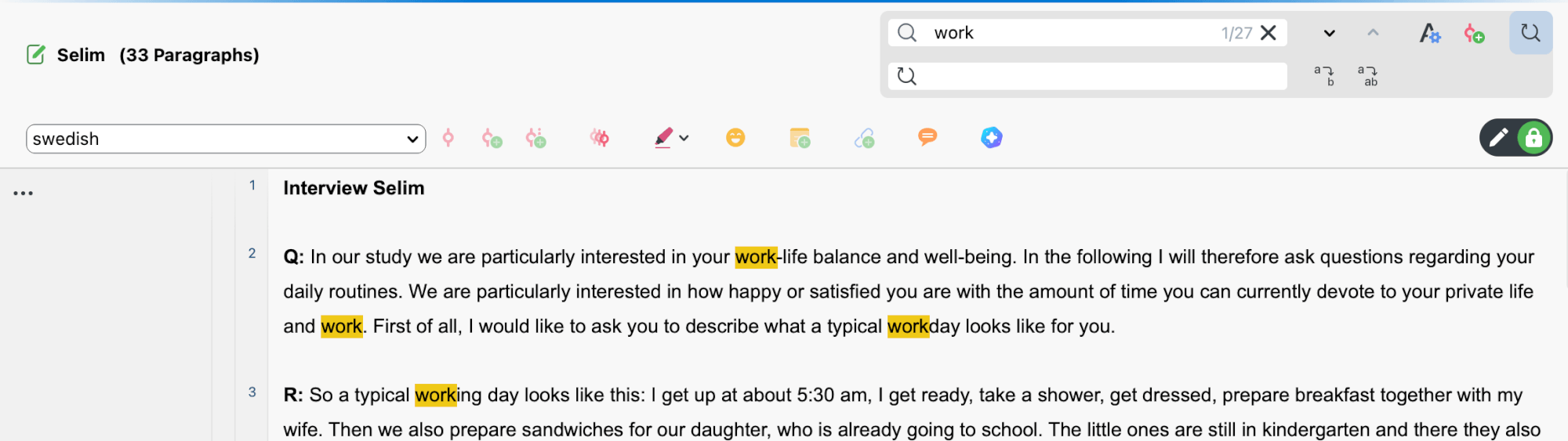
Search the current window
Enter a search term to see how many times it appears in the current window.
By default, MAXQDA searches for any occurrence of the search term, including matches within words (for example, "less" in "lessons"). Use the following options to navigate and refine the search results:

 Navigate search results – Move through the search results using the arrow icons next to the search field or the arrow keys on your keyboard.
 Search options – Open additional options to refine your search:
 Case Sensitivity – Finds only matches with the same uppercase and lowercase letters as your search term.
 Starting Letters – Finds only words that begin with your search term.
 Find Whole Words – Finds only complete words that match your search term.
Find and replace terms
Use Find and Replace in windows where text can be edited to standardize names, anonymize text, or make other changes:
- Replace document names in the documents window.
- Replace code names in the codes window.
- Replace text passages in the Document Browser.

To find and replace a term:
- Search for the term, then click the
 Find and Replace icon.
 - Enter the replacement text in the second search bar that appears.
- Click the Replace icon to replace the selected search result, or the Replace All icon to replace all search results at once.
 Find and Replace icon.
 Replace icon to replace the selected search result, or the
  Replace All icon to replace all search results at once.
Undoing replacements in the Document Browser
When you replace text in the Document Browser, MAXQDA switches to Edit Mode. You can undo replacements using the  Undo text changes icon in the Edit bar.
