
What is AI Report?
AI Report is an AI Assist feature that combines your project documents, a question, and optional instructions into a structured report with an abstract, main body, and interactive references to the original text. The report is saved as a new document in your project, ready for review and further analysis.
Generating reports for up to 50 documents requires AI Assist Premium. With AI Assist Free, you can select up to 2 documents. Learn more about AI Assist Premium.
Start AI Report
To start AI Report from the main menu:
- Select AI Assist >
 AI Report from the main menu.
 - The document selection window opens.
 AI Report from the main menu.
Document selection
Select the documents you want to include in the report. You can use the Activated Documents button to automatically select all currently activated documents or manually select individual documents or groups.
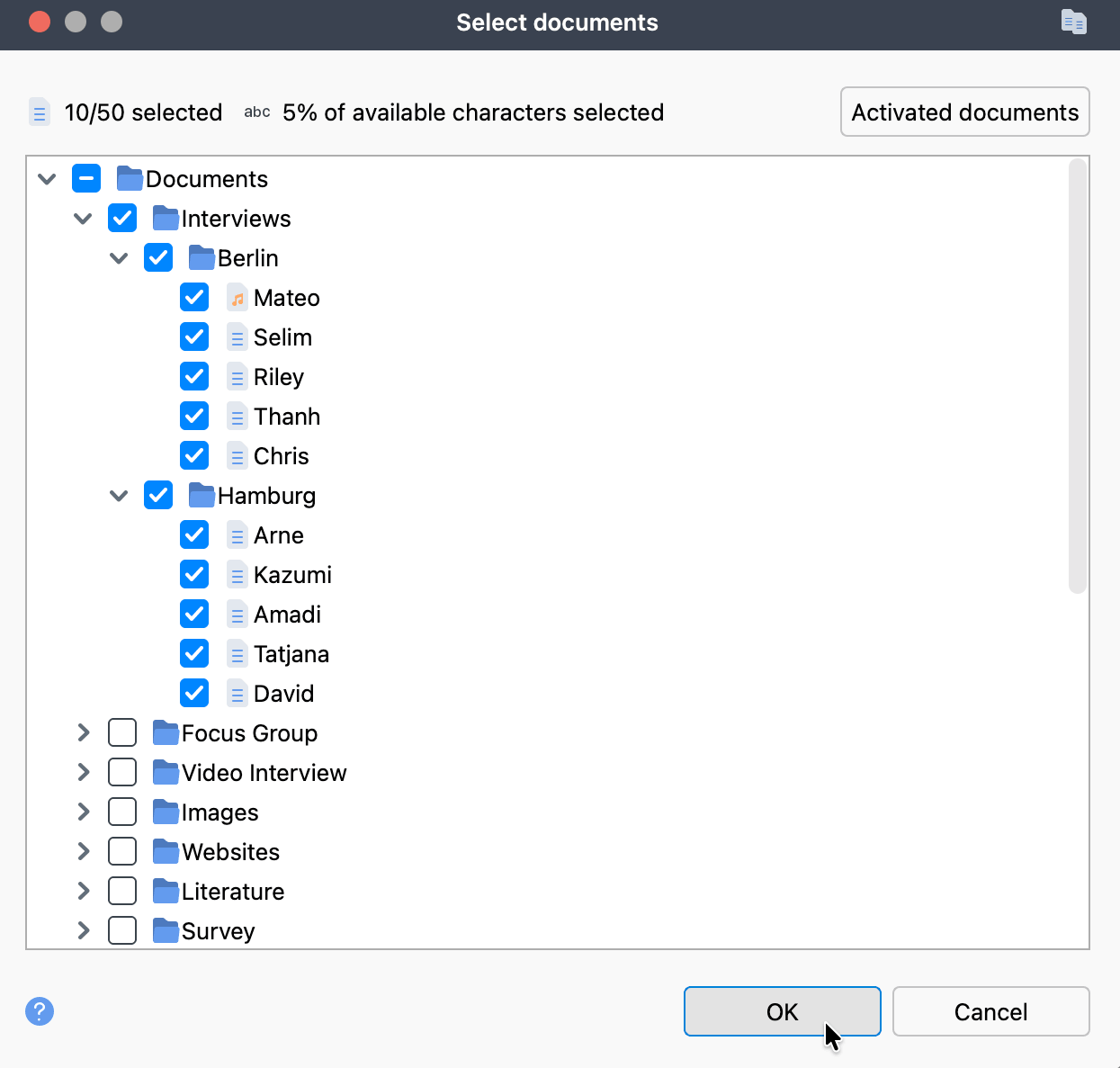
The window shows how many documents are selected and includes a character limit indicator showing how much of the total character limit your selection uses. If you exceed the limit, adjust your selection accordingly.
Click OK to confirm your selection and proceed to the report setup.
Other ways to start AI Report:
- In the "Document System", right-click a document or document group and select AI Assist > AI Report. If you right-click a document group, all documents in that group are automatically preselected.
- In the "Document Browser", click the AI Assist icon in the toolbar and select AI Report. The currently open document is preselected.
 AI Assist icon in the toolbar and select AI Report. The currently open document is preselected.
Setting up your report
1. Enter your question
Start by entering your question in the "Your Question" field. This question defines the focus of the report, so aim to be as clear and specific as possible. The field allows up to 300 characters.
Once you enter a question, the Generate Report button and the Additional Instructions field become available.
2. Refine your question (optional)
If you want help improving your question, click Suggest Alternatives. AI Assist generates three alternative versions, each with a short label, a revised question, and an explanation of how it differs from your original.
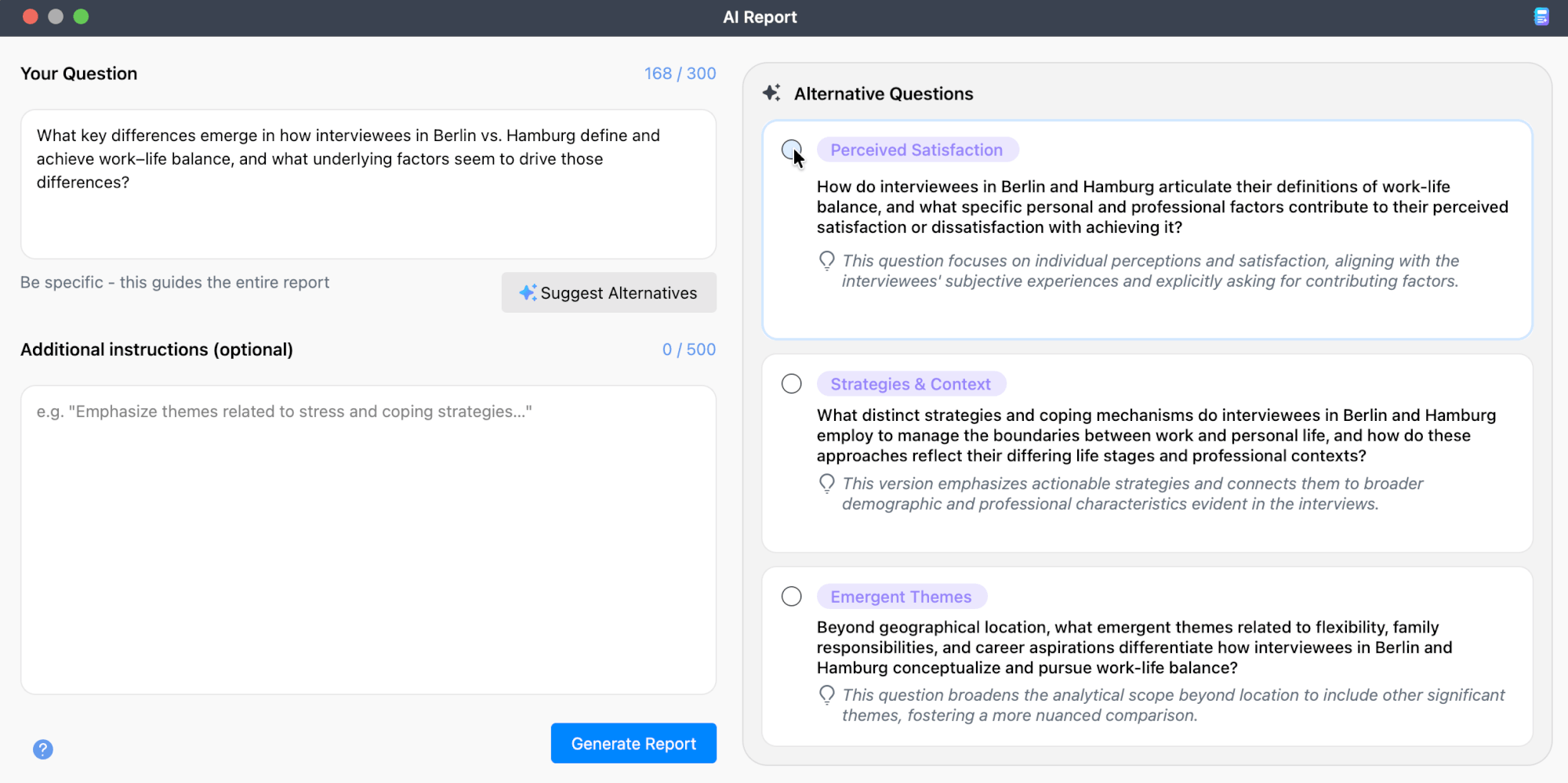
Click any alternative to use it. The selected version replaces the text in the "Your Question" field, and you can adjust the suggested alternative further if needed.
To return to your original version, click  Revert to Original. You can generate new alternatives at any time based on the current question.
3. Add additional instructions (optional)
The "Additional Instructions" field lets you provide extra guidance for the report. You can use up to 500 characters to highlight specific themes, define the scope, or influence the report’s structure and formatting.”
4. Generate the report
Click Generate Report to start the process. A progress bar shows the current status while the report is being created.
You can cancel the process at any time. If you do, no report is generated and you are returned to the setup screen.
Where the report is saved
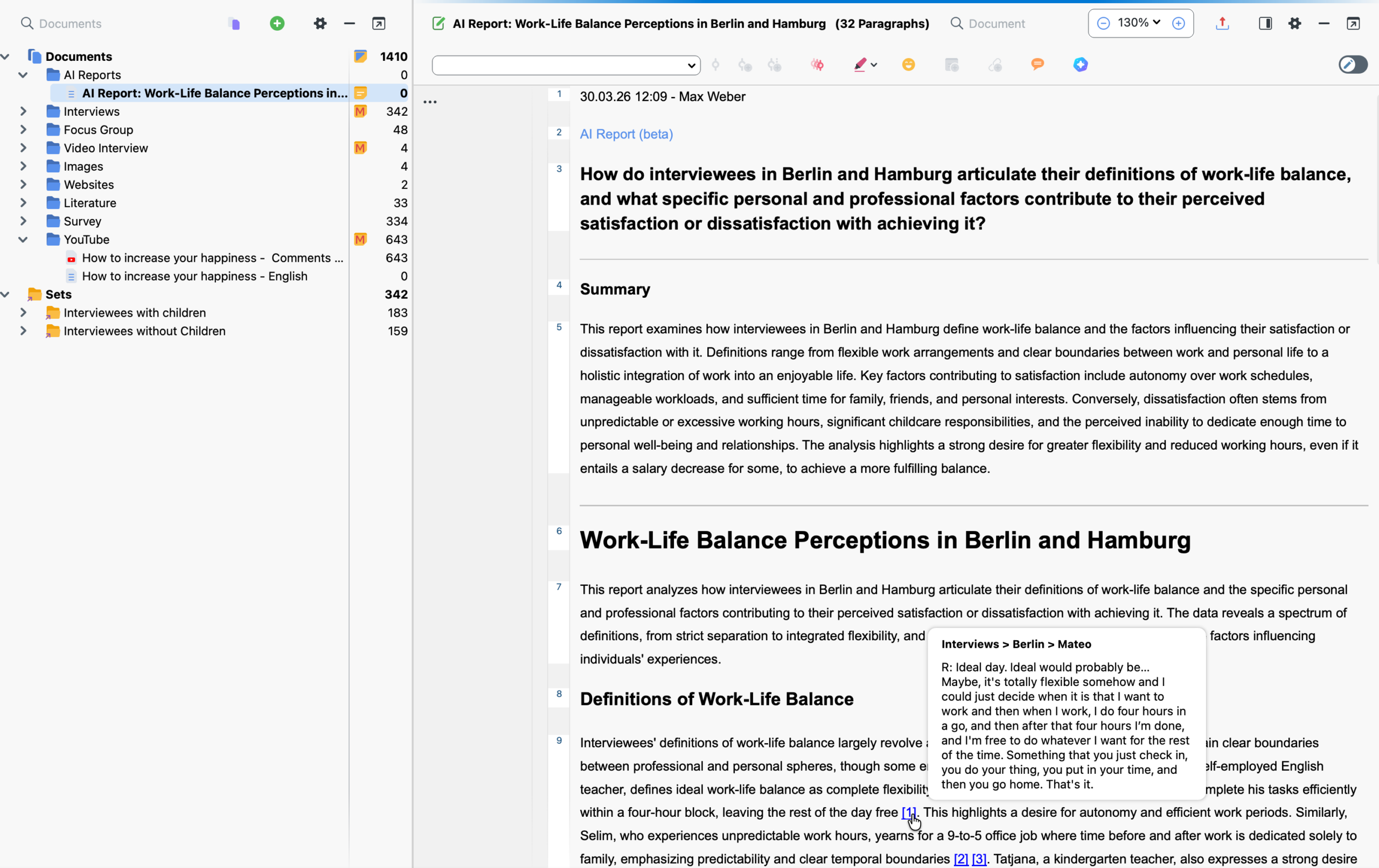
The generated report is saved as a new text document in your project. All AI reports are stored in a document group called "AI Reports," which MAXQDA creates automatically if it does not already exist.
The document is given a short, meaningful name generated by AI Assist. If multiple reports share the same name, MAXQDA adds a bracketed number to distinguish them, for example "Report Name (1)."
A document memo is automatically created for each report. The memo contains the creation date, the user name, a list of the selected documents, the question, and any additional instructions that were used.
Report structure
Each report follows a consistent structure:
- Date, time, and user — The creation timestamp and AI user name are displayed at the top of the report.
- Your question — The question you entered is shown in bold.
- Abstract — A brief summary of the report's main findings.
- Main content — The full report text, which typically includes a title, thematic sections, and analysis based on your selected documents.
References to source documents
The report contains interactive references next to relevant statements. These references link back to the source documents used during the report generation, allowing you to trace the report's findings back to your original data.
By default, clicking a reference replaces the report view in the "Document Browser" with the source document. To open source documents in separate tabs instead, go to the "Document System", click the  gear icon to open the local settings, check Open documents in tabs, and click OK. This way, you can easily switch between the report and its source documents.
Further considerations and usage guidelines
- Always consult the interactive references to validate the AI Assist's analysis and ensure it aligns with your data.
- Clear, specific questions yield the most focused analyses. If the AI suggests alternative questions, review them to refine your query.
- If you generate a report for the same documents with the same question more than once, you may notice slight differences in wording or phrasing, while the underlying content remains largely consistent.. This is expected behavior.
- If you analyze texts with critical content (violence, hate speech, bullying, etc.), AI Assist may refuse to generate the report.
- The time it takes to generate a report may vary depending on the size of the selected documents and the number of requests in the queue.
