
MAXQDA's Media Player serves as the dedicated space for in-depth video analysis. This page explains how to open and navigate it, code and display video clips, analyze coded video data, and export segments.
The Media Player
The Media Player is where you do detailed work with a video or audio file: coding clips, displaying coded segments, and exporting. Open it by right-clicking a media document in the documents window and selecting Open Video in Media Player or Open Audio in Media Player, or from the playbar at the bottom of the Document Browser.
The window is arranged in horizontal sections: the video display, a toolbar with playback controls and coding tools, a thumbnail row for quick navigation, the waveform and timeline, a timestamp row linking the video to a transcript, and a coding stripe area. For audio files, the video display and thumbnail row are not shown.
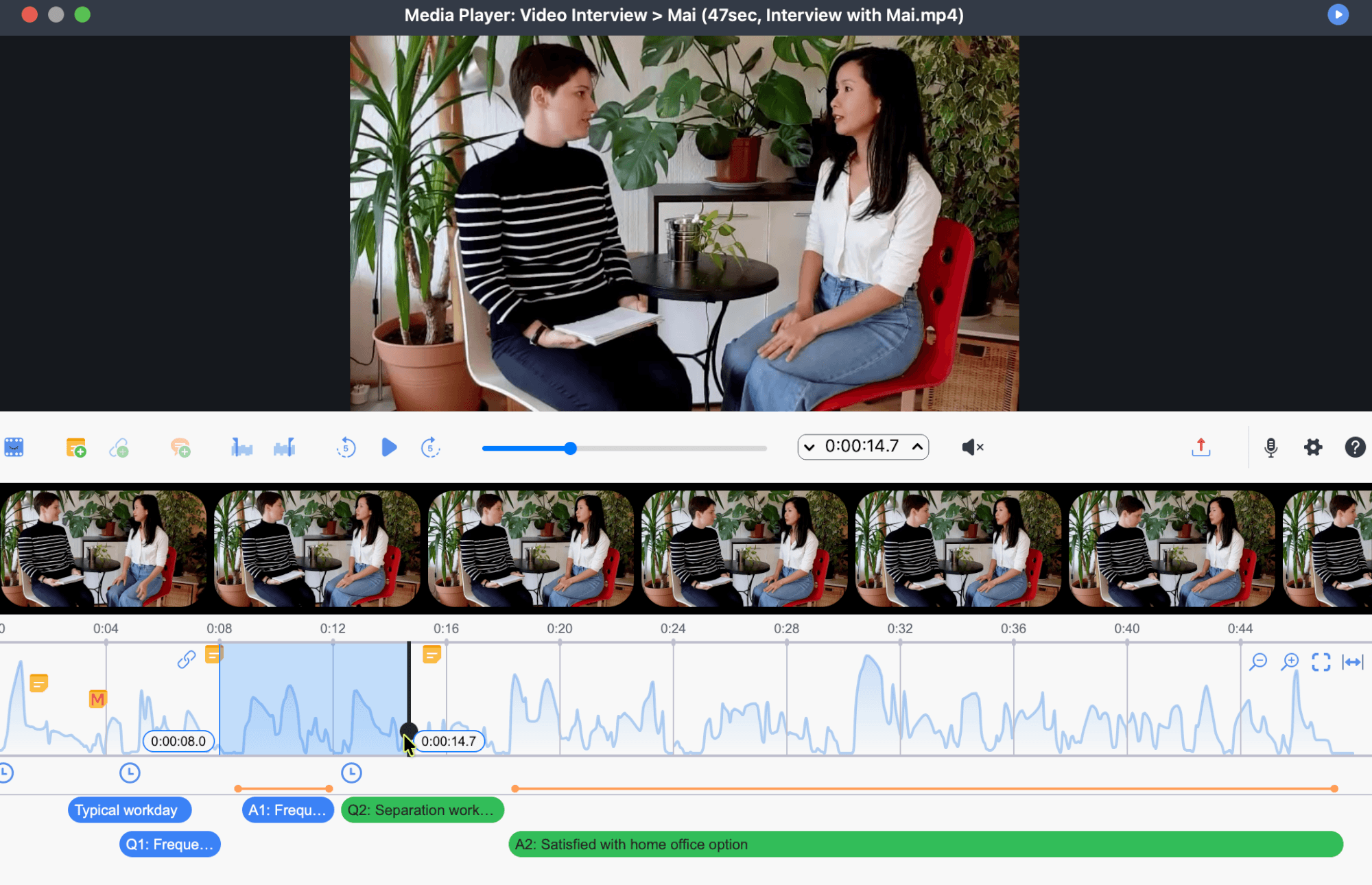
- Only one Media Player window can be open at a time.
- The playback position is preserved when switching between the playbar and the Media Player.
- Only one media file plays at a time; starting playback on another file stops the current one.
- Clicking a timestamp icon in the Document Browser plays the media in the playbar when the Media Player is closed, or in the Media Player when it is open.
Playing and Navigating Media
The toolbar provides playback controls for starting and stopping playback, skipping five seconds forward or backward, and jumping to any position using the slider. The current playback position and total media duration are shown alongside the slider. For video files, hovering over the slider previews the frame at that position above it; the playback position itself changes only when you click.
Hover over any toolbar icon to see its name and keyboard shortcut in the tooltip.
Additional toolbar controls:
- Volume: Use the volume control to adjust playback volume or mute the audio.
- Settings: All media settings, including playback speed and sync mode, are available from the settings menu. Settings are shared between the playbar and the Media Player.
- Thumbnail navigation: Enable the thumbnail row from the toolbar to navigate visually. Clicking a thumbnail jumps to that position in the video.
Coding Video Clips
To code a section of a video, you first select it as a clip in the waveform, then assign a code to it.
Selecting a clip
Hover over the waveform to reveal its zoom controls, and zoom in before selecting a clip. Zooming in makes it easier to navigate to specific frames and mark boundaries accurately.
Click and drag in the waveform to mark a segment. Once marked, you can fine-tune the boundaries by dragging the edges of the selected area, or by using the left and right arrow keys to move the playback position by one-tenth of a second; the clip boundary adjusts accordingly if the playback position aligns with it. MAXQDA shows the selection's start and end times so you can check the boundaries as you work.
For more precise control over the clip boundaries, use the clip start and end buttons in the toolbar:
- Play the video and pause at the point where you want the clip to begin.
- Click the
 Set clip start icon (F7). Fine-tune the position if needed.
 - Resume playback and pause at the end of the clip.
- Click the Set clip end icon (F8). Fine-tune if needed.
 Set clip start icon (F7). Fine-tune the position if needed.
 Set clip end icon (F8). Fine-tune if needed.
To play the selected clip, click  Play clip (F9). To remove the selection, click
  Remove clip (F10).
Selecting long passages
For passages that are too long to select by dragging, place the playback position at the start of the passage, scroll to the approximate end, then click the waveform while holding Ctrl (Windows) or Cmd (macOS). MAXQDA marks the entire area between the two positions.
Assigning a code
Once a clip is selected, assign a code using any of the following methods:
- Drag and drop: Drag a code from the codes window onto the selected clip in the waveform.
- Emoticode: Click an emoticode in the codes window to assign it to the selected clip.
- Context menu: Right-click the selected clip and choose Code with a New Code, Code with Activated Codes, or select an existing code from the menu.
Displaying Coded Video Segments
Coded segments appear as horizontal stripes in the Media Player. The waveform is colored in the code's color for the corresponding time range. Segments coded with an emoticode show the emoticode symbol on the stripe.
Working with coding stripes
- Select a segment: Click a coding stripe to select the corresponding clip in the waveform.
- Play a coded clip: Double-click a coding stripe.
- Adjust a segment: With the segment selected, drag the boundaries of the selection in the waveform to change its start and end time.
- Edit or delete a coding: Right-click a stripe to modify the weight, edit the comment, or delete the coding. Segments with a comment are marked with a small indicator on the stripe. If a segment in the waveform is currently highlighted, the menu also offers Recode with Highlighted Segments.
Display options
Right-click in the empty area of the coding stripe section (not on a stripe itself) to open the display options. You can filter which stripes are shown by user or code color, or choose to display only activated codes.
The Display code favorites at the top option is particularly useful when analyzing long media files. It reserves a dedicated row for each code marked as a favorite under Codes > Code Favorites, making it easy to track specific themes across the video timeline without them getting lost in the stack.
Analyzing Coded Video Segments
Coded video segments can be analyzed using the full range of MAXQDA analysis tools. The following tools are particularly useful when working with coded media data:
- Retrieved Segments: Coded video segments appear with a preview thumbnail of the first frame (or a waveform image for audio clips). Source information includes the start time of each clip; click it to play the segment in the Media Player.
- Codeline: Visualizes the chronological sequence of coded segments in a score-like view. When working with a linked video, select the Codeline for linked media file option to display codings along the video timeline rather than the transcript. See Codeline.
- Code Coverage: Calculates and compares the total time covered by coded video segments across documents or document groups. Select the Video option when opening the tool. See Code Coverage.
- Code Matrix Browser, Code Relations Browser, MAXMaps: Compare coding distribution across videos, detect co-occurrences, and create concept maps; all work with coded video data in the same way as with other document types.
Exporting Clips and Frames
Most export options sit behind the  export icon in the toolbar. For video files, hover over the icon to open its menu. For audio files, click the icon to directly open the export window.
Export a single clip
Right-click a clip in the waveform and choose Export Video Clip. This works whether the clip was selected manually or by clicking a coding stripe. In the export dialog, specify the output quality, resolution, and whether to include video, audio, or both. To add the clip to your MAXQDA project as a new document instead of saving it to your computer, choose Insert as New Document.
Export all clips for selected codes
For video files, hover over the export icon and choose Export coded video clips. Select the codes, specify the output quality, resolution, and whether to include video, audio, or both. You can also choose to add the exported clips as new documents in your project.
For audio files, click the export icon. Select the codes whose coded segments you want to export and the folder to export them to.
Capture a frame
For video files, the export icon's menu also offers Copy video image to clipboard and Save video image as a new document. Both capture the frame at the current playback position, either to paste elsewhere or to add to your project as an image document.
