
What YouTube data analysis options does MAXQDA offer?
YouTube videos are often commented on by viewers, and sometimes their comment sections even turn into forums for extensive debates, for instance in the case of videos on political topics. These comments can be very interesting to researchers working in diverse disciplines in the social sciences, as well as in market or opinion research.
MAXQDA allows you to import comments posted on a YouTube video into an open MAXQDA project and have them coded automatically. Additionally, you can import any transcripts or subtitles provided with the videos, which means you don't have to transcribe them manually.
You can analyze the imported data using MAXQDA's wide range of tools, including thematic coding, word frequency analysis, and visualization tools. These tools allow you to answer questions including, but not limited to, the following:
- What is the content of the comments posted on the selected videos?
- Which words are used most frequently in these comments?
- How have viewers rated the selected video?
- Which comments are replied to most frequently and which not at all?
- How do users communicate with each other?
- What is said in a video or in certain scenes?
Importing YouTube data
To import YouTube data into your MAXQDA project, first open the YouTube video in your browser (e.g., in Chrome, Firefox, or Safari) and copy the complete link from the URL bar to the clipboard. Links to YouTube Shorts work the same way.
Go to Import > YouTube Data in MAXQDA.
You will then see the following dialog box. If you have saved a link for a YouTube video to the clipboard, MAXQDA automatically enters it in the first field and retrieves the corresponding video information. If you already have the dialog box open, you can paste a link from the clipboard into the field at any time and then click the button Retrieve video information.
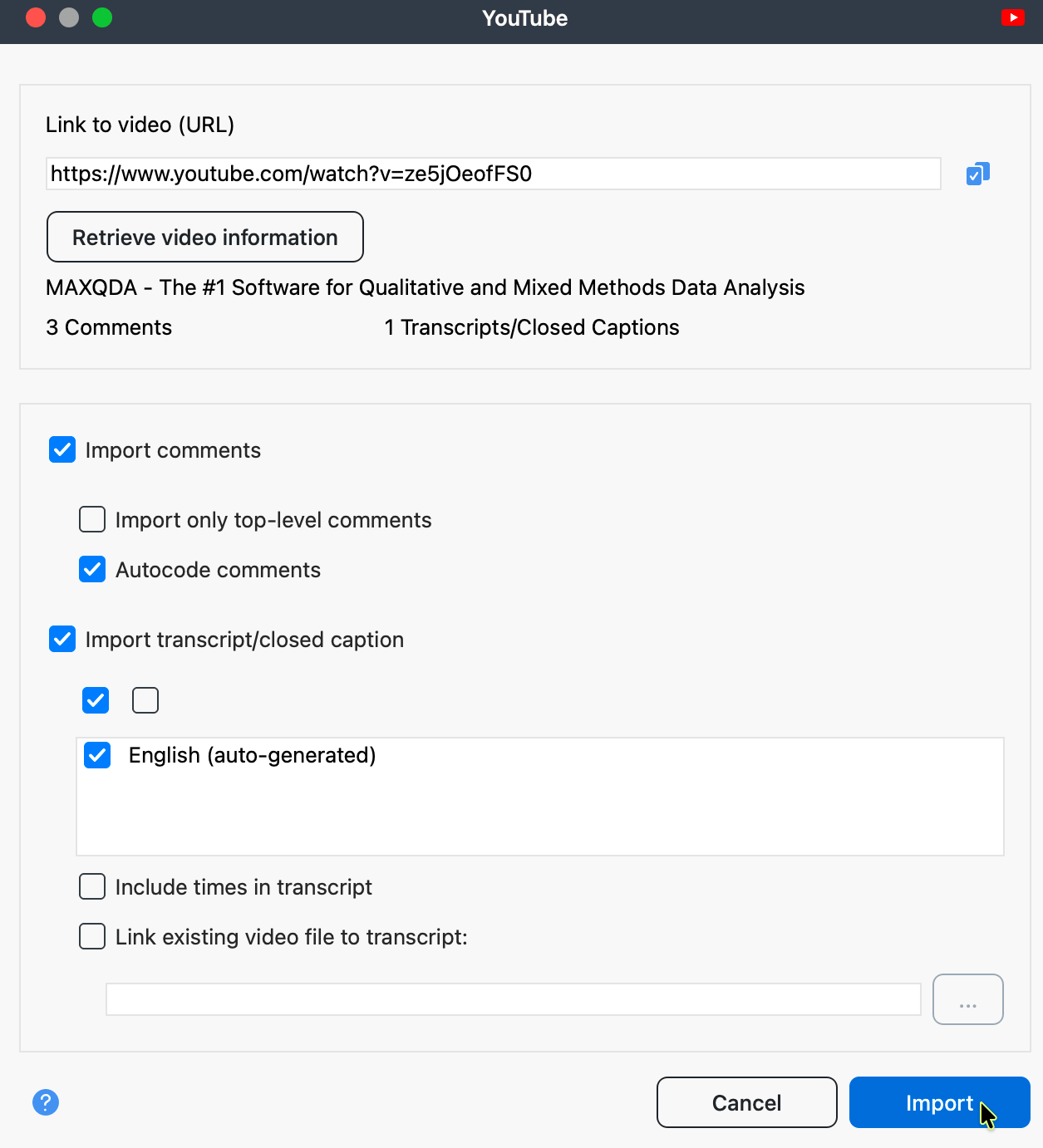
In the upper area of the dialog box, MAXQDA displays how many comments and how many transcripts or subtitles are available to download for the video.
YouTube does not allow you to download transcripts/subtitles for all videos, even if subtitles are displayed on the video's YouTube page.
In the lower area of the dialog box, select whether you want to import the comments and transcript or just one of the two. The following options are available for importing comments:
Import only top-level comments: If you choose this option, the replies to comments are ignored.
Autocode comments: If you select this option, each comment is automatically coded with a code. The code indicates how many replies the comment received. Leave this option activated so that you can easily find the comment texts later.
To import the transcripts, you can select or deselect all the available languages listed in the dialog box. The following options are also available:
Include times in transcript: If you select this option, the corresponding times from the video are added at the beginning of each line of the transcript. This is useful if you do not also want to link the video file. If you do link it, the times are displayed as MAXQDA timestamps at the beginning of each line instead.
Link existing video file to transcript: If you have downloaded the YouTube video, you can link it directly to the transcript. To do this, select this option and choose the video file by clicking the three dots.
You can also link a video file to its transcript later: MAXQDA saves the corresponding times during import and displays them as timestamps. To do so, right-click the text document of a transcript in the documents window and select Link Audio/Video File.
Imported comments in MAXQDA
What happens when you import comments from YouTube?
- Comments are compiled in table documents of 1,000 comments each in the list of documents. These table documents are labeled with a YouTube icon.
- These table documents are stored in a document group whose name contains the video title and the import time. The corresponding document group memo contains more information about the video, such as the publication date and the number of likes.
- A new code named "Autocode <Video Name and Import Time>" is added to your list of codes.
- This code contains the subcode "Comment at top level with...", which in turn contains one subcode for each different number of replies a comment received. Each comment is coded with the subcode that matches its number of replies.
- The second subcode is the code "Reply to comment". All replies are coded with this code.
To later display all the comments at the top level in the Retrieved Segments window to aid your analysis, you can do the following:
- Activate all the documents containing the comments of one (or more) videos.
- Activate the code "Comment at top level with..." including all subcodes.
The table document with the imported YouTube comments contains the following columns:
- Nr.: Consecutive numbering, where the answers to a comment are numbered starting at 1 for easy identification:
- 0001 = oldest comment
- 0001-01 = first reply to oldest comment
- 0002 = second-oldest comment
- 0002-35 = 35th reply to second-oldest comment
- Comment: The comment text
- Author: Name of the comment author
- Author URL: Link to the author's profile
- Top level: Indicates whether the comment is a top-level comment (that is, not a reply). The cell will either contain the word "yes" or <empty>.
- Replies: Number of responses to a top-level comment. Always 0 if it is not a top-level comment, that is, if it is a reply.
- Likes: Number of likes given to the comment
- Published: Date the comment was posted
- Updated: Date the comment was updated, if applicable
The YouTube comments import function is limited to the 10,000 most recent comments per video.
Imported YouTube transcripts
The transcript text is displayed in the Document Browser. In the example, a video file has been assigned to the transcript, so timestamps appear in the column next to the paragraphs. Clicking on a timestamp plays the video at the corresponding position.
