
Autocoding assigns one code to all text passages found by a text search. Before you autocode, you can review the search results and exclude the ones you do not want coded. You also decide how much text to code for each search result: only the search item, the whole sentence, or the whole paragraph.
Run a text search
- On the Analysis menu, click Text Search & Autocode > Text Search & Autocode.
- Enter your search items and start the search.
The search results open in a separate window, where you can review them before autocoding.
Review the search results
All search results in the list are autocoded unless you exclude them. To exclude a search result, click in its first column. The  block icon shows that the search result will not be coded. Click again to include it.
To exclude several search results at once, select their rows and click Autocode/Export: ignore search result in the toolbar:
- To select a range of rows, click the first row, then hold Shift and click the last one.
- To select rows that are not next to each other, hold Ctrl (Windows) / Cmd (macOS) and click each row.
If your search combines several search items with AND, autocoding uses the detailed list of search results.
Autocode the search results
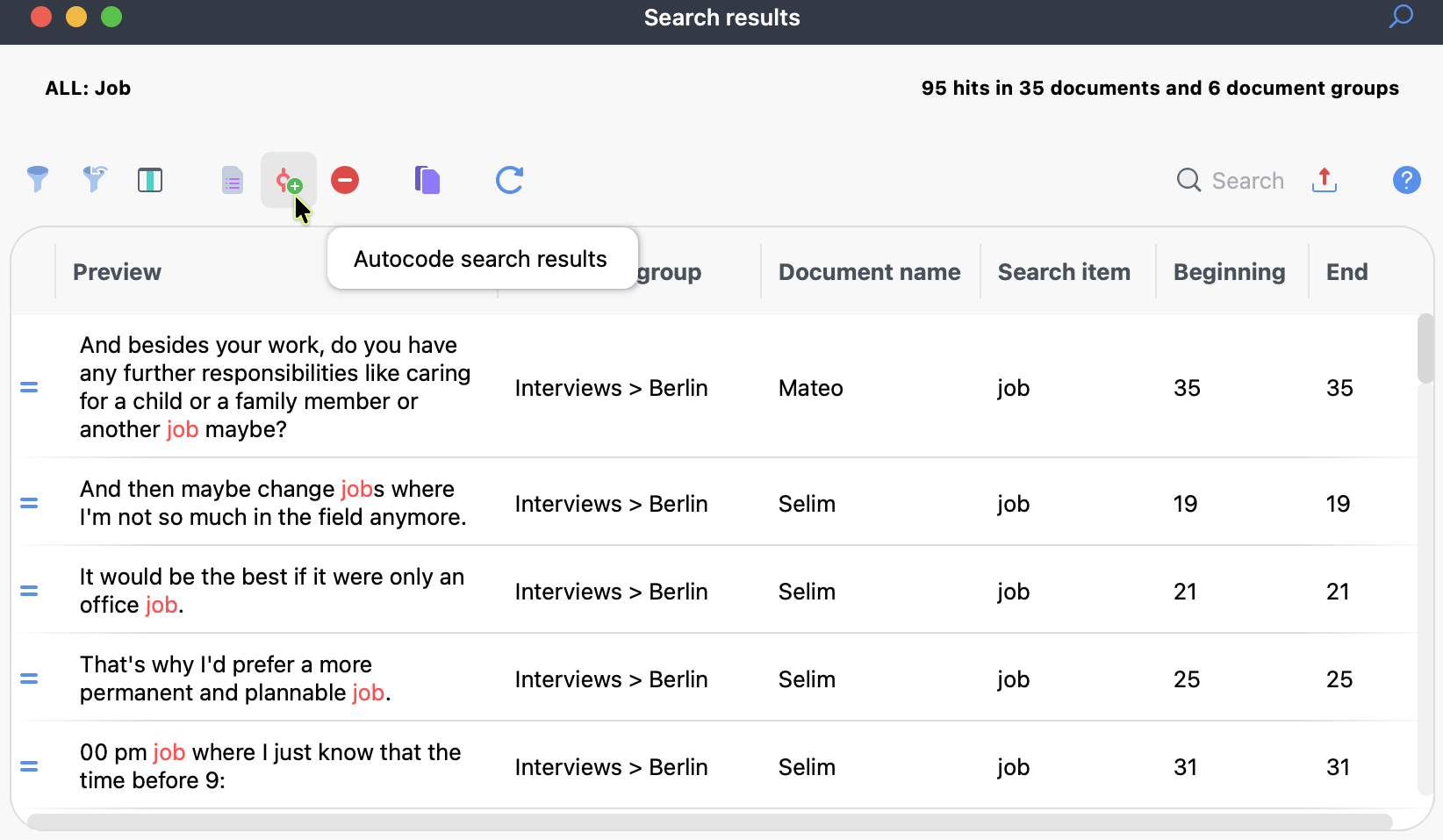
- In the toolbar of the search results window, click
 Autocode search results. A dialog opens where you set up the autocoding.
 - Choose the code:
- To create a new code, keep the suggested name, which starts with "Autocode" and contains your search items, or enter your own. You can also choose a color.
- To use an existing code, start typing its name and click it in the list of matching codes.
- Check the code memo. MAXQDA adds the date and the search settings. For a new code, this becomes the code memo. For an existing code, it is added to the existing memo. You can edit the text before you continue.
- If you work with weights, set the weight for the coded segments.
- Choose how much text to code for each search result:
- Only search item codes the search item itself. Use Words before and Words after to include surrounding words.
- Sentence codes the whole sentence that contains the search item. To learn how MAXQDA recognizes sentences, see the Extended Text Search page. In PDF documents, this option can give unexpected results because of how text layers are handled.
- Paragraph codes the whole paragraph that contains the search item. If the search item appears several times in one paragraph, the paragraph is coded only once.
- Click OK.
 Autocode search results. A dialog opens where you set up the autocoding.
After autocoding
A new code is added at the top of your list of codes. An existing code stays where it is.
Passages that are already coded with the selected code are skipped, even if they contain the search item, so no passage is coded twice with the same code.
