
The word “Code System” at the top of the list represents the root of your system of codes (or hierarchical "Code Tree"). You can gradually build up a system of categories from this point.
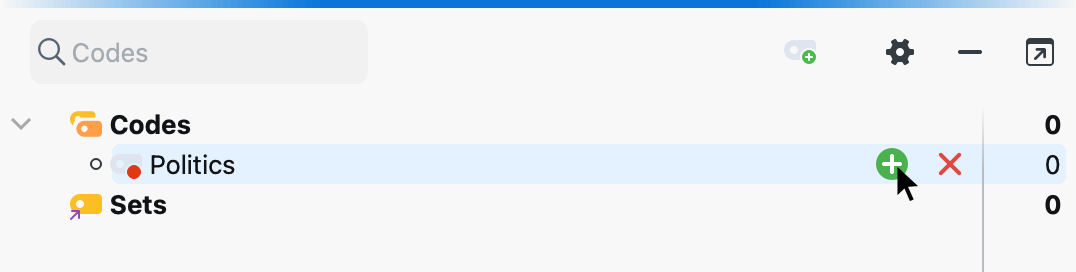
In order to add a new code to the code system, click on the green plus sign that appears when you move the mouse over a line of the code system:
The following dialog box for code definition will appear:
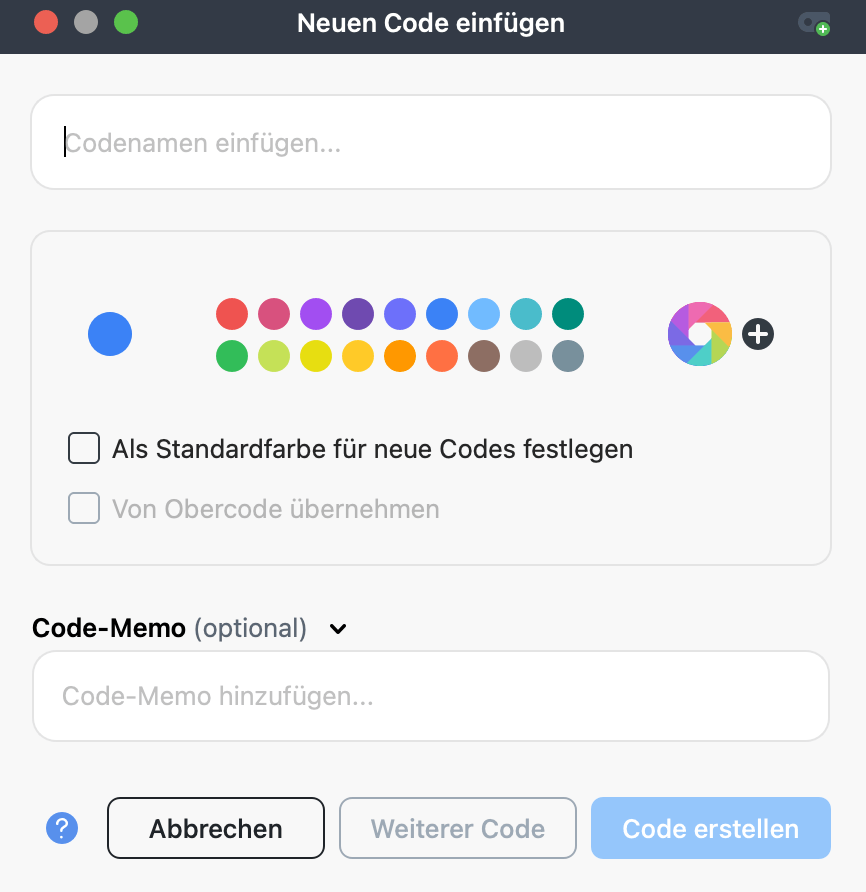
Type the name of the new code into the text field in the upper part of the window (MAXQDA allows a length of 127 characters for a code name).
You can select a color attribute for the new code below. If you select the option Use as default color for new codes, all newly created codes in the project will use this chosen color. Of course, you can change this default color each time you create a new code using this dialog. If a check mark is placed in the option Use color of parent code when defining subcodes, the color of the upper code is assigned to this newly defined subcode.
In the text field Code memo, you can add an explanation or description to the new code. After closing the dialog, you can recognize the symbol for a code memo next to the newly defined code.
In the text field Comment on the coded segment (optional, up to 511 characters, about four short sentences), you can add a comment that is directly assigned to the coded segment.
Click Create Code to create the new code and close the window. If you click Additional Code instead, the code is saved and the same dialog reopens empty, ready for you to define the next code at the top level.
To create a code, you can also right-click a code and select New Code from the context menu. Or you can create a new code using the Alt+N (Windows) or ⌘+⌥+N keyboard shortcut (macOS) or the New code ion in the toolbar. Note, however, that the focus highlight in the code system must be on the item for which you want to create a subcode.
Add new subcodes at the bottom
By default, newly created codes are inserted at the top of the code tree at every level of the hierarchy. To add new subcodes below existing ones, click the gear icon in the Codes window toolbar and select Insert new subcodes at the bottom. Save your changes before closing the window for the setting to take effect.
