
AI Assist supports the development of subcodes by analyzing the text segments assigned to a code and proposing a set of suggested subcodes. These suggestions are presented in an interactive selection dialog, allowing you to review and selectively add them to your Code System. Explanatory notes for each subcode are stored automatically as code memos.
You can evaluate these suggestions based on your research questions and objectives. Additionally, you can run the function multiple times for the same segments to generate different suggestions.
Starting the subcode suggestion process
- From the AI Assist main menu

- From the main menu, select AI Assist > Suggest Subcodes, as shown above.
- In the dialog that opens, drag a code from the Code System into the corresponding field.
- Adjust the analysis settings as needed, for example by selecting a language or adding additional instructions.
- Enable Only activated documents to restrict the analysis to coded segments from currently activated documents.
- From the Code System
As an alternative, you can open the same dialog directly from the Code System: right-click a code and select AI Assist > Suggest Subcodes. The remaining steps and options are identical.

Regardless of where you start the function, clicking OK triggers an analysis of the coded segments and opens an interactive selection dialog with suggested subcodes for review.
About the suggested subcodes
- The name of the parent code is taken into account when generating subcode suggestions.
- All subcodes suggested are created at the same hierarchical level; sub-subcodes are not generated.
Reviewing subcode suggestions
The interactive selection dialog displays each subcode suggestion as a selectable element in the "Available Suggestions" panel, as shown in the image below.
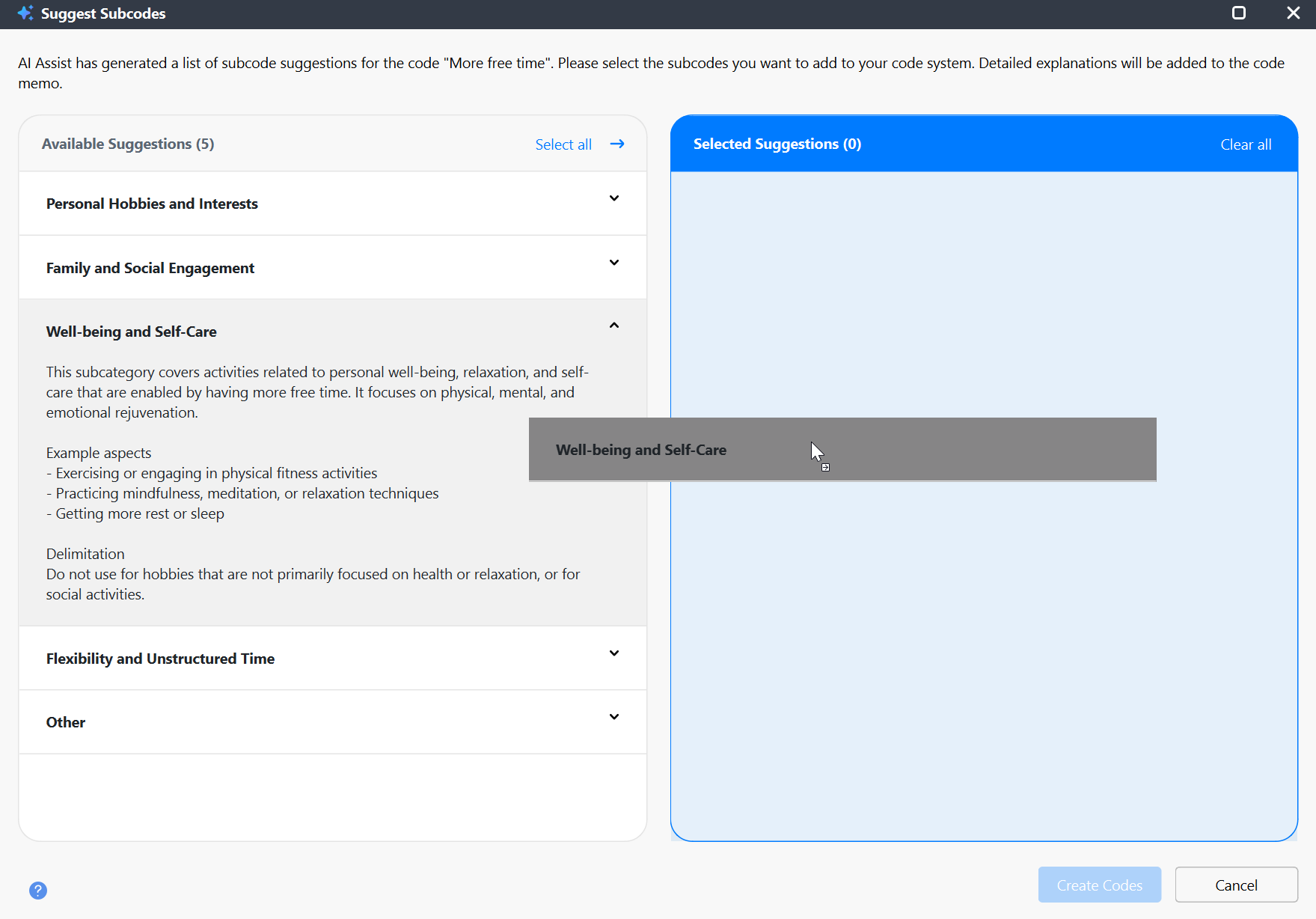
You can expand individual suggestions to view detailed explanations, including a description, example aspects, and delimitation criteria. Only one suggestion can be expanded at a time to keep the interface clear and focused.
Selecting and creating subcodes
After reviewing the suggestions, select the subcodes you want to create in your Code System:
- Drag suggestions from "Available Suggestions" to "Selected to Create," or
- Use Select All to add all suggestions at once.
By default, no suggestions are pre-selected, encouraging you to evaluate each proposal before adding it to your project.
You can change the order of selected subcodes by dragging them within the "Selected to Create" panel. The order shown here determines how the subcodes will appear in your Code System.
Creating the subcodes
After selecting one or more suggestions, click Create Codes to create the corresponding subcodes under the parent code, in the order shown.
- If a subcode with the same name already exists, MAXQDA adds "(n)" to the new name.
- Each new subcode receives a code memo containing AI Assist’s explanation, along with a timestamp and your account name.
Alternative ways to access this function in MAXQDA
The AI Assist > Suggest Subcodes function is also available in other areas of MAXQDA where codes are displayed, including the following:
- In the Segment Matrix, start the function by right-clicking on a displayed segment.
- In the Smart Coding Tool, you can start the function by right-clicking on a code in the code tree. In this case, all coded segments, optionally only from activated documents, are considered for the suggestions. In the main ribbon bar of the Smart Coding Tool, AI Assist > Suggest Subcodes Based on Listed Text Segments is also available. This function considers only the currently listed segments.
- AI Assist delivers strong results across many use cases. Nevertheless, it is important that you check the results.
- If you analyze texts with critical content (violence, hate speech, bullying, etc.), suggestions may not be created.