Patient interviews, confidential company data, conversations with vulnerable groups: some qualitative data you would rather keep on your own computer. That is exactly what local AI models in MAXQDA are for. They let you use our AI features of AI Assist with a language model that runs on your own computer or on a server inside your organization. Your data stays with you, within your network, at all times. And you keep working with the AI Assist features you already know, right in your MAXQDA project.
In this post, you will learn why local AI models are worth considering for your research. We also show you how to set up AI Assist with a local model and how to find the right model for your computer.
Why Local AI Models Make Sense for Your Research
Some research data should never leave your computer or your institution. Some institutions do not allow cloud-based tools at all. For these cases, MAXQDA lets you connect AI Assist to a local AI model. You get all the features of AI Assist without sending your data to the cloud.
Here is what local AI models offer:
- Full control over your data: MAXQDA sends your AI Assist requests to the local model. The data you work with stays on your computer or within your organization’s network.
- The workflow you know: You use AI Assist exactly as before. You open features from the same menus, and the results appear in the same places. This applies to AI Chat, AI Summaries and AI Coding.
- No daily limit: Requests to your local model do not count toward your daily AI Assist limit.
- Your choice of model: You decide which language model AI Assist uses, and you can switch at any time. MAXQDA works with any model server that is compatible with the OpenAI API.
- Switch between local and cloud: For demanding tasks, you can switch back to cloud-based AI Assist whenever you like.
- Central deployment: Your organization can set up and manage local AI models for all users. In that case, there is nothing for you to configure.
What to Expect
Local models give you more control. They do not match the performance of the cloud. Results are usually less accurate than with cloud-based AI Assist, and responses take a bit longer. That is because the cloud models are far larger and more powerful, and AI Assist is tuned specifically for them.
How well a local model performs therefore depends heavily on the model you choose and on your hardware. This also applies to language: which languages you can work in is determined by the model, not by MAXQDA. And as always with AI Assist, the AI makes suggestions. The analytical decisions are yours.
What You Need to Use Local AI Models in MAXQDA
The requirements are simple. You need two things:
- AI Assist Premium: Local AI models are part of this add-on. If you use AI Assist Free, you can upgrade directly in the Local AI Models section of the settings.
- A model server: It runs the language model and makes it available to MAXQDA. Free apps such as Jan, LM Studio or Ollama work well on your own computer. Alternatively, your organization can provide a server.
Tip: If your organization has already set up local AI models centrally, you will see the server and model in the Local AI Models section. The feature is active, and you can get started right away.
Set It Up in a Few Steps
Want to run the model on your own computer? First, install an app such as Jan. Download a language model there and start the local API server. Then connect MAXQDA to the model:
- Go to Settings > Local AI Models.
- Under Server Address, enter the address from your app or from your IT team. If it ends in “/v1”, leave that part out.
- If your server requires one, enter an API key. Otherwise, leave the field empty.
- Click Test and Find Models. When the status shows “Server available”, select a language model under Model.
- Under Response Timeout, set how long MAXQDA waits for a response. The default is 3 minutes.
- Click Switch to Self-Hosted AI Assist.
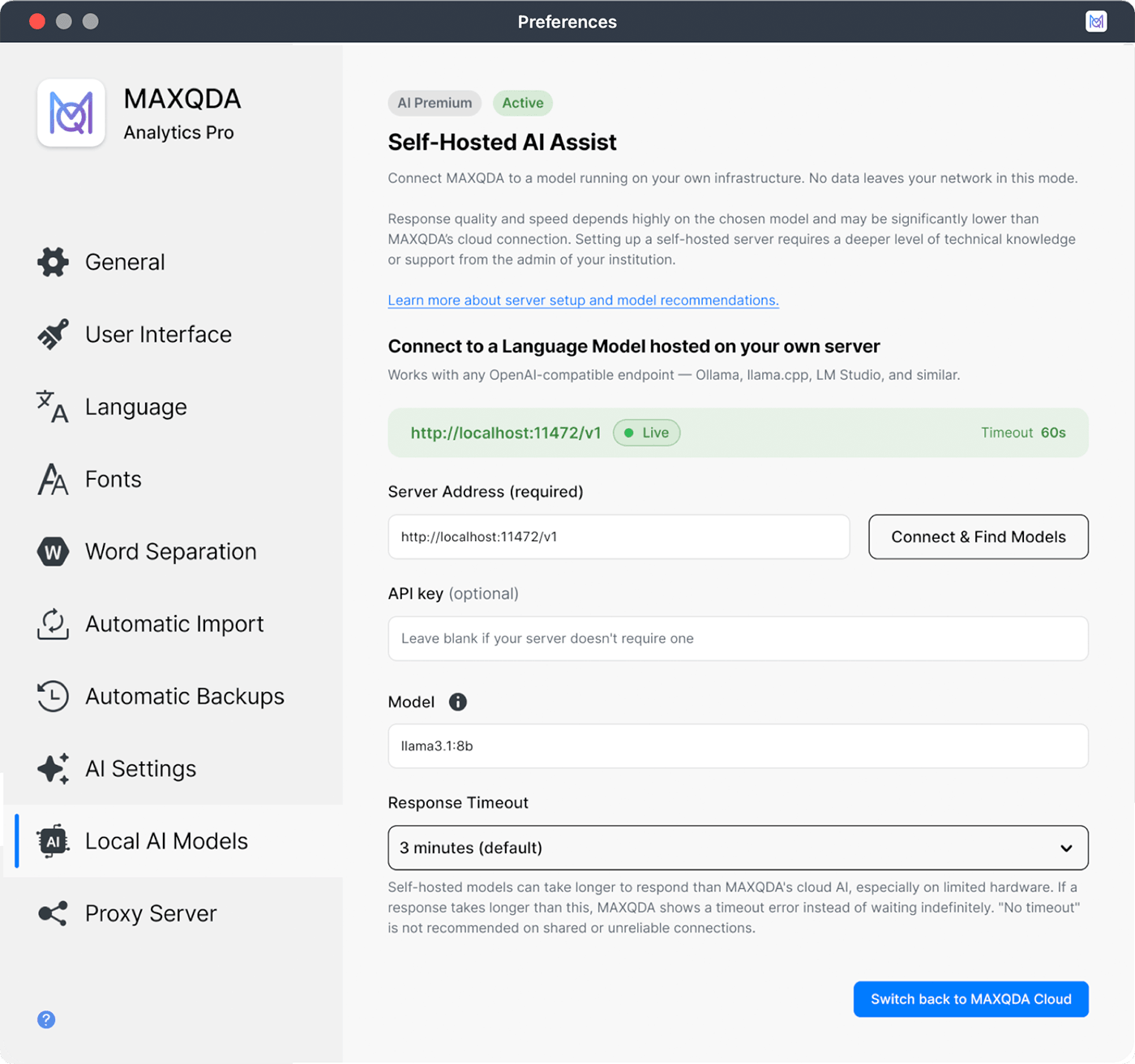
From now on, all AI Assist requests go to your local model. The first time you use it, you confirm that MAXQDA may send your data to the configured AI connection. Keep the server app running while you work. Otherwise, AI Assist cannot respond.
Tip: If your model often does not respond in time, increase the timeout or choose a smaller, faster model. You will find step-by-step instructions in the manual under Requirements and Setup.
How to Find the Right Local Model
Your choice of model determines how well and how fast AI Assist works locally. The right choice comes down to two questions: What can your computer handle, and which AI Assist features do you use most?
Which Features Need Which Model
Not every feature places the same demands on a model:
| Demand | Features | What the model needs to do |
|---|---|---|
| Low | Translate This | Works well with almost any model |
| Medium | AI Chat, AI Summaries | Follow instructions reliably |
| High | AI Coding | Apply your code definitions consistently. This is where your most capable model pays off |
Also note that a local server usually processes requests one after another. If you code ten documents with AI Coding, it can take about ten times as long as coding a single document.
Memory Is the Key Constraint
The model has to fit into your computer’s RAM or your graphics card’s memory, with room to spare. As a rule of thumb, keep about 20% free. Good to know:
- Model size: Size is given in parameters, for example 7B (7 billion) or 30B. Larger models usually deliver better results but need more memory.
- Quantization: Compressed versions are labeled Q2 to Q8. Choose Q4 or higher. Q4 and Q5 are a good balance for most computers. A 30B model at Q4 usually outperforms a 15B model at Q8.
- Hardware: A graphics card with plenty of dedicated memory (around 12 GB or more) speeds up responses. Macs with Apple silicon share their memory between processor and graphics, so they can often run larger models. Without a suitable graphics card, smaller models (around 7B to 9B) are the better fit, and you can expect longer wait times.
Tip: For AI Assist, choose a model without reasoning, or set reasoning to a low level. “Thinking” models add a lot of waiting time when you summarize, translate or chat.
Your Checklist for Choosing a Model
- Check how much memory your computer has and keep about 20% in reserve.
- Choose the largest current model that fits at Q4 or higher. Jan and LM Studio suggest suitable models for your hardware.
- Compare models in independent benchmarks such as Artificial Analysis. A recent small model can outperform an older large one.
- Test the model with a simple feature such as Explain This first, then with the features you use most.
- If results are too slow or not good enough, try a different model or quantization.
For more details, see Choosing a Model in our online manual.
AI Support Without Compromising Data Protection
Local AI models let you protect sensitive data and still get AI support. You always decide where your data is processed, and you keep working with the familiar AI Assist features right in MAXQDA. For especially demanding tasks, you can switch back to the cloud in one click. That way, you can always pick the model that fits your needs.